What Is Document Collaboration? Definition and Examples (2026) | The Collaborative Organization
By The Collaborative Organization Team · November 19, 2026 · Last verified November 19, 2026 · 10 min read
Document collaboration is several people working on the same document together, usually one live copy stored in the cloud. Edits, comments and version history are shared by everyone. Instead of emailing copies back and forth, the team opens one file, types in it at the same time, and always sees the latest version.
Key takeaways
- Document collaboration means several people working on one live document, not emailing copies.
- Its four parts are live editing, comments, version history and permissions.
- Google Docs lets up to 100 people work on one file at the same time.
- Word co-authoring needs the file in OneDrive or SharePoint in .docx format.
- Suggesting mode and Track Changes let reviewers propose edits without changing the text.
- Google Docs is free, Notion Plus costs $10 per member per month, and Confluence Standard costs $7.15 per user per month.
What document collaboration means
Document collaboration means a group writes, reviews and approves one document together, in one place, instead of passing versions between inboxes. The word “collaboration” does a lot of work here: it is not just sharing a file, and it is not just editing at the same time. It covers the whole job of making a document as a team.
The old way shows why the new way matters. One person writes a draft, emails it to three reviewers, and each reviewer edits a copy and sends it back.
The author then merges three versions by hand, guesses which edit is latest, and sends the merged file round again. Every round adds a version, and nobody knows which file is current.
The collaborative way keeps one live copy. The author shares a link, each reviewer opens the same file, and every change lands in that one copy.
Comments sit beside the text they refer to, suggestions wait for approval, and version history records who changed what and when. Our guide on what team collaboration is explains the wider teamwork habits that make this work.
The four parts of document collaboration
Live editing, comments, version history and permissions are the four parts that turn a shared file into real collaboration. A tool can offer one part without the others, but the full set is what teams mean by document collaboration.
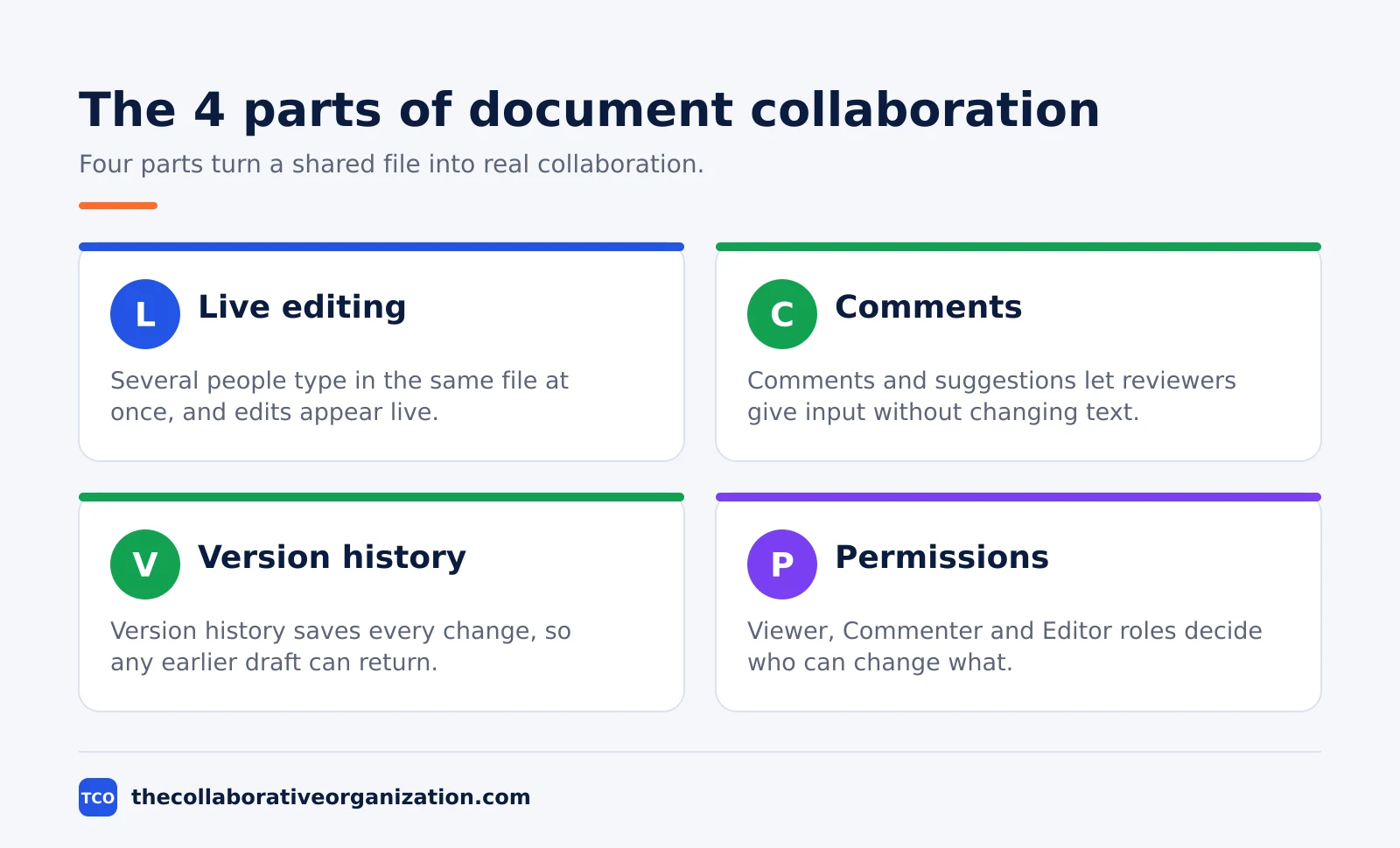
| Part | What it does | Why it matters |
|---|---|---|
| Live editing | Several people type in the same file at once | No merging of copies, no waiting for a turn |
| Comments | Notes sit beside the text they refer to | Feedback stays in context, not in email |
| Version history | Every change is saved and can be restored | A bad edit can be undone in seconds |
| Permissions | Viewer, Commenter and Editor roles | Each person sees and changes only what they should |
Live editing is the part people notice first. In Google Docs, each person has a colour-coded cursor, so the team can see who is working where. In Word, the paragraph a person is working in locks, so nobody overwrites it. Both tools show changes as they are typed, with no save button to press.
Comments and suggestions are the review layer. A Commenter can leave feedback without changing the body text, and an Editor can switch to Suggesting mode so edits appear as proposals the owner accepts or rejects. Track Changes in Word does the same job, logging every edit, deletion and formatting change for review.
How real-time co-authoring works
Real-time co-authoring works by keeping one copy of the document on a server and sending every keystroke to everyone who has the file open. When you type, your edit travels to the server, the server orders it against edits from other people, and the result appears on every screen within moments.
Google Docs uses a method called operational transformation to order those edits. Each change becomes an operation, the server transforms concurrent operations against each other, and every copy converges on the same text.
Other tools use a related method called CRDTs, which lets copies merge without a central server. The details differ, but the promise is the same: no two people can silently overwrite each other.
The limits are practical, not technical. Google says up to 100 people with view, edit or comment permission can work on a Docs, Sheets or Slides file at the same time.
Past that point, only the owner and some editors can edit. In practice, most documents have 2 to 5 people editing at once, and the real limit is human: too many cursors in one paragraph make the text jump around. The communication vs collaboration tools guide explains where live editing fits among team tools.
Document collaboration vs file sharing vs version control
File sharing gives people a copy, version control tracks changes over time, and document collaboration lets people work in the same live file. The three ideas overlap, but they solve different problems.
File sharing is the simplest: put a file in a shared folder or send a link, and anyone with access can open it. The problem is that each person can download a copy, edit it offline, and send it back as a new version. Sharing alone does not stop version chaos.
Version control, as used by software teams, tracks snapshots of a file over time and lets people compare, merge or revert them. It is built for code, where changes branch and merge. Document tools borrow the idea as version history, but they do not branch: everyone works on one live copy.
Document collaboration combines the two. The file lives in the cloud, everyone opens the same copy, and version history records each change automatically.
Real-time editing keeps merge conflicts small by working on one live copy, but it cannot resolve a deeper clash: two authors writing opposite statements in the same paragraph. That still needs a human to decide. Our guide on how to collaborate with clients shows the same split for shared client documents.
Tools for document collaboration
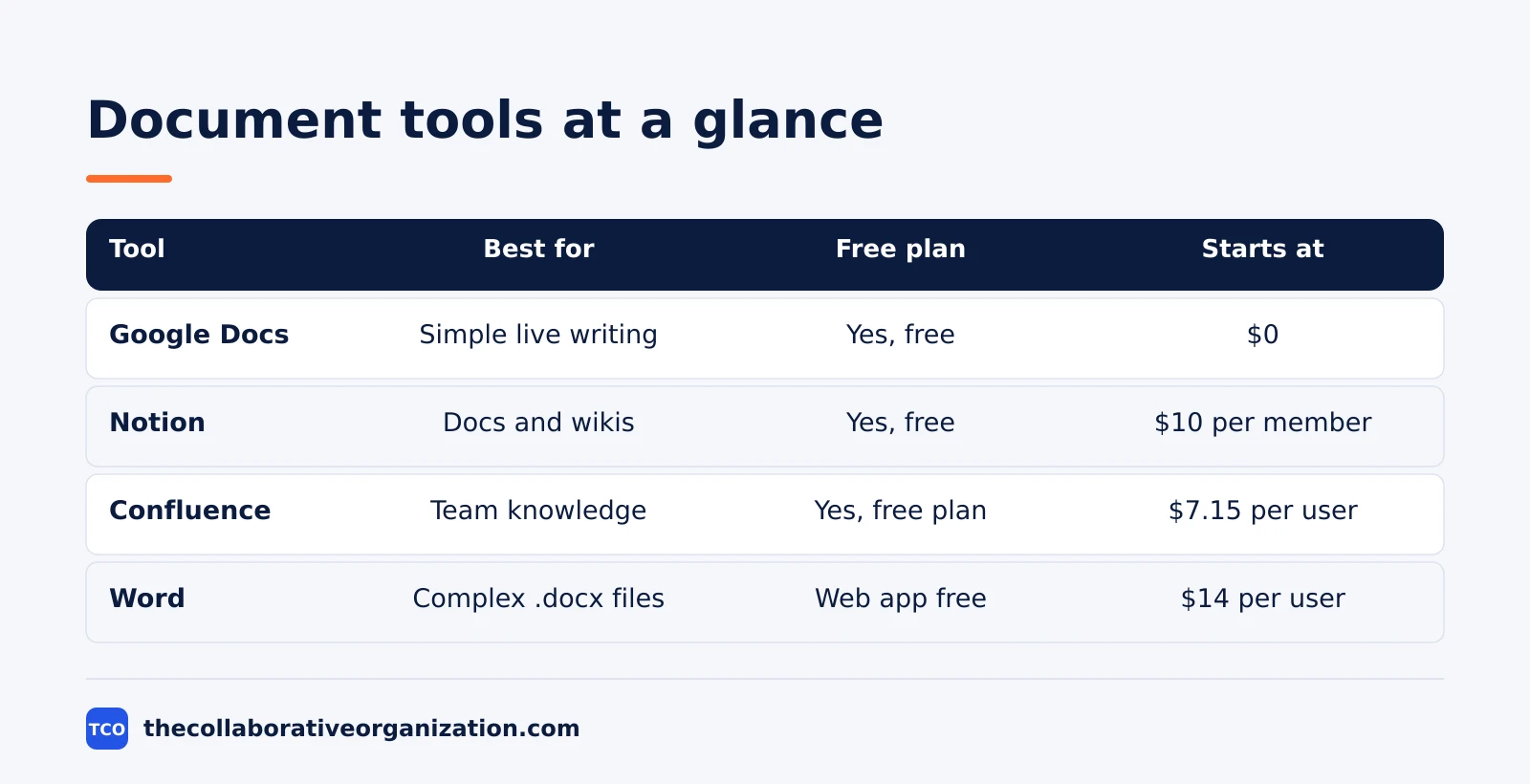
Google Docs, Notion, Confluence and Word cover most teams, and the right pick depends on whether the document is a draft, a wiki page or a formal file. Each tool handles the four parts, but each one leans a different way.
Google Docs is the simplest choice for live writing: free with a Google account, real-time by default, and built for simultaneous browser editing. Share a link, set Viewer, Commenter or Editor, and everyone types at once. Google Workspace Business Starter costs $7 per user per month with an annual commitment for teams that also need business email and Drive storage.
Notion suits teams that keep docs, wikis and databases in one place. Pages, databases and projects sit side by side, and guests cost nothing. Plus costs $10 per member per month billed annually, or $12 billed monthly, and Business costs $20 per member per month billed annually.
Confluence is the wiki choice for teams that already use Jira, with pages, templates and spaces for team knowledge. Standard costs $7.15 per user per month billed monthly for 1 to 100 users, raised on 13 October 2026 from $6.70.
The page headline of $5.78 is the blended rate for a larger team. Premium costs $14.10 per user per month on the same basis.
Microsoft Word is the choice when the document must end up as a polished .docx file with complex layout, citations or mail merge. Word for the web is free, and desktop Word comes with Microsoft 365 Business Standard.
Business Standard costs $14 per user per month on an annual commitment, raised from $12.50 on 1 July 2026. Compare the options on our document collaboration software shortlist before you commit.
| Tool | Best for | Free plan | Starting price (as of November 2026) | Notable limit |
|---|---|---|---|---|
| Google Docs | Simple live writing in a browser | Yes, free with a Google account | $0, or $7 per user per month for Workspace Starter | 100 people editing at once |
| Notion | Docs, wikis and databases together | Yes, free plan | $10 per member per month (Plus), billed annually | Guests are free, members pay |
| Confluence | Team knowledge beside Jira | Yes, free plan | $7.15 per user per month (Standard), billed monthly | Price is the 1 to 100 user rate |
| Word | Complex .docx files and layout | Word for the web is free | $14 per user per month (Business Standard), billed annually | Co-authoring needs OneDrive or SharePoint |
Worked example: a product launch brief
A five-person team writing a product launch brief in one week shows how the parts fit together. This is an illustration, not a case study, but the steps and limits are real.
On Monday the product manager creates a Google Doc and shares it with four teammates as Editors. The designer adds the launch visuals, the writer drafts the announcement, and the engineer checks the feature list, all in the same file. Each person has a colour-coded cursor, so nobody types over anyone else.
On Wednesday the marketing lead switches to Suggesting mode and proposes tighter wording in the headline and the first paragraph. The product manager accepts half the suggestions and rejects the rest with a short reply in the margin. The legal reviewer, added as a Commenter, flags one claim that needs a source, without touching the text.
On Friday the brief is done. Version history shows 40 edits across five people, and the team can still open the Monday draft if the launch date changes.
The whole job took one file, one link and no emailed copies. A shared drive full of “brief FINAL v3.docx” files would have taken longer and left the team unsure which copy was current.
When to use document collaboration, and when not to
Use live collaboration when several people write one draft, and skip it when one person owns the file or the review must run in order. The split below makes the call in one read.
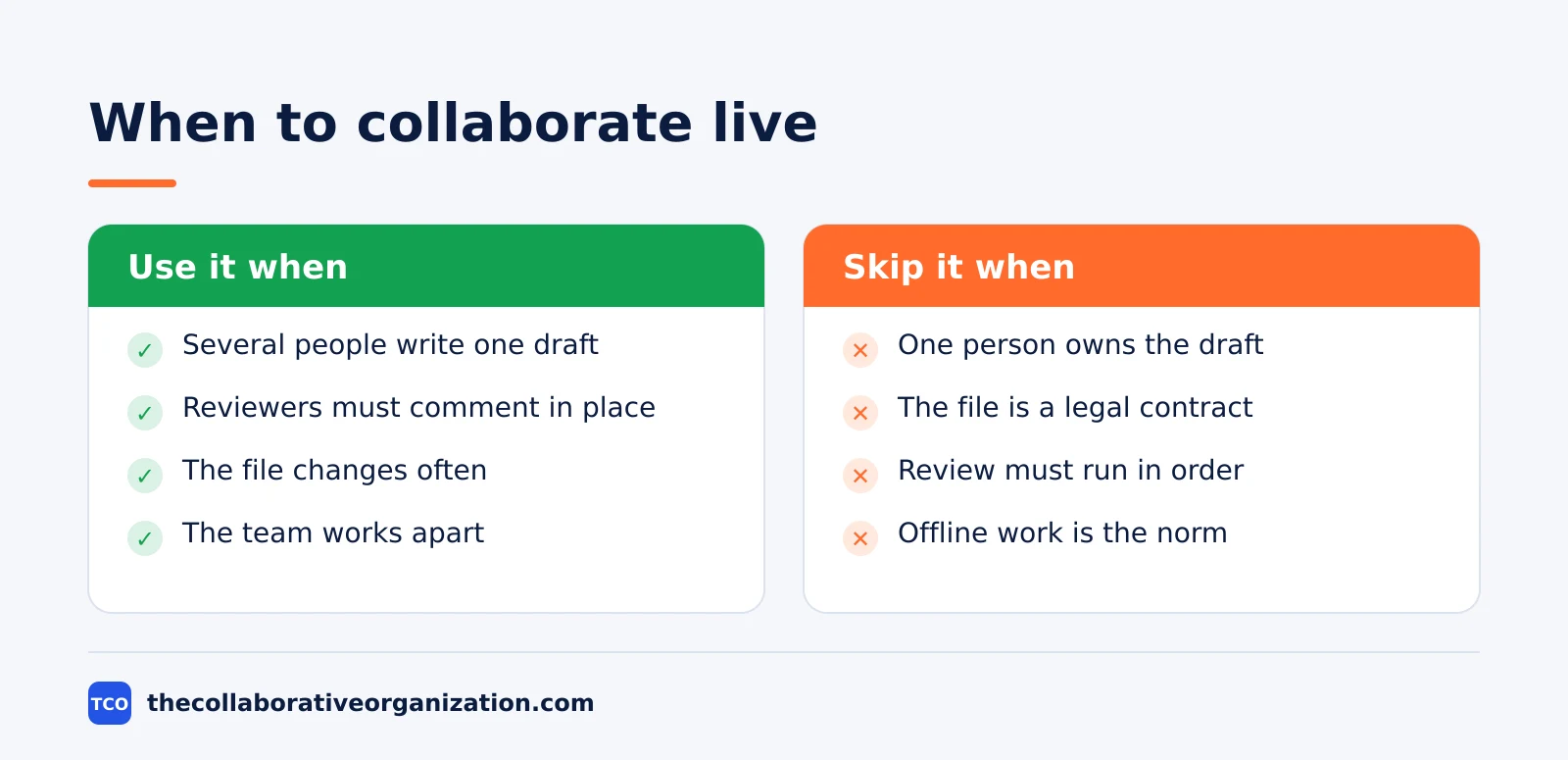
Use it when several people write one draft together, when reviewers must comment in place, when the file changes often, or when the team works apart in different places and time zones. Live collaboration also fits meeting notes, where several people capture the same discussion at once.
Skip it when one person owns the draft and others only read it, when the file is a legal contract that needs sequential review, when the review must run in a fixed order, or when offline work is the norm. Highly structured documents like contracts and regulatory filings often need one reviewer at a time to keep the logic straight.
Common document collaboration mistakes to avoid
Most document collaboration fails in the same five ways, and all five are easy to prevent. Run through the list below each time a shared document goes out.
- Sharing with “Anyone with the link” by default. A public link can travel anywhere, so share with named people unless the document is truly public.
- Giving everyone Editor access. Reviewers who only need to comment should be Commenters, so their notes do not become edits by accident.
- Editing in Suggesting mode by mistake. A reviewer who leaves Suggesting on will see none of their changes accepted, and the owner will see a pile of proposals.
- Working on a downloaded copy. A file saved to a laptop is a fork, and its edits will never reach the live document.
- Never checking version history. When a paragraph vanishes, the history shows who removed it and when, and the old text can be restored in seconds.
Sources
- Google - Share and Collaborate on a File (2026)
- Microsoft - Document Collaboration and Co-authoring (2026)
- Microsoft - Collaborate in Word (2026)
- Agency Shed - Google Workspace vs Notion (2026)
- AI Business Weekly - Notion AI Pricing 2026 (2026)
- NovaStreets - How to Collaborate in Real Time (2025)
Frequently asked questions
What is document collaboration in simple terms?
Document collaboration means several people working on the same document together, usually one live copy stored in the cloud. Each person can edit, comment or suggest changes, and everyone sees the latest version at once. It replaces emailing copies back and forth, where nobody knows which file is current.
What is the difference between document collaboration and co-authoring?
Co-authoring is one part of document collaboration: several people editing the same file at the same time, with changes appearing live. Document collaboration is the wider idea, and it also covers comments, suggestions, version history, permissions and review. A team can collaborate on a document without ever typing in it at the same moment.
How many people can edit a Google Doc at the same time?
Google says up to 100 people with view, edit or comment permission can work on a Docs, Sheets or Slides file at the same time. When 100 or more people open a file, only the owner and some editors can edit it. A single file can be shared with up to 600 individual email addresses.
Do you need Microsoft 365 to collaborate in Word?
No. Word for the web is free, and recipients can co-author, comment or work in a shared document without a Microsoft account or a Microsoft 365 subscription. Desktop co-authoring needs a current Microsoft 365 app, and the document must be stored in OneDrive or SharePoint in .docx format.
Is document collaboration safe for sensitive files?
It can be, if permissions are set with care. Give each person the lowest role they need, use link settings that limit access to named people, and check the sharing list before the file goes out. Version history also helps, since an earlier version can be restored if a bad edit slips through.
Related articles
document collaboration
Airtable vs Google Sheets: Which to Use in 2026
Airtable is a database with views and automations; Google Sheets is a free spreadsheet. Learn the limits, the 2026 prices, and which one fits your team's data.
November 19, 2026 · 7 min read
document collaboration
Confluence vs SharePoint: Which to Use in 2026
Confluence is a wiki built around pages; SharePoint is a document platform built around files. Learn the differences, the 2026 prices, and which one fits your team.
November 19, 2026 · 7 min read
document collaboration
How to Document Processes: A Step-by-Step Guide (2026)
To document a process, pick one task, watch it done for real, map the steps and decisions, then test the draft on someone new. Follow the 7 steps in this guide.
November 19, 2026 · 10 min read