How to Document Processes: A Step-by-Step Guide (2026) | The Collaborative Organization
By The Collaborative Organization Team · November 19, 2026 · Last verified November 19, 2026 · 10 min read
To document a process, pick one task, watch it done for real, map the steps and decisions, write it as one action per step, then test the draft on someone who has never done it. Process documentation is a written record of how work gets done, including the steps, roles, tools, decisions, inputs and outputs.
Key takeaways
- Process documentation records how tasks are performed, including steps, roles, tools, decisions, inputs, outputs and exceptions.
- Start with the process that hurts most, and use the 80-20 rule: about 20 percent of processes usually produce about 80 percent of the results.
- Watch the person who does the work, not the manager who thinks they know how it runs.
- Review high-frequency or high-risk processes at least every 6 months, and lower-frequency ones at least once a year.
- Test the draft with a stand-in: every question they ask marks a gap to fix.
What good process documentation looks like
Good process documentation lets a stranger do the work and get the same result. It records what starts the task, who does each step in which system, where decisions are made, and how you know the work is finished. One process usually fits on one page, and a task that needs more is often two tasks in disguise.
Document360 defines it plainly: process documentation records how tasks and operations are performed, including steps, roles, tools, decisions, inputs, outputs, exceptions, version number and last-reviewed date. That list is the checklist for your own documents: if one of those parts is missing, the reader will have to guess.
A useful test is the handover test. If the one person who knows the task left tomorrow, could a new starter run it from the document alone? If the answer is yes, the documentation is good. If the answer is no, the document is a summary, not a guide, and the gaps are where the new starter will get stuck.
How to document processes in 7 steps
Documenting a process takes seven steps, and the order matters: scope first, observe second, write third, test last. The steps below follow the method used by several process guides, which all agree on the same shape even when they count the steps differently.
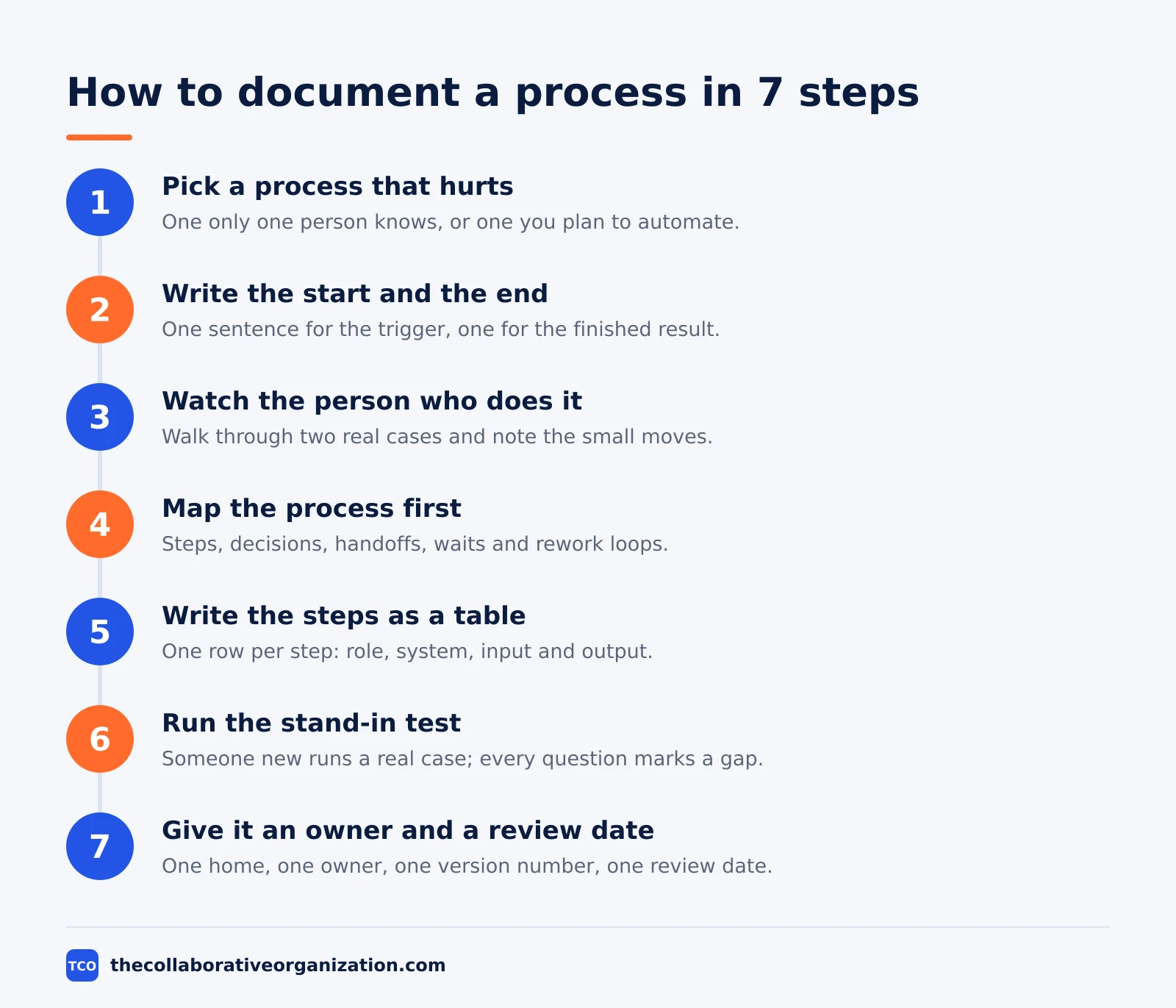
Step 1: Pick a process that hurts right now
Choose a process only one person knows, one you plan to hand over soon, or one you plan to automate. If you cannot tell which one hurts most, ask the team to keep a tally for a week of the questions they answer twice. The tasks at the top of that tally are your first documents.
Step 2: Write down where it starts and where it ends
Write one sentence for the trigger and one for the finished result. For example, a new client process starts when sales sends a signed order from a customer you have not supplied before, and ends when the customer account is live and the first order can be released. Without clear edges, documentation sprawls.
Step 3: Watch the person who does it
Sit next to the person who does the work every day and ask them to walk through two real cases. A manager knows how the task is supposed to run, while the doer knows how it runs. Write down the small moves they think are too obvious to mention, because those are the moves missing from every document written at a desk.
Step 4: Map the process before you write it
Draw a simple map of the real sequence, not the ideal one. Include the steps, the decision points, the handoffs between people, the waits, the rework loops and the exceptions. A map on one page shows the shape of the work and makes the gaps visible before you write a word.
Step 5: Write the steps as a table
Turn the map into steps, with one row per step and columns for role, system, input and output. Use roles, not names, so the document stays valid when staff change. Write each step as one action in plain language, and give every decision an if-then line with all of its paths.
Step 6: Run the stand-in test
Hand the document to someone who has never done the task and have them handle a real case with it, while the usual owner watches and stays quiet. Every question the stand-in asks marks a gap. Write the answer into the document and repeat the test until a case runs through without a single question.
Step 7: Give it an owner, a home and a review date
Give the document one owner, one place where everyone can find it, a version number and a date for the next review. When a system or an approval limit changes, the owner updates the document that week and logs the change. A document with no owner goes stale in silence.
Which format fits which process
The format should match the shape of the work, not the tool you happen to open first. Four formats cover most processes, and the table below shows when each one wins. Our guide on process vs procedure covers how a process map relates to the written procedure inside it.
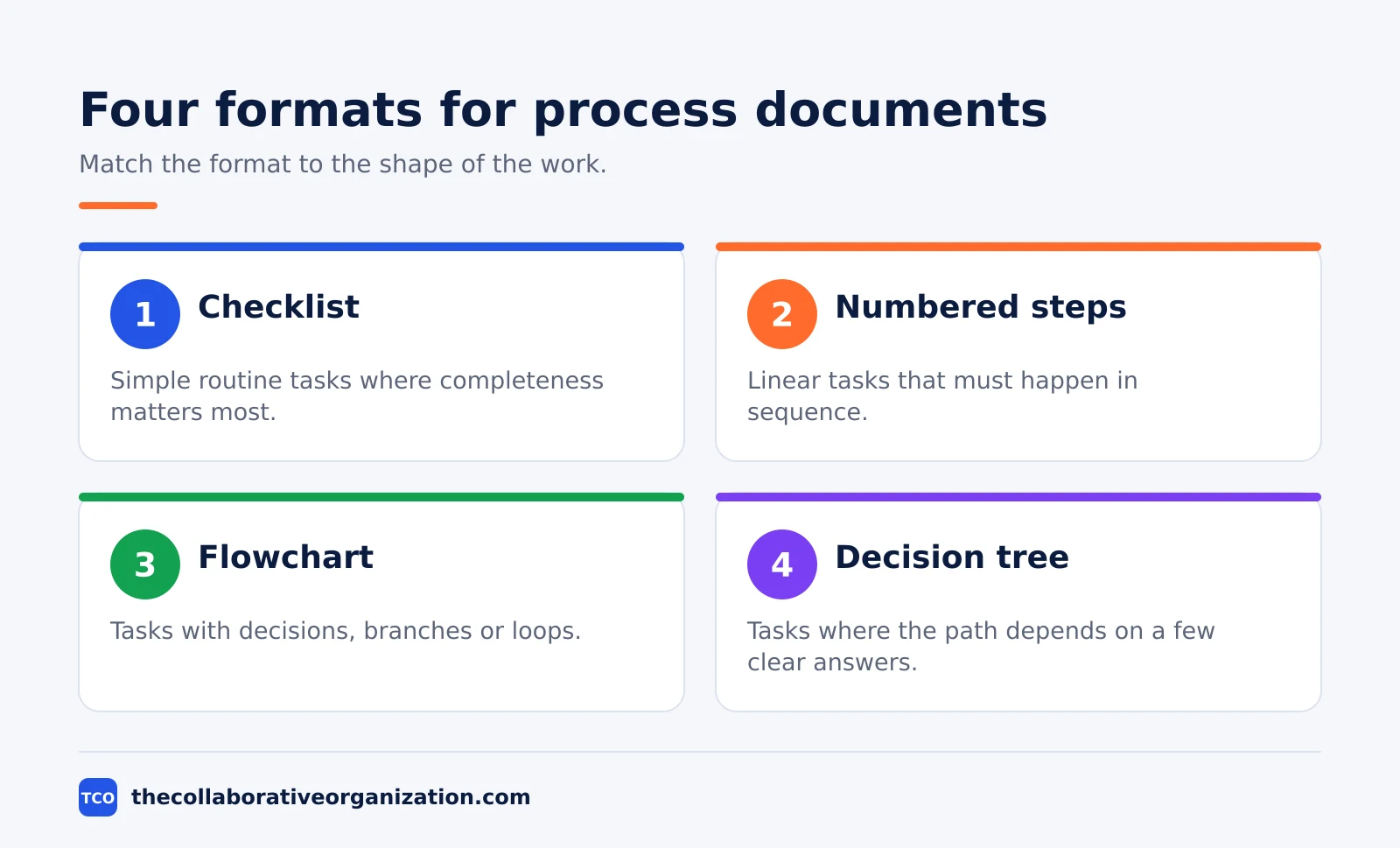
| Format | Best for | Watch out for |
|---|---|---|
| Checklist | Simple routine tasks where completeness matters more than order | Readers tick boxes without reading the detail |
| Numbered steps | Linear tasks that must happen in sequence | Steps that hide two or three actions each |
| Flowchart | Tasks with decisions, branches or loops | Charts that grow too big to read on one screen |
| Decision tree | Tasks where the right path depends on a few clear answers | Branches that nobody has tested for real |
SOP Mojo adds a useful rule: map the process visually first, then write the procedure from the map. A flowchart or a simple map shows the branches and handoffs that prose hides, and the written steps then follow the map in order.
Many teams use two formats at once: a flowchart for the shape of the work, and numbered steps for the detail. The map tells the reader where they are, and the steps tell them what to do next.
When the steps grow into fine detail, that detail may belong in a separate document, as our guide on SOP vs work instruction explains.
What to capture at every step
Each step needs five facts, and a step that lacks one of them will stall a new starter. Write the step, then check it against the list below before moving on. Bedrock lists the same five: who does each step, what triggers it, what decisions get made, what systems or files are touched, and what the output looks like.
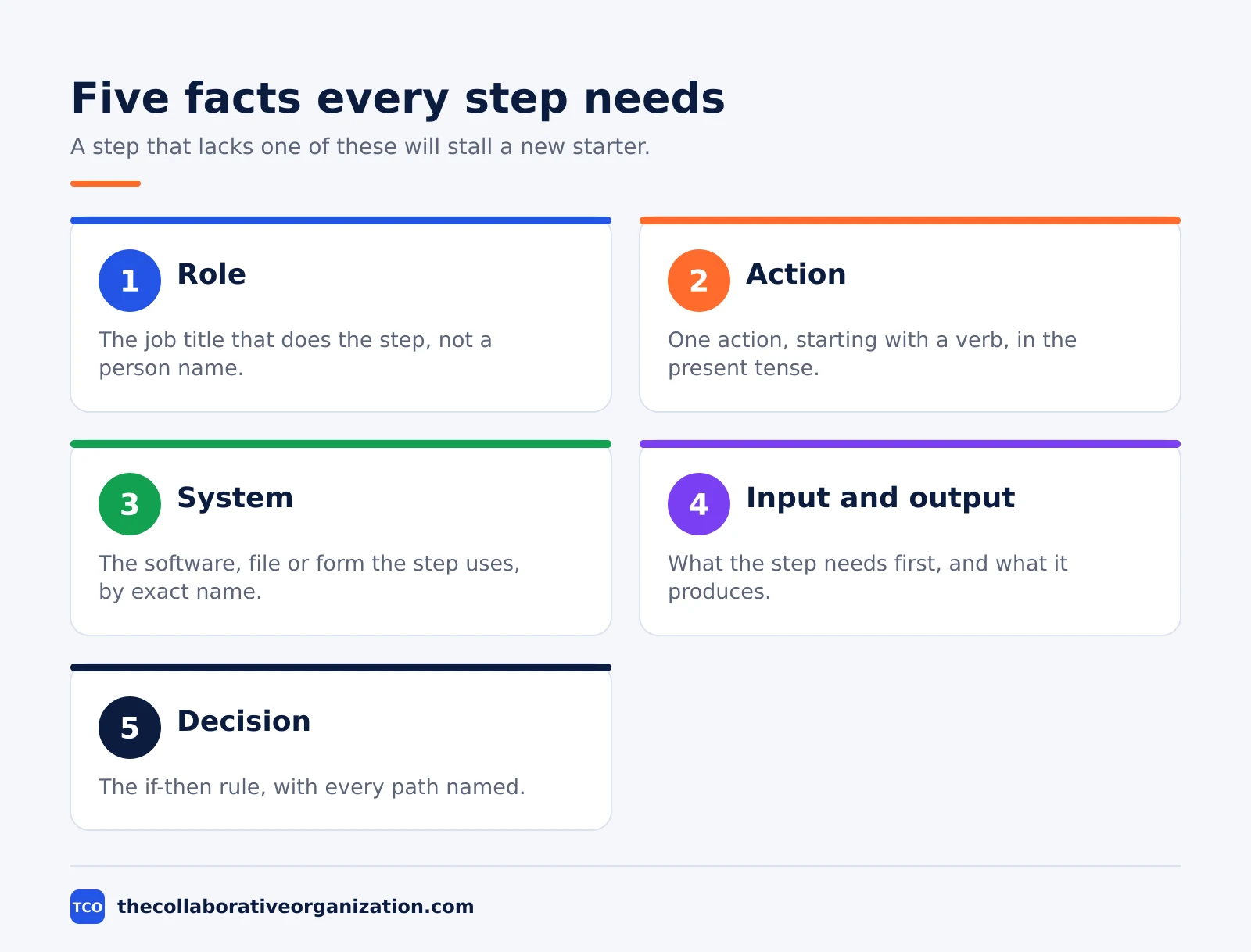
- Role. The job title that does the step, not a person name.
- Action. One action, starting with a verb, in the present tense.
- System. The software, file or form the step uses, with its exact name.
- Input and output. What the step needs before it starts, and what it produces.
- Decision. The if-then rule, if the step branches, with every path named.
Also capture the volumes and frequency: how many times the task runs each week, and how many records it handles. Volume shapes whether the task is worth automating.
Note the exceptions too, such as who can approve a limit above the normal ceiling, because that knowledge is what walks out of the door when someone leaves.
Worked example: documenting new client onboarding
A new client onboarding task shows how the seven steps turn into one page of documentation. Imagine a team of six people at a small services firm, onboarding about 8 new clients a month. The illustration below is a made-up example, not a real company file.
The trigger is a signed order from a new client, and the finish is a live client account with the first order released. The map has 9 steps across three roles: sales, the account manager and finance.
Sales sends the signed order, the account manager creates the account and sets up the workspace, and finance checks the credit limit. One decision sits at step 5: if the credit limit is above the normal ceiling, finance sends it to the director for approval.
The stand-in test caught two gaps: the draft never said which system holds the client record, and it never said where the signed order is filed. Both answers went into the document, the owner set a review date 6 months out, and the next new starter onboarded a client without asking a question.
Tools that hold your process documentation
Keep process documents in the shared workspace the team already opens, with search, version history and clear ownership. A wiki or docs tool keeps each document next to the related SOPs and pages, and shows who changed what. Our document collaboration software shortlist compares the options.
| Tool | Best for | Free plan | Starting price (as of November 2026) | Notable limit |
|---|---|---|---|---|
| Confluence | Process libraries with page history and space permissions | Free for up to 10 users | $7.15 per user per month (Standard), billed monthly for 1 to 100 users | Page headline of $5.78 is a blended rate for a 300-user team |
| Notion | Small teams that want docs next to tasks and databases | Free plan with limited blocks for 2 or more members | $10 per member per month (Plus), billed annually | $12 per member per month when billed monthly |
The Confluence price comes from Atlassian pricing: the page headline shows $5.78 per user per month for Standard and $11.16 for Premium, which are blended rates for a 300-user team. A team of 1 to 100 users pays $7.15 on Standard and $14.10 on Premium, billed monthly, after Atlassian raised both rates on 13 October 2026.
The Notion pricing page lists Plus at $10 per member per month billed annually, or $12 billed monthly.
If your team already lives in one of these tools, put the documents there. A new home for process docs is a new habit to build, and habits are the part that usually fails first.
How to keep process documentation current
Review high-frequency or high-risk processes at least every 6 months, and lower-frequency ones at least once a year. That cadence comes from the Document360 guide, and it is a floor: review sooner whenever a system, an approval limit or a step changes. Give every document one owner who makes the review happen.
The review should ask three questions. Does the document still match the real work? Do people still follow it? And is it still easy to find?
If the work has moved on, update the steps and raise the version. If people have stopped following it, find out why before rewriting it, because a step everyone skips is usually a step that is wrong or slow.
Keep old versions in an archive, clearly marked, so nobody follows a retired copy. When a new version goes live, tell the team what changed in one or two sentences, and link the new version from the same place the old one lived.
Common process documentation mistakes to avoid
Most process documents fail in the same few ways, and all of them are easy to spot before the document goes live. Run through the list below each time you write or review one.
- Starting with a company-wide manual. Firms that start with the manual end up with a table of contents and forty empty chapters. Start with one process and finish it.
- Writing from the ideal, not the real. A map of how the task should run hides the workarounds that keep it running. Map the real sequence, waits and rework loops included.
- Steps with three actions each. “Review the ticket, assign it and send the acknowledgment” is three steps, not one. Split it.
- Missing decisions and exceptions. Every branch needs an if-then line with all of its paths, or the reader will guess.
- Names instead of roles. A document that names a person breaks when that person leaves. Name the role.
- No owner, no home, no review date. A document with no owner goes stale, and a document nobody can find in 30 seconds might as well not exist.
- Publishing without a stand-in test. A draft nobody new has tried is a guess. Test it, fix the gaps, then publish.
Sources
- Document360 - Process Documentation Guide: Steps, Tools and Best Practices (2026)
- Caadoo - Process documentation template: how to write one (2026)
- Bedrock - How to Document a Business Process (Before You Automate) (2026)
- Bizmanualz - How To Document Processes and Procedures (2026)
- SOP Mojo - Documenting Business Processes: Key Steps for Operational Success (2026)
- Whale - How to Document Business Processes: 4-Step Guide (2025)
- Atlassian - Confluence Pricing (2026)
- Notion - Pricing (2026)
Frequently asked questions
What is process documentation?
Process documentation is a written record of how a task or workflow is performed, including the steps, the people responsible, the tools used, and the decisions made along the way. It lets someone who has never done the work follow it and get the same result.
How do I choose which process to document first?
Start with the process that hurts most: one only one person knows, one new starters ask about most, or one where an error costs money or trust. The 80-20 rule helps here, since about 20 percent of processes usually produce about 80 percent of the results.
How detailed should process documentation be?
Detailed enough that a new person can run the process without asking questions, and no more. One action per step, exact names, values and systems, and every decision written as an if-then line. If the document passes 3 pages, split the process at a natural handoff.
How often should process documentation be reviewed?
Review high-frequency or high-risk processes at least every 6 months, and lower-frequency processes at least once a year. Review sooner whenever a system, approval limit or step changes, and give every document one owner who makes the review happen.
What is the difference between documenting a process and writing an SOP?
Documenting a process maps the whole flow, including handoffs, decisions and exceptions, while an SOP is one rigorous document that gives the step-by-step method for a single task inside that flow. An SOP is one type of process documentation, and often the final output of the work.
Related articles

document collaboration
Airtable vs Google Sheets: Which to Use in 2026
Airtable is a database with views and automations; Google Sheets is a free spreadsheet. Learn the limits, the 2026 prices, and which one fits your team's data.
November 19, 2026 · 7 min read
document collaboration
Confluence vs SharePoint: Which to Use in 2026
Confluence is a wiki built around pages; SharePoint is a document platform built around files. Learn the differences, the 2026 prices, and which one fits your team.
November 19, 2026 · 7 min read
document collaboration
How to Organize Shared Drive Folders (2026)
To organize shared drive folders, use team-owned Shared drives, 5 to 7 top-level folders, names with dates, and shortcuts instead of copies. Follow the 7 steps here.
November 19, 2026 · 11 min read