Client Portal Explained: What It Is and When to Use One (2026) | The Collaborative Organization
By The Collaborative Organization Team · November 19, 2026 · Last verified November 19, 2026 · 11 min read
A client portal is a secure, branded online space where each client logs in to see only their own work: files, invoices, progress, messages, and approvals. It replaces scattered email threads and loose file links with one place that holds the work, the conversation about the work, and the record of who approved it.
Key takeaways
- A client portal is a secure, per-client space for files, invoices, progress, messages, and approvals.
- Six types exist: project portals, sales rooms, onboarding hubs, service hubs, support portals, and all-in-one portals.
- A portal is not a CRM, which tracks sales, and not a project tool, which plans team work.
- Clients reach the portal through a login or a secure email link, and each client sees only their own work.
- Many teams get a portal free inside a project tool they already pay for, so check guest seats before buying a standalone tool.
What is a client portal?
A client portal is a secure online platform that works as a central hub for everything between a business and one client. The client opens it in a browser, logs in, and sees their projects, their files, their invoices, and their messages, all in one place.
ShareFile defines it the same way: a secure online platform that functions as a central hub for client interactions, where clients can share and receive information, files, reports, approvals, signatures, tasks, messages, and instructions. The goal is a single, organised hub instead of a trail of email attachments.
Wayfront puts it in plain terms: think online banking, but for your services. Clients stop emailing for updates, and the team stops losing files in chat threads. Each client gets a secure login and sees only their own work, never another client’s.
A portal has four parts. Content Workflow names them: a way in, a view limited to one client, the work itself with its files, versions, and schedule, and actions the client can take, such as commenting, approving, and uploading. A portal missing any one of them pushes that job back into email.
The 6 types of client portals
Client portals come in six types, and each type serves a different job. Match the portal to the work you actually do, not to a feature list.
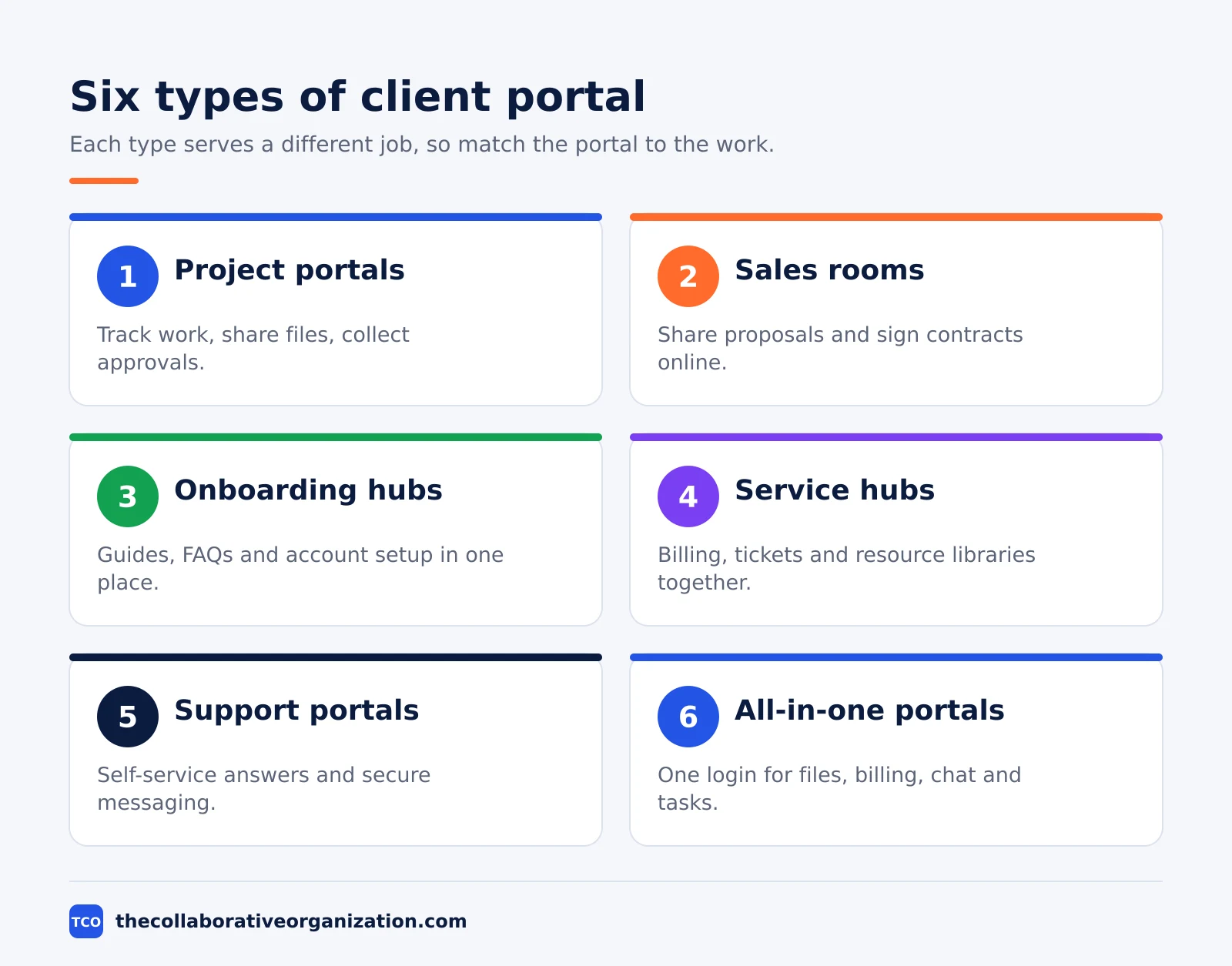
| Type | Best for | What the client does there |
|---|---|---|
| Project portal | Agencies, IT firms, construction | Tracks progress, reviews files, approves work |
| Digital sales room | Sales teams, mergers and acquisitions | Reviews proposals and pricing, signs contracts |
| Onboarding hub | Software and SaaS firms | Reads guides, finishes setup, watches training |
| Business service hub | Banks, financial firms | Views invoices, pays online, raises tickets |
| Customer service portal | Accountants, advisers | Finds answers, stores records, messages support |
| All-in-one portal | Teams that want one login for everything | Files, billing, chat, and tasks in one place |
Project portals suit teams that exchange files with the same client over weeks or months. ShareFile notes that construction firms, marketing agencies, and IT firms use them most, because the work runs in phases and the client needs to see progress, timelines, and deliverables.
Sales rooms serve a shorter job: one deal, not an ongoing project. The client reviews product information, pricing, and proposals, then signs the contract inside the portal. Deal tracking keeps the sales pipeline visible while the deal is live.
Onboarding hubs and service hubs serve clients who need help or billing, not project reviews. A SaaS firm puts guides, tutorials, and FAQs in an onboarding hub. A bank puts invoices, payments, and service tickets in a service hub, with a resource library beside them.
For the collaboration flavour in depth, see our guide to client collaboration portals. That article covers the project-portal type in detail: file sharing, feedback tied to each file, approvals, and activity tracking.
Client portal vs CRM vs project tool vs shared folder
A portal serves the client, a CRM tracks sales, a project tool plans team work, and a shared folder only stores files. The four tools overlap, but each one has a different primary user.
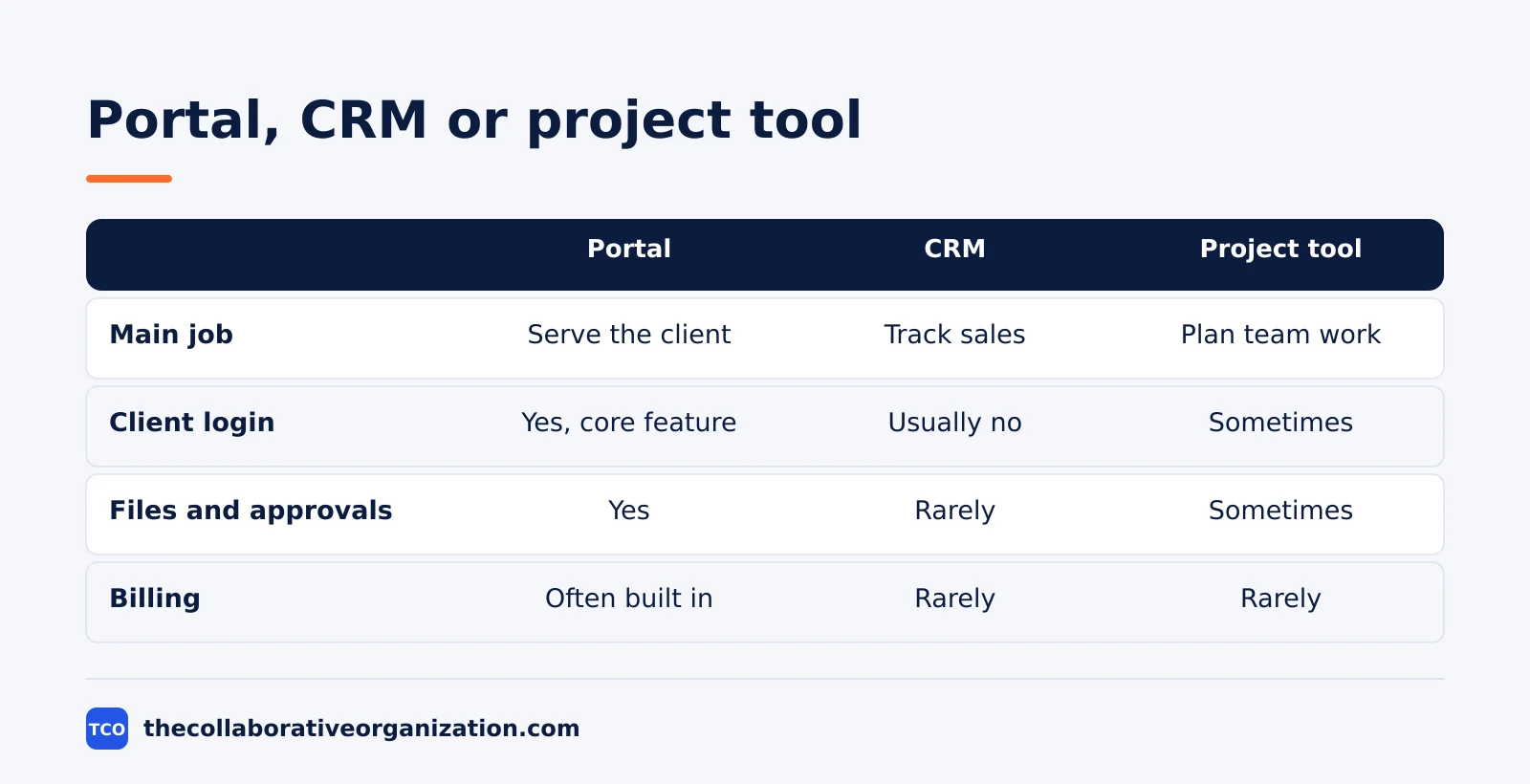
| Question | Client portal | CRM | Project tool | Shared folder |
|---|---|---|---|---|
| Primary user | The client | The sales team | The delivery team | Anyone with the link |
| Main job | Serve the client | Track the pipeline | Plan the work | Store files |
| Client login | Yes, core feature | Usually no | Sometimes | No login needed |
| Approvals | Yes, tied to versions | Rarely | Sometimes | No |
| Billing | Often built in | Rarely | Rarely | No |
The mix-up to avoid is portal versus CRM. A CRM tracks the sale up to the signature; a portal serves the client after it. Wayfront draws the same line: CRMs track sales, project tools coordinate the team, and portals serve clients.
The other mix-up is portal versus shared folder. A shared drive stores files but does not say which version is current or who approved it, and it cannot show whether the client has seen the latest draft.
A portal keeps the conversation attached to the work, so a comment sits on the file it refers to and an approval sits next to the deliverable it approves.
How a client portal works
A client portal works by giving each client a login or a secure link to a workspace that holds only their projects. The team uploads files, posts updates, and requests approvals inside that workspace. The client opens it, views the files, leaves comments, and approves work, all without touching the team’s internal tools.
Access is the part to get right first. Some portals ask clients to create an account, while others use a secure email link.
Bonsai uses the link route: clients reach the portal through a secure email link, and only owners and partners can manage the portal settings. Visibility can be set per client, so each client sees only their own projects.
Behind the scenes, the portal runs on permissions. Each client user has a role that decides what they can view, download, comment on, or upload. Bonsai lets teams apply global defaults or override the settings for one client, and choose how project progress is displayed to that client.
The portal also keeps a record. Activity logs note when a client logged in, which files they viewed, and what they downloaded. That record answers the question every project lead asks on a Friday: has the client seen the draft yet. If the log says no, a short nudge is the right move.
Approvals close the loop. Some portals offer a formal sign-off button, and even a simple “Approved” comment on the final version creates a record. The approval, the file, and the date stay together, so nobody argues later about what was agreed.
Before granting access, preview the portal as the client will see it. Bonsai offers a preview mode that shows the layout and visibility settings for one client without sending messages or editing data. Use it every time the portal changes.
Key features to check before you buy
Check six features before you buy a portal: per-client scope, access without a full account, numbered versions, approvals tied to a version, client uploads, and an activity log. A portal missing one of them pushes that job back into email.
Per-client scope matters most: one client must never see another client’s work. Review without a full account matters next, because every extra login step pushes clients back to email. Numbered versions make clear which draft is current, and timestamped notes tie feedback to a moment instead of a vague description.
Security sits under all six. Look for encryption, strong password rules, and multi-factor authentication, plus role-based permissions set up from the start. G2 notes that many portal providers encrypt data with 256-bit SSL and offer two-factor authentication, but check the vendor’s own security page rather than taking a roundup’s word for it.
Check the cost model too. Blaze points out the split between hosted and custom portals: a hosted portal is faster to set up because the vendor handles servers, security, updates, and backups, while a custom portal costs more to build and run.
Open portals let anyone with the link view or edit files; secured portals restrict access by role and project, which is what most client work needs.
When to use a client portal, and when not to
Use a client portal when you exchange files with the same client over weeks or months; use a plain share link when the job is one file, one time. The test is repetition: if the same client comes back for files, feedback, and approvals more than once, a portal pays for itself.
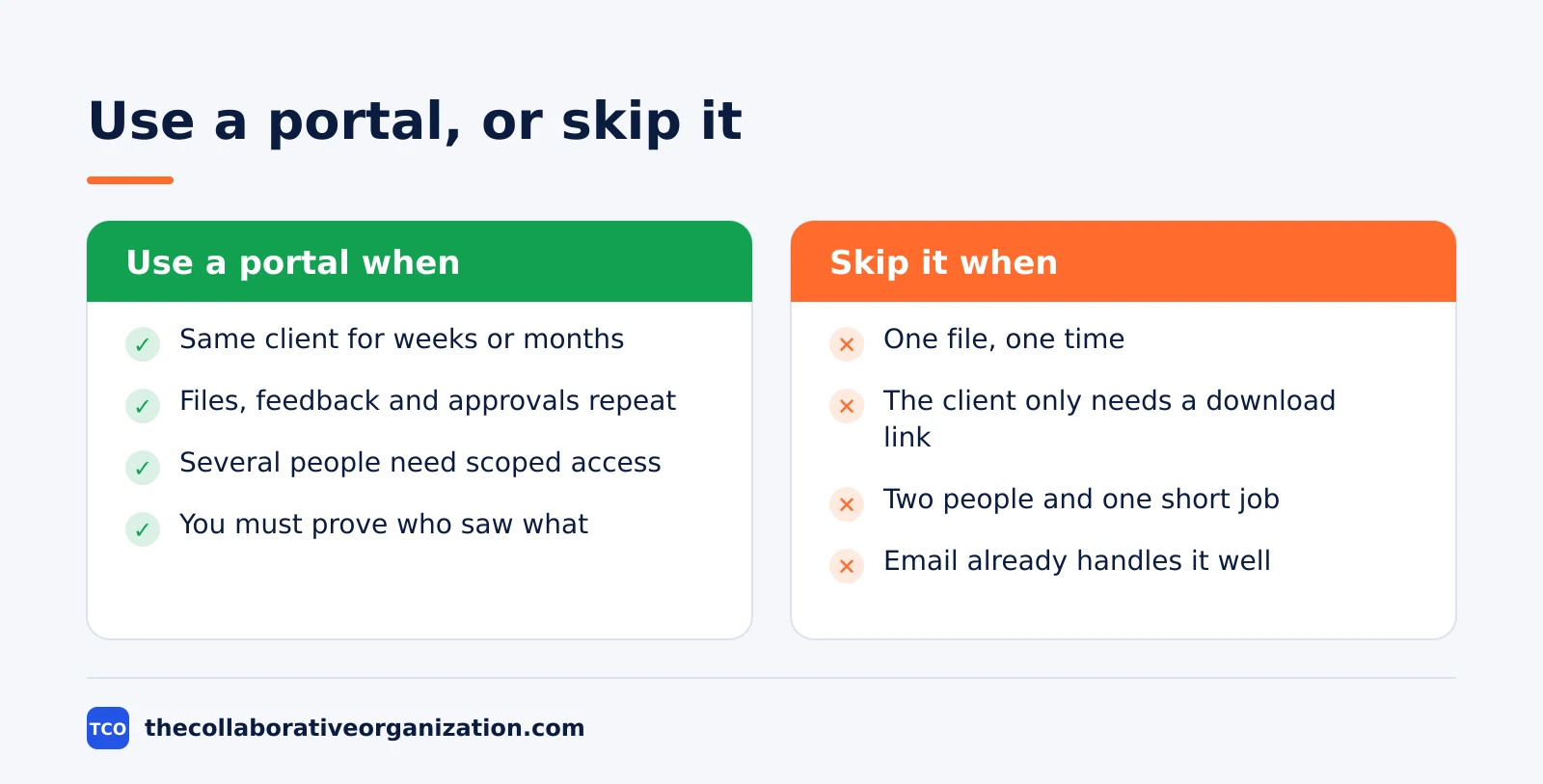
Portals suit agencies, consultants, lawyers, accountants, and any team that serves several clients at once. They suit one-off work less well, and they are the wrong tool for a two-person job that lasts a week. In that case a shared folder and a short email thread are faster, and the portal becomes admin work with no payoff.
Watch for the fade after launch. ShareFile warns that clients can disengage once the excitement of portal access wears off. The fix is regular updates with relevant content, interactive features, and a dashboard personalised to the client, so the portal stays the easiest place to find the work.
If the client work is mostly conversation, a shared channel may fit better than a portal. Our guide to how to collaborate with clients covers that setup: one hub for files, progress, feedback, and approvals, with a weekly rhythm that keeps both sides aligned.
Worked example: an accounting firm opens a portal
A small accounting firm shows how a portal fits a business that runs on documents and deadlines. The example below is an illustration, not a real firm, but every step follows the setup described above.
Harbor Books, a six-person firm, serves 40 small businesses. Each tax season, clients email PDFs, the firm replies with questions, and the thread grows to 60 messages. The firm sets up a service-hub portal: one workspace per client, with folders for the current year, a billing tab, and a secure message thread.
Each client gets a secure email link, no account needed. The client uploads bank statements and prior returns, and the firm posts the draft return for review. The client approves it in the portal, and the approval, the file, and the date stay together.
By the second season, the firm measures the change in one number: the average client sends 4 messages per return instead of 14. The portal did not add a feature the firm lacked; it removed the search for the latest version, which was the real cost.
Tools that include a client portal
Many teams get a portal free inside a project tool they already pay for, so check guest seats before buying a standalone portal. The table below covers three tools with client-facing access.
Compare the wider field on our document collaboration software shortlist. The right tool is the one clients can open without training, and the one that keeps their view separate from your internal notes.
| Tool | Best for | Free plan | Starting price (as of November 2026) | Notable limit |
|---|---|---|---|---|
| Asana | Teams that want clients as free guests on tasks | Free for 2 people | $10.99 per user per month (Starter), billed annually | Free plan covers 2 people |
| ClickUp | Teams that want guests, docs, and forms together | Free Forever plan | $9 per user per month (Core), billed annually | Guest seats are limited on paid plans |
| Slack | Teams that want clients in shared channels | Free plan | $7.25 per user per month (Pro), billed annually | Free plan allows 1:1 external messages only |
The Asana price comes from Asana pricing: Starter is $10.99 per user per month when billed annually, and the plan includes unlimited free guests, so clients can join tasks without a paid seat.
The ClickUp price comes from ClickUp pricing: Core is $9 per user per month when billed yearly, shown against a $12 regular price, so confirm the price at checkout.
The Slack price comes from Slack pricing: Pro is $7.25 per user per month when billed annually, and group external messages need Pro, while the free plan allows 1:1 external messages.
Common client portal mistakes to avoid
Most portal failures come from five mistakes, and all five are easy to spot in a review. Run through the list before you invite the first client.
- One workspace for all clients. A shared space lets one client see another’s work, which breaks trust in a way no feature can repair.
- No preview before launch. Skipping the preview means the first person to see a broken layout is the client.
- Too many tools for one job. When clients must check email for updates, a separate platform for files, and another tool for approvals, things fall through the cracks.
- No plan for the fade. A portal with no fresh updates becomes a dead link, so schedule new content and check-ins from the start.
- Charging clients as paid seats by mistake. Check whether guest or client seats cost extra before you invite 40 clients, because per-seat pricing grows fast.
Sources
- ShareFile - What is Client Portal and Why is it Important? (2026)
- Wayfront - What Is a Client Portal? Definition and Guide for Agencies (2026)
- Content Workflow - What Is a Client Portal? A Guide for Agencies (2026)
- Bonsai - How to Use the Client Portal (2026)
- G2 - What Is a Client Portal? (2026)
- Blaze - Client Portals: How They Work and When To Get One (2026)
- Asana - Pricing (2026)
- ClickUp - Pricing (2026)
- Slack - Pricing (2026)
Frequently asked questions
What is a client portal?
A client portal is a secure, branded online space where each client logs in to see only their own work: files, invoices, progress, messages and approvals. It replaces scattered email threads and loose file links with one place that holds the work, the conversation about the work, and the record of who approved it.
How is a client portal different from a shared folder?
A shared folder stores files; a portal adds structure around them. A portal shows which version is current, who approved it, and who has seen it. A shared folder cannot tell you whether the client has opened the latest draft, while a portal keeps an activity log that answers that question in seconds.
Do clients need an account to use a client portal?
It depends on the platform. Some portals ask clients to create an account, while others let them in through a secure email link or a password-protected share. Guest access without an account is easier for clients, so check how each platform handles it before you choose, and test the login flow yourself first.
Is a client portal secure enough for sensitive files?
A good portal encrypts files in transit and at rest, limits each client to their own workspace, and lets you set link expiry dates and password protection. For very sensitive files, add watermarking and domain limits. No portal can stop a determined person taking a screenshot, so view-only access is a deterrent, not a guarantee.
How much does a client portal cost?
Many teams get a portal as part of a project tool they already pay for, so the extra cost is zero. Standalone portal tools often charge per seat or per client, which adds up fast with many clients. Check whether clients count as paid seats before you sign up, because that decides the real monthly cost.
Related articles
document collaboration
Airtable vs Google Sheets: Which to Use in 2026
Airtable is a database with views and automations; Google Sheets is a free spreadsheet. Learn the limits, the 2026 prices, and which one fits your team's data.
November 19, 2026 · 7 min read
document collaboration
Confluence vs SharePoint: Which to Use in 2026
Confluence is a wiki built around pages; SharePoint is a document platform built around files. Learn the differences, the 2026 prices, and which one fits your team.
November 19, 2026 · 7 min read

document collaboration
How to Document Processes: A Step-by-Step Guide (2026)
To document a process, pick one task, watch it done for real, map the steps and decisions, then test the draft on someone new. Follow the 7 steps in this guide.
November 19, 2026 · 10 min read