Client Collaboration Portal Explained: What It Is (2026) | The Collaborative Organization
By The Collaborative Organization Team · November 19, 2026 · Last verified November 19, 2026 · 11 min read
A client collaboration portal is a secure, branded web space where your team and your clients share files, exchange feedback, and track project progress together. It replaces email threads and loose file links with one place that holds the work, the conversation about the work, and the record of who approved it.
Key takeaways
- A client portal is a branded, permission-controlled space for files, feedback, progress, and approvals, shared with one client at a time.
- Its core parts are file storage, access controls, branding, communication tools, and activity tracking.
- Use a portal when you exchange files with the same client over weeks or months; a plain share link is enough for a one-time file.
- Set it up with one workspace per client, folders by project phase, and view-only access as the starting point.
- A portal costs little when it comes with a project tool you already pay for, but per-seat pricing can grow fast with many clients.
What is a client collaboration portal?
A client collaboration portal is a secure, branded web space where your team and external clients share files, exchange feedback, and track project progress together. The client logs in to one place and sees their project: the files, the status, the open questions, and the approvals waiting for them.
The portal differs from a shared folder in one way that matters: it keeps the conversation attached to the work. A comment sits on the file it refers to, an approval sits next to the deliverable it approves, and the activity log shows who viewed or downloaded each file.
Fast.io makes the same point: a portal keeps everything in one location with proper access controls, while email attachments and consumer file-sharing links scatter it.
Bonsai describes its portal the same way: a centralized, branded space where clients access project information, view invoices, share files, and communicate with the team. Clients get in through a secure email link, and only owners and partners manage the portal settings. The client never sees another client’s work or your internal notes.
Portals suit agencies, consultants, lawyers, accountants, and any team that serves several clients at once. They suit one-off work less well, which is covered below in the section on when to use one.
How a client portal works
A client portal works by giving each client a login or a secure link to a workspace that holds only their projects. Your team uploads files, posts updates, and requests approvals inside that workspace. The client opens it, views the files, leaves comments, and approves work, all without touching your internal tools.
Behind the scenes, the portal runs on permissions. Each client user has a role that decides what they can view, download, comment on, or upload. OneDesk, for example, gives each client a portal scoped to their own account, with client-visible tickets and tasks plus a private internal thread your team uses for its own notes.
The client sees a clean, branded view; your team sees the full picture.
The portal also keeps a record. Activity logs note when a client logged in, which files they viewed, what they downloaded, and how long they spent on each file. That record answers the question every project lead asks on a Friday: has the client seen the draft yet? If the log says no, a short nudge is the right move.
If the log shows ten views and no comment, the client may be stuck and need a call.
Approvals close the loop. Some portals offer a formal sign-off button; even a simple “Approved” comment on the final version creates a record. The approval, the file, and the date stay together, so nobody argues later about what was agreed.
The 6 parts of a client portal
A client portal has six parts: file storage, access controls, branding, communication, activity tracking, and approvals. A portal missing any one of them pushes that job back into email, which defeats the point of having a portal.
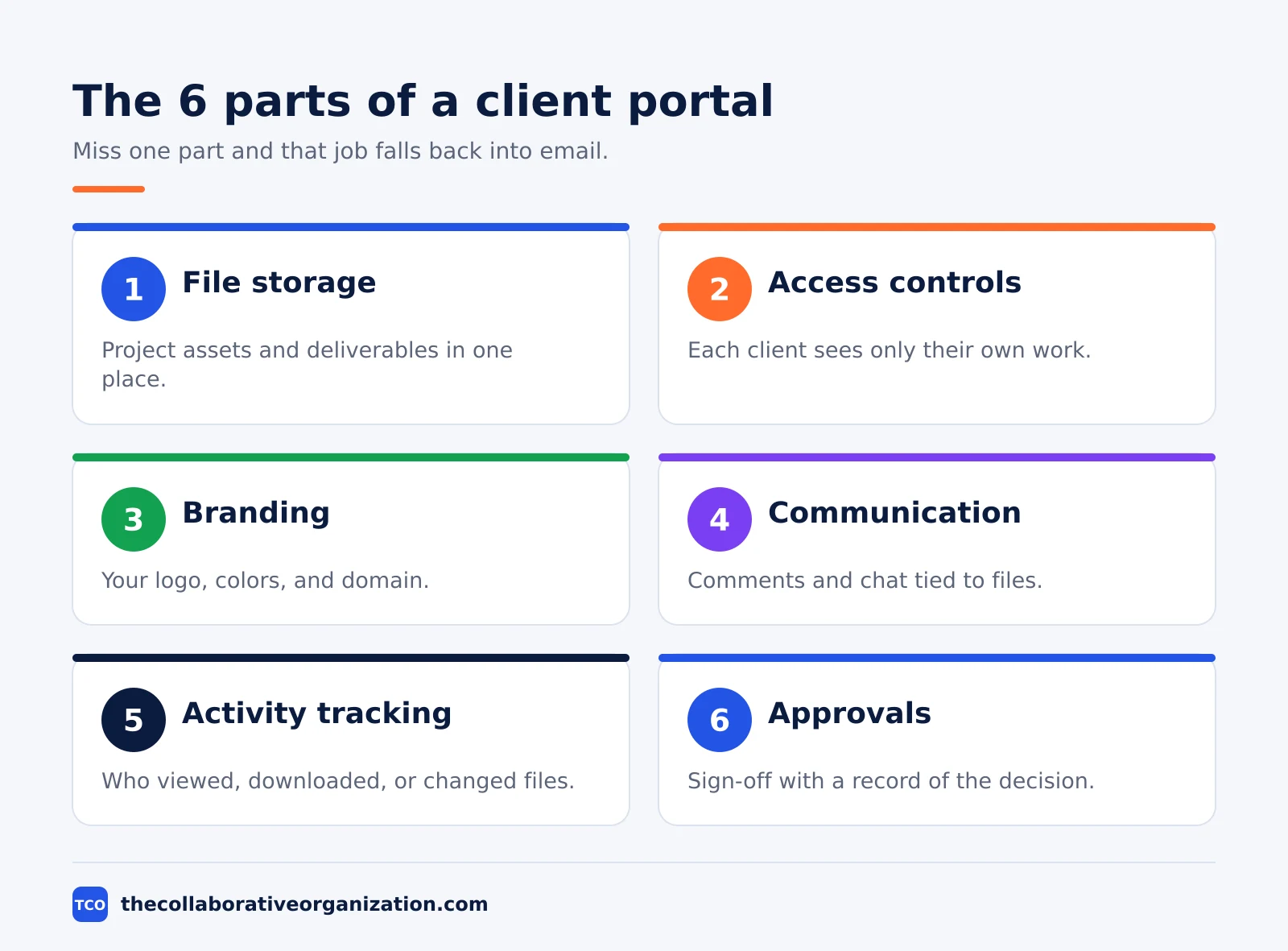
| Part | What it does | Why it matters |
|---|---|---|
| File storage | Holds project assets, deliverables, and documents in one place | Stops version confusion from email attachments |
| Access controls | Decide what each client can view, download, or edit | Keeps one client’s files away from another client |
| Branding | Your logo, colors, and domain on the portal | Makes the space look like your company, not a generic link |
| Communication | Comments, annotations, or chat tied to files | Keeps feedback next to the work it refers to |
| Activity tracking | Logs who viewed, downloaded, or changed files | Shows whether the client has seen the work |
| Approvals | Sign-off requests with a record of the decision | Proves what was approved and when |
File storage is the base, but access control is the part that makes a portal safe to use with many clients at once. The Fast.io guide puts it plainly: keep each client’s files in a separate workspace, because isolation prevents accidental exposure and makes permissions easy to manage when team members change.
Branding matters more than it looks. A portal that carries your logo and colors feels like your company, and clients treat it as a real workspace rather than a throwaway link.
Communication tools close the gap between seeing work and reacting to it: comments on a document page, annotations on an image, or frame-accurate notes on a video all beat a vague email reply.
Client portal vs email vs file sharing
A portal beats email and plain file sharing when the same client needs files, feedback, and approvals over weeks or months. For a one-time file, a share link is faster and the portal adds nothing. The right choice depends on how long the relationship runs and how many people are involved.
Email fails in three ways that a portal fixes. First, files pile up as attachments across threads, so nobody knows which version is current. Second, feedback lands far from the file it refers to, so the team has to match notes to work by hand.
Third, approvals given in a reply get buried, so the record of what was agreed is hard to find later.
Plain file sharing fixes the first problem only. A shared folder holds the latest file, but it cannot collect feedback, record approvals, or show who looked at what. Zendo adds a fourth reason to use a portal: self-service. Clients can order a service, check a quote, or pay an invoice without waiting for your team to answer an email.
The tipping point is easy to spot. When you catch yourself searching through email threads for “the latest version” of something, that is the signal to move the client into a portal. Our guide to what is team collaboration covers the same shift on the inside of a team: one shared place beats five scattered channels.
When to use a portal, and when not to
Use a client portal when you exchange files with the same client repeatedly, several people on both sides need access, and you need to track who saw what. Skip it when the job is a one-time file for one person with no follow-up.
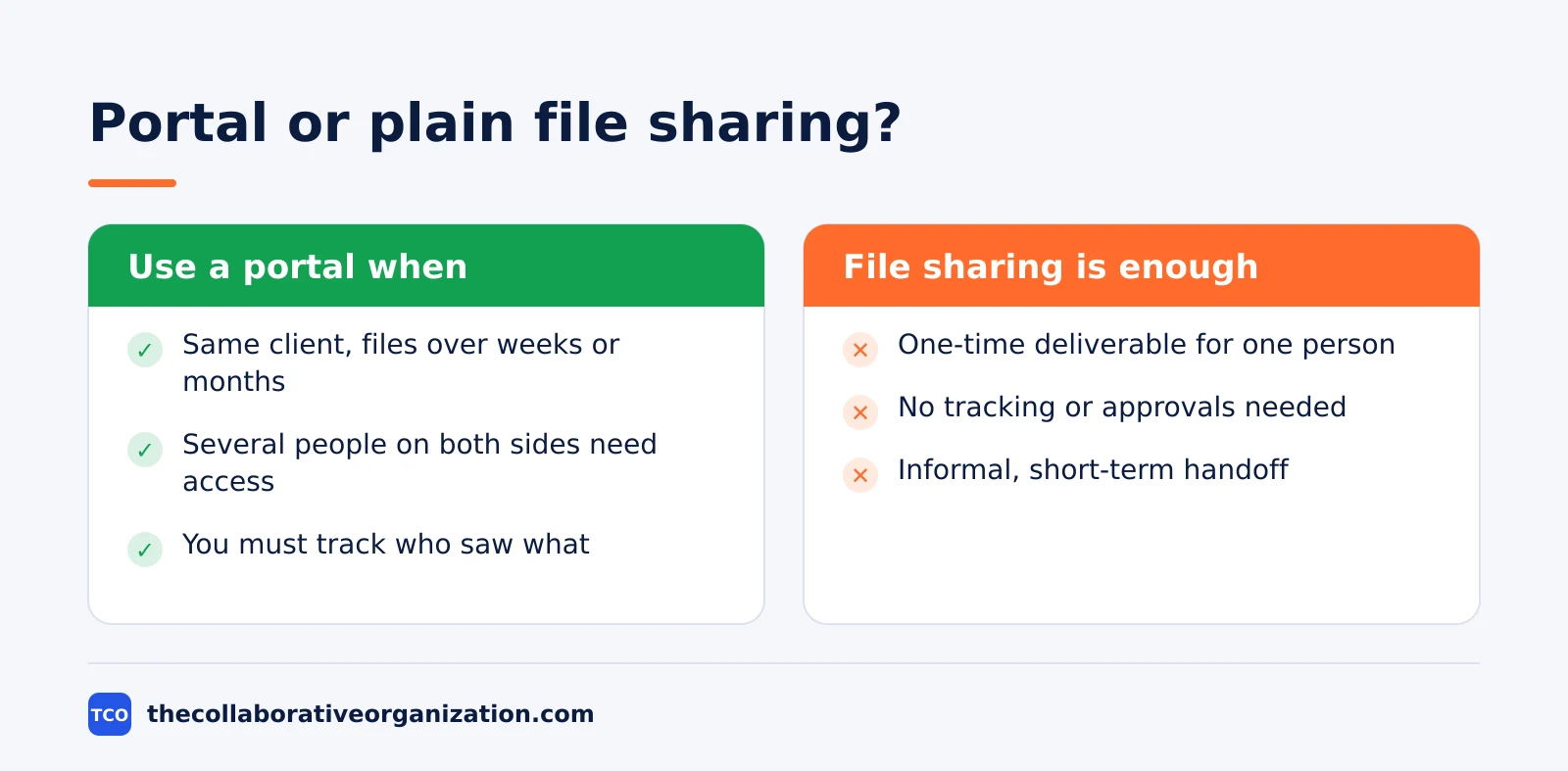
A portal pays off for agencies, consultants, and service firms with repeat clients. It pays off when client-facing professionalism matters, such as a law firm sharing drafts or a design studio sharing mockups. It also pays off when feedback must stay tied to specific files, like comments on a video frame or a page of a contract.
A portal is the wrong tool for a quick handoff. Sending one invoice, one photo, or one signed document does not need a workspace, a login, and a folder structure. It is also the wrong tool when the client refuses to use it: a portal nobody opens is worse than email, because the work sits in a place nobody checks.
If a client will only use email, meet them there and keep your own records tidy.
Cost decides the rest. Per-seat pricing grows with every client you invite, so a portal that charges per user can get expensive for an agency with many clients. Usage-based pricing, where you pay for storage and bandwidth rather than user count, often fits agencies better. Check the model before you commit, not after the first invoice.
How to set up a client portal in 5 steps
Setting up a client portal takes five steps: pick a platform, build one workspace per client, set permissions, invite the client, and agree how feedback works. A small team can finish the setup in an afternoon and reuse the same structure for every new client.
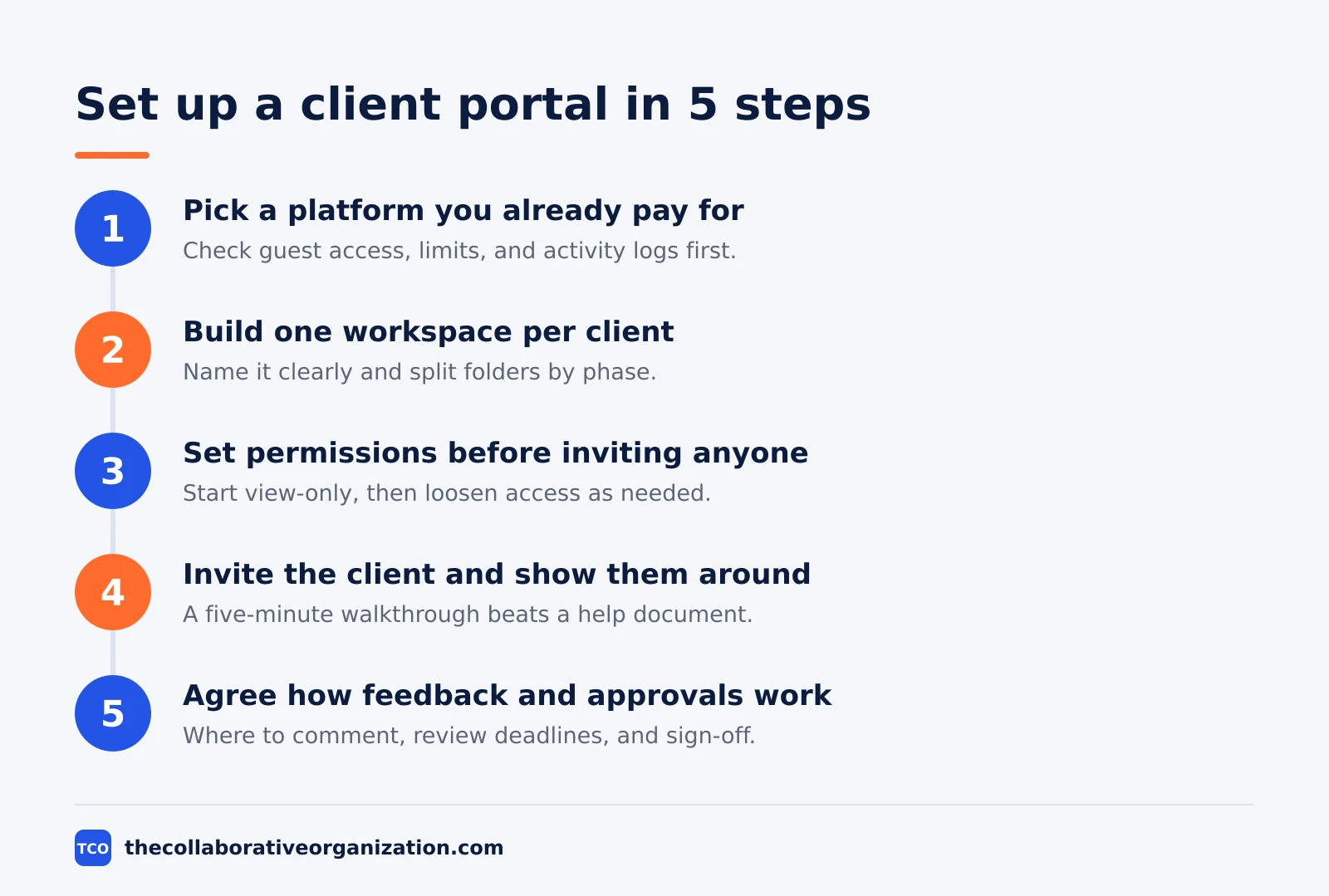
Step 1: Pick a platform you already pay for
Start with a tool your team already uses. A project tool with guest access often covers the portal job at no extra cost, and your team already knows how it works. Check three things: can clients join free as guests, can you limit what they see, and does the platform log activity?
| Tool | Guest access | Starting price (as of November 2026) |
|---|---|---|
| Asana | Unlimited free guests on paid plans | $10.99 per user per month (Starter), billed annually |
| ClickUp | Guest seats included on paid plans | $9 per user per month (Core), billed annually |
| Slack | 1:1 external messages on the free plan | $7.25 per user per month (Pro), billed annually |
The prices come from each vendor’s own pricing page: Asana pricing, ClickUp pricing, and Slack pricing. Asana lists unlimited free guests on Starter, while ClickUp includes a set number of guest seats per paid user. Compare the options on our project management software shortlist before you pick.
Step 2: Build one workspace per client
Create a separate workspace for each client and name it clearly, such as “Acme Corp - Q1 Campaign”. Inside it, use folders that match how work flows: briefs and requirements, work in progress, for review, approved finals, and reference material. Clients spend most of their time in the for-review folder, so keep it clean.
Step 3: Set permissions before you invite anyone
Decide upfront what clients can and cannot do: view-only, download, comment, or upload. Start restrictive and loosen access only when the client needs it. Granting access is easy; taking back a file a client already downloaded is not.
Step 4: Invite the client and show them around
Send the invitation from the platform so the access record is created properly. Add a short welcome message that says where files for review live and how to leave a comment. A five-minute walkthrough on a call beats a help document nobody reads.
Step 5: Agree how feedback and approvals work
Tell the client where to leave feedback, how long they have to review each round, and how approvals are recorded. When the rules are clear, feedback arrives on time and in the right place. Our guide on how to check if a SaaS tool is secure covers the security questions to ask a portal vendor before you store client files there.
Worked example: an agency portal for one client
A small design agency shows how a portal works for one client over eight weeks. This example is an illustration built from the setup steps above, not a report on a real project.
The agency signs a client for a website redesign. It creates one workspace named after the client, with five folders: briefs, work in progress, for review, approved finals, and reference. The client team gets comment access only, and the agency lead keeps upload rights.
The welcome message tells the client that files for review live in the for-review folder and that each review round lasts three working days.
In week two, the agency uploads three homepage mockups to for-review. The client leaves comments pinned to each mockup: two small changes on one, approval on another. The agency turns the comments into tasks, makes the changes, and moves the approved mockup to approved finals.
The activity log shows the client viewed the files four times, which tells the agency the client is engaged.
In week six, the client asks for the source files. The agency checks the contract, confirms the source files are part of the deliverable, and enables downloads for the approved finals folder only. At the end of the project, the agency revokes access to the work-in-progress folder with one click and keeps the approved finals open for 30 days.
The client never saw another client’s work, and the agency never searched an inbox for a lost approval.
Common client portal mistakes to avoid
Most portals fail in the same five ways, and all five come from setup shortcuts rather than bad tools. Run through the list below before you invite your first client.
- One workspace for all clients. Shared workspaces leak files between clients. Give each client a separate workspace, even when it feels like extra work.
- Permissions set after the invite. Clients see too much in the first hour, and you cannot undo a download. Set view-only access first, then loosen it.
- No folder structure. Files dumped in one folder become a pile nobody can search. Use folders by phase or deliverable type from day one.
- Feedback with no deadline. Reviews without a date drift for weeks. Give each round a deadline and send one nudge when it passes.
- Access never revoked. Old clients keep access to workspaces long after the project ends. Revoke access when the project closes, and check the guest list every quarter.
Our guide on how to choose project management software helps when the portal decision is really a tool decision: pick the platform first, then build the portal inside it.
Sources
- Fast.io - How to Set Up a Client Collaboration Portal (2026)
- Bonsai - How to Use the Client Portal (2026)
- OneDesk - Client Portal Collaboration (2026)
- Zendo - Client Collaboration Portal: Your Best New Investment (2026)
- Asana - Pricing (2026)
- ClickUp - Pricing (2026)
- Slack - Pricing (2026)
Frequently asked questions
What is a client collaboration portal?
A client collaboration portal is a secure, branded web space where your team and your clients share files, exchange feedback, and track project progress together. Unlike email attachments or plain file-sharing links, a portal keeps everything in one place with access controls, so each client sees only their own work.
How is a client portal different from a shared folder?
A shared folder holds files; a portal adds structure around them. A portal shows progress, collects feedback tied to each file, records approvals, and logs who viewed or downloaded what. A shared folder cannot tell you whether the client has seen the latest version, while a portal can.
Do clients need an account to use a portal?
It depends on the platform. Some portals require clients to create an account, while others let clients in through a secure email link or a password-protected share. Guest access without an account is easier for clients, so check how each platform handles it before you choose.
How much does a client portal cost?
Many teams get a portal as part of a project tool they already pay for, so the extra cost is zero. Standalone portal tools often charge per seat or per client, which can add up fast with many clients. Check whether clients count as paid seats before you sign up, because that decides the real monthly cost.
Is a client portal secure enough for sensitive files?
A good portal encrypts files in transit and at rest, limits each client to their own workspace, and lets you set link expiry dates and password protection. For very sensitive files, add watermarking and domain limits. No portal can stop a determined person taking a screenshot, so view-only access is a deterrent, not a guarantee.
Related articles

project management
How to Choose Project Management Software (2026)
Pick project management software in seven steps: define the work, count seats, price the real cost, and run a two-week pilot before you pay.
November 19, 2026 · 10 min read
project management
What Is a RACI Matrix? Definition, Roles and Examples (2026)
A RACI matrix maps who is Responsible, Accountable, Consulted and Informed for each task. Learn the four roles, how to build one, and see a worked example.
November 19, 2026 · 9 min read
project management
Daily Standup Meeting Format That Works (2026)
A daily standup is a 15-minute meeting where Developers inspect progress toward the Sprint Goal and plan the next day. Use this format to run one that ends on time.
November 19, 2026 · 10 min read