Microsoft Teams Channels vs Chats: When to Use Each (2026) | The Collaborative Organization
By The Collaborative Organization Team · November 19, 2026 · Last verified November 19, 2026 · 10 min read

Use a Teams chat for a quick talk with one person or a small group, and use a channel for work the whole team must find later. Chat is private and linear, while a channel is shared, threaded and tied to a team, so the choice comes down to who needs to see the conversation in six months.
Key takeaways
- A chat is a private conversation between specific people; a channel is a shared space inside a team that every member can see and search.
- Channel posts are threaded, chat messages run in one linear stream, and channel files live in SharePoint while chat files live in OneDrive.
- A team can have up to 1,000 channels, including at most 30 private channels, and a private chat holds up to 250 people.
- Put decisions, announcements and project history in a channel, and keep quick questions and sensitive talk in chat.
- Teams free has no teams and channels; paid plans start at Teams Essentials at $4 per user per month billed annually, as of November 2026.
The core difference between channels and chats
A chat is organized around people, while a channel is organized around work. You pick the people for a chat, and the conversation ends when those people stop talking. You pick the topic for a channel, and the conversation stays there for whoever joins the team next.
That one difference explains almost every rule in this guide. A chat belongs to its participants, so a new hire cannot see what was decided before they arrived. A channel belongs to the team, so a new hire can read the whole history on day one.
Microsoft Teams shows chats, channels, teams and meeting chats together under the Chat app, so the two can look alike on screen. The split still matters: a message sent to a chat reaches only the people in that chat, while a post in a standard channel reaches every member of the team.
What is a Teams chat?
A Teams chat is a private message thread between you and one person, or a small group you pick. It works like texting: fast, direct and gone from view the moment the thread scrolls past.
One-to-one chat fits a quick question, a check on whether someone has time for a call, personal feedback, or a topic that should not be visible to the team. Group chat fits a short coordination thread, such as three people sorting out who presents at tomorrow’s review.
The limits are generous on paper and tight in practice. Microsoft Learn sets the cap at 250 people in a private chat, with up to 200 added at once.
Once a chat passes 20 people, video and audio calling, typing indicators, read receipts and sharing all turn off. A 30-person chat is a notice board, not a meeting room. See the Microsoft Teams limits page for the full list.
Files tell the same story. A file shared in a chat sits in the sender’s OneDrive and is shared with the people in that chat, so it leaves with the sender when they change roles. That is fine for a draft, and it is the wrong home for a record the team must keep.
A community help guide puts it the same way: chat is private and visible only to the people in it, while channel posts are visible to all members of the team. See Rotary’s guide to chats, group chats and channels for the three-way split.
What is a Teams channel?
A Teams channel is a named space inside a team for one topic, project or department, with its own posts, files and apps. A channel gives work a home that outlives the people talking about it.
A standard channel is visible to every member of the team. Post the project plan there, pin the decision, and anyone who joins the team next month can read both. That is the main reason channels beat group chats for project work: the audience is the team, not a list of names frozen at the moment someone hit send.
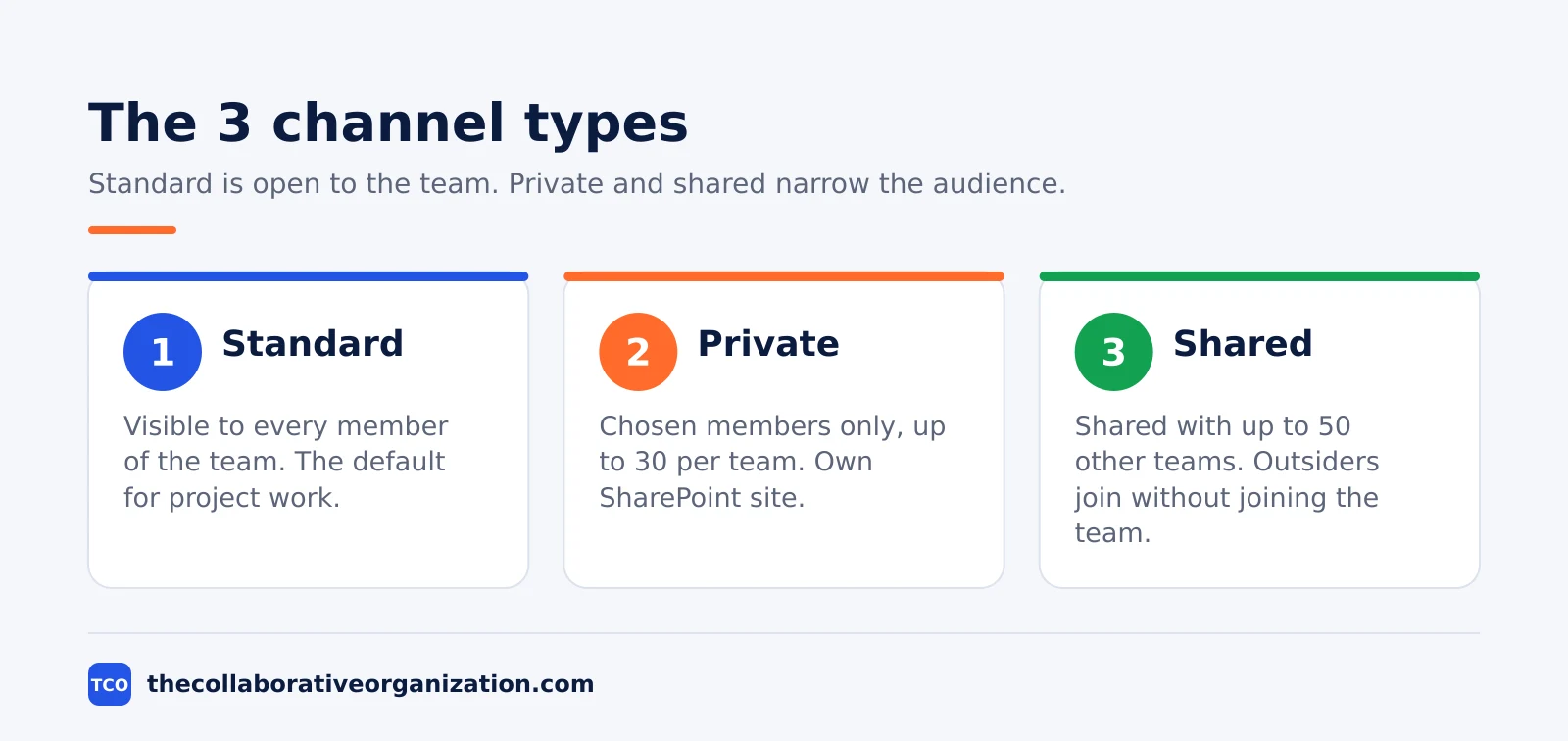
Private channels narrow the audience to a chosen set of members, with up to 5,000 members each and at most 30 private channels per team. A private channel also gets its own SharePoint site, separate from the team’s main site, which keeps sensitive files apart from the rest of the team.
Shared channels go further: one channel can be shared with up to 50 other teams, and people outside your team can join without joining the team itself. That fits cross-team work, such as a product launch that pulls in sales, support and marketing.
Microsoft Learn caps shared channels at 1,000 per team and 5,000 direct members, and the full limits are on the Teams limits page.
Teams channels vs chats side by side
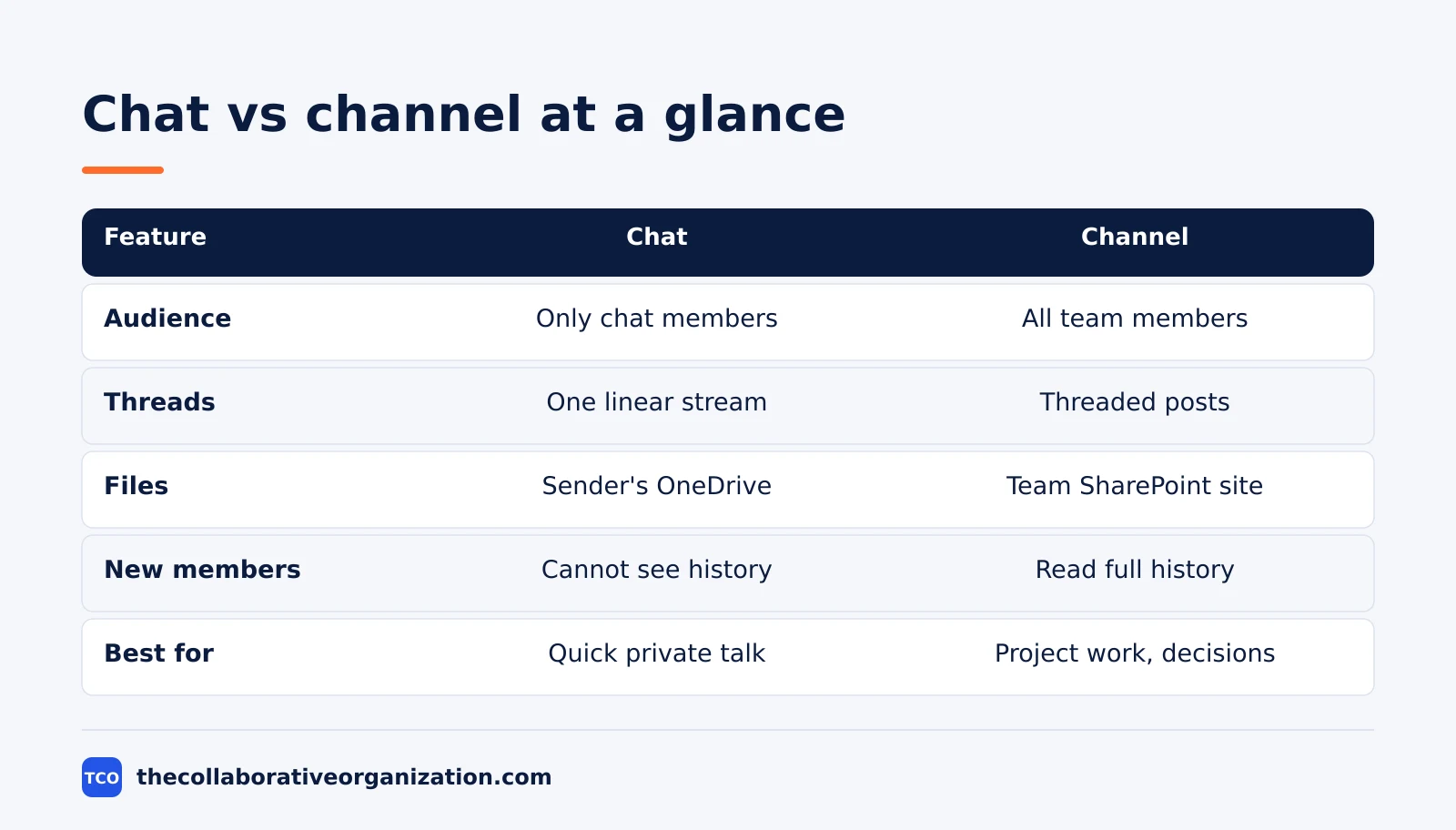
The table below is the whole comparison in one place: chat is private, linear and tied to people, while a channel is shared, threaded and tied to a topic. Use it when you are unsure where a message belongs.
| Feature | Chat | Channel |
|---|---|---|
| Audience | Only the people in the chat | Standard: all team members; private or shared: chosen members |
| Organization | One linear stream of messages | Threaded posts with replies grouped underneath |
| Files stored in | Sender’s OneDrive | Team’s SharePoint site, one folder per channel |
| Visible to new members | No, history stays with participants | Yes, new members read the full history |
| Best for | Quick questions, private talk, short coordination | Project history, decisions, announcements, shared files |
| Group size cap | Up to 250 people in a private chat | Up to 25,000 members per team |
| Calling | Video and audio calls up to 20 people | Meet in the channel with the full team |
Two rows deserve a closer look. The file row matters because a channel file stays with the team in SharePoint when someone leaves, while a chat file stays in one person’s OneDrive. The visibility row matters because a decision in a chat is invisible to the next person who joins the project.
The calling row has a catch of its own. A call started from a chat caps at 20 people, while a meeting in a channel can hold the whole team, up to 300 people on a paid plan. That alone moves most team meetings out of chat and into channels.
When to use a channel
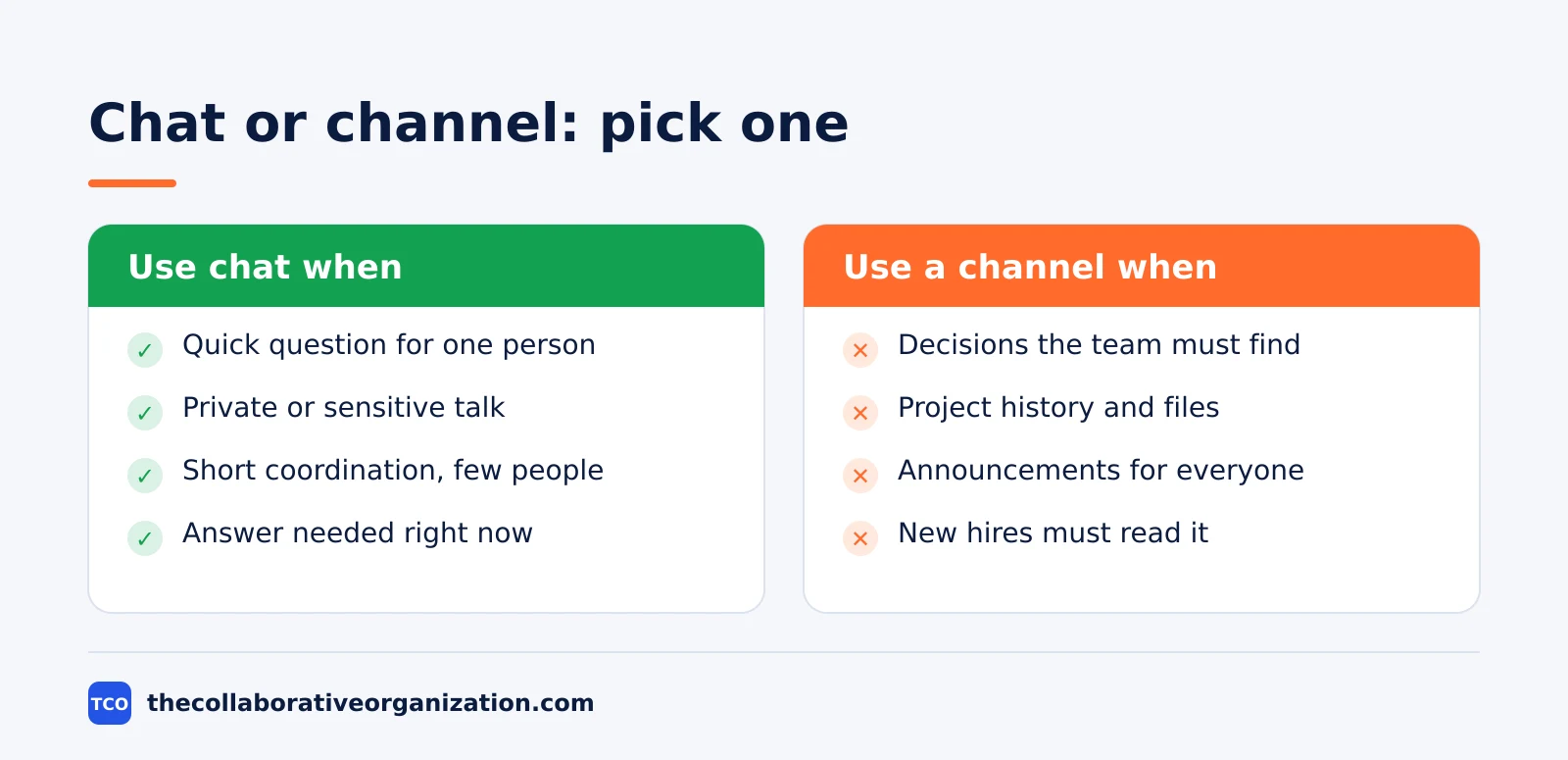
Use a channel when the conversation belongs to a project, a department, a client or a recurring process, and someone will need it later. If anyone outside the chat will need the conversation later, it goes in a channel.
Project work is the clearest case: status updates, decisions, shared files and the running record of what changed and why. Announcements belong there too, because a channel post reaches the whole team and stays searchable, while a group chat announcement scrolls away in a day.
Recurring work fits channels for the same reason. A weekly operations channel collects the same questions every week, and the answers pile up into a record new staff can search.
Our guide on how to write a meeting agenda pairs well with this: post the agenda in the channel before the meeting, and the notes in the same thread after it.
Ask one test question before you post: would a new hire need this in three months? If yes, use the channel. If you are still unsure, use the channel anyway, because a message in a channel is easy to find and a message in a chat is easy to lose.
When to use a chat
Use a chat when the conversation belongs to the people in it and nobody else needs it later. Quick questions, private coordination and short-lived threads are the chat’s home turf.
A one-to-one chat fits anything personal or sensitive: feedback on a draft, a question about time off, or a nudge before a deadline.
A group chat fits a burst of coordination with a fixed set of people, such as four colleagues sorting out a client visit this week. When the visit is over, the chat can go quiet without leaving a gap in the project record.
Chat also wins for speed. Opening a channel, picking the right thread and writing a formal post takes longer than sending two lines to the person who can answer.
That speed is the reason chat exists, and it is also the reason chat becomes a mess when teams use it for everything. If the thread lasts for weeks, collects files or holds a decision, move the durable work into a channel and leave the chat for the quick talk.
Worked example: a product launch team splits the work
A 14-person product launch team runs one team with four channels and a handful of chats, and the split is the whole system. The team has a channel for the launch plan, one for marketing assets, one for support scripts and one private channel for pricing, plus chats for the quick talk around them.
The launch-plan channel holds the timeline, the decision log and the weekly status post. Anyone in the team can open it and see what was decided, when and by whom. The marketing-assets channel holds the files in SharePoint, so a designer who joins in week three can find the final logo without asking anyone.
The private pricing channel holds the discount rules for five named people, because the full team should not see them. The support-scripts channel holds the answers support agents paste to customers, so the wording stays the same no matter who is on shift.
Chats carry the rest: the launch lead messages the designer directly about one image, and three people coordinate the demo room in a group chat. None of that needs a permanent home, and none of it clutters the channels.
When the launch ends, the channels stay as the record, and the chats fade away.
Common Teams channels vs chats mistakes to avoid
Most Teams mess comes from putting durable work in chat, not from picking the wrong channel name. Fix these five habits and the workspace cleans itself up.
- Running a project in a group chat. The project outlives the chat list, and new members cannot see the history. Move it to a channel in week one.
- Posting decisions in chat. A decision buried in a message stream is lost within days. Post it in the channel thread where the work lives.
- Creating a channel for every small topic. A team can have up to 1,000 channels, but nobody reads 40 of them. Five to ten channels per team is enough for most teams.
- Using a private channel for a private talk. A one-to-one chat is faster and leaves no SharePoint site behind. Save private channels for work a small group must keep over time.
- Sharing files only in chat. The file lives in one person’s OneDrive and leaves with them. Share team files in the channel so they stay in SharePoint.
If your team came from Slack, the same habits apply with different names: channels are channels, and direct messages are chats. Our guide on how to migrate from Slack to Microsoft Teams maps the old structure onto the new one.
For the wider picture, see our team communication software shortlist.
Our guide on communication versus collaboration tools explains how chat fits into the rest of the stack.
Sources
- Microsoft Learn - Limits and specifications for Microsoft Teams (2026)
- Microsoft - Microsoft Teams Pricing for Business (2026)
- Microsoft - Free Microsoft Teams (2026)
- Oase365 - Teams channels vs chats: when to use each (2026)
- iTechGuides - Microsoft Teams Channels vs. Chat (2026)
- Unio - Is Microsoft Teams Free? Free vs Paid Limits (2026)
- Rotary - Chats, Group Chats, and Channels (2026)
Frequently asked questions
What is the difference between a Teams channel and a chat?
A channel lives inside a team, so every team member can see, reply to and search its posts, and its files sit in the team's SharePoint site. A chat is a conversation between specific people only, its messages run in one linear stream, and files shared in it sit in the sender's OneDrive. Channels keep work, chats keep talk.
Can you use Teams channels on the free plan?
No. Teams free is a personal plan with chat, calls and communities, but no teams and channels, no meeting recording and no admin control. Channels arrive with a paid plan: Teams Essentials at $4 per user per month billed annually, or a Microsoft 365 Business plan from $7, as of November 2026.
How many people can join a Teams group chat?
A private group chat in Teams holds up to 250 people, and you can add up to 200 members at once. Once a chat passes 20 people, video and audio calling, typing indicators, read receipts and sharing turn off, so a chat that big works for announcements, not for live calls.
How many channels can a team have?
A team can have up to 1,000 channels in total, counting standard, private and shared channels together, and deleted channels still count for 30 days while they can be restored. Private channels have their own cap inside that total: at most 30 per team, with up to 5,000 members each.
Should decisions go in a channel or a chat?
Put decisions in a channel. A decision made halfway down a long chat stream is hard to find later, and colleagues outside the chat never see it. A channel post keeps the decision threaded, searchable and visible to everyone who joins the team later, including new hires.
Related articles

team communication
Communication Plan for a Project: Template (2026)
A communication plan for a project names who gets which update, in which channel, how often, and from whom. Copy the template and the filled example below.
November 20, 2026 · 10 min read
team communication
How Often Should Managers Communicate With Teams? (2026)
Managers should hold one meaningful conversation with each person every week, plus a weekly team update. See the cadence table for meetings, updates and feedback.
November 20, 2026 · 9 min read
team communication
Upward Communication Examples: 10 That Work (2026)
Upward communication is a message that travels from an employee to a manager or leader. See 10 concrete examples, each with why it works and when to use it.
November 20, 2026 · 9 min read