How to Migrate From Slack to Microsoft Teams in 9 Steps (2026) | The Collaborative Organization
By The Collaborative Organization Team · November 19, 2026 · Last verified November 19, 2026 · 11 min read
To migrate from Slack to Microsoft Teams, export your Slack workspace, upload the export to Azure Blob Storage, map users and channels in Microsoft’s free migration tool, then run a pilot before you move the rest. The tool moves channels, messages, files and membership, while direct messages stay behind.
Key takeaways
- Microsoft’s Slack to Teams Migration Tool runs in the Microsoft 365 admin center and moves public and private channels, messages, files and membership at no extra license cost.
- The tool migrates up to 20 channels in parallel, at typically 2 to 3 messages per second for each channel.
- Direct messages, group chats, huddle history and app integrations do not migrate, so plan for them separately.
- On Slack Free and Pro plans, exports cover public channels only, in JSON format, and Free plan file links cover only the last 90 days.
- Every Slack user must map to a Microsoft 365 user before the migration can start, including deactivated users.
What Microsoft’s migration tool moves, and what it does not
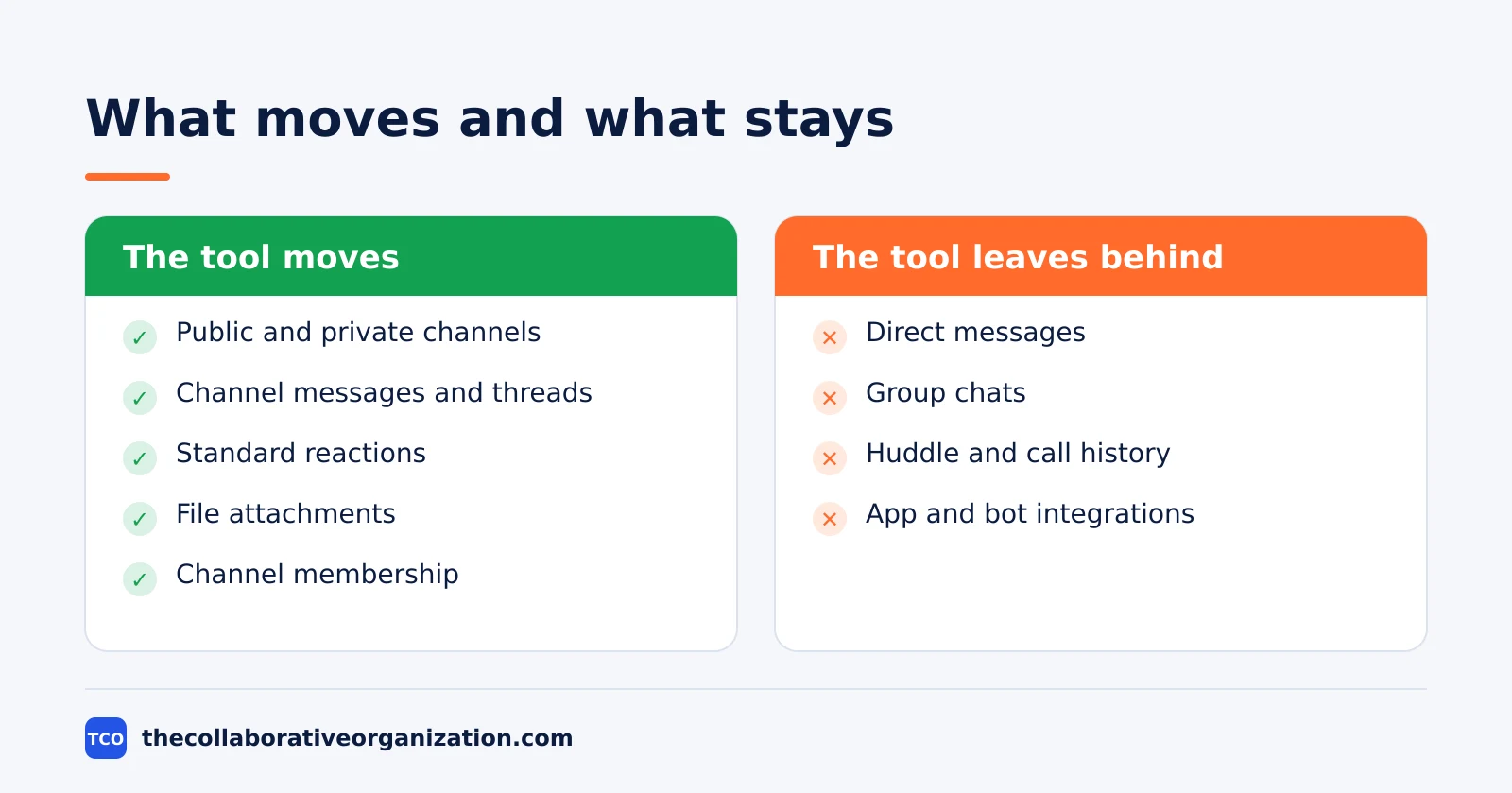
The tool moves Slack channels, channel messages, files and membership, and it leaves direct messages, group chats and apps behind. Knowing that split before you start stops the team from expecting a full copy of Slack in Teams.
Microsoft Learn lists what the current tool migrates: Slack channels, public and private; channel messages, including threading and standard reactions; channel file attachments; and channel membership, owners and members.
Canvas and list content also moves, arriving as HTML and JSON file attachments in the channel. The tool runs in the Microsoft 365 admin center and works from Slack export packages plus online access to the Slack workspace.
Direct messages are not in that list. The native tool does not move direct messages, group chats, huddle or call history, or third-party app and bot integrations, so a team that lives in DMs needs a separate plan for them. Tell people in advance that DM history stays behind, and give them time to save anything important before cutover.
What you need before the migration
You need admin rights in both systems, a Slack plan that allows the export you need, an Azure Blob Storage account, and a named owner for the move. The owner runs the export, the mapping and the checks, while the admins grant the access the tool needs.
Check your Slack export rights first. Slack’s export guide explains that Free and Pro plans export messages and file links from public channels in JSON format, while private channels and direct messages need Business+ or Enterprise, and owners must apply for those export types. Free plan file links cover only the last 90 days.
On the Microsoft side, the migration needs a Global Administrator to grant one-time consent for the “M365 Teams Migration” app, and an Azure Blob Storage account to stage the export file. Our guide on how to choose team communication software can help you confirm Teams is the right target before you move anything.
How to migrate from Slack to Microsoft Teams in 9 steps
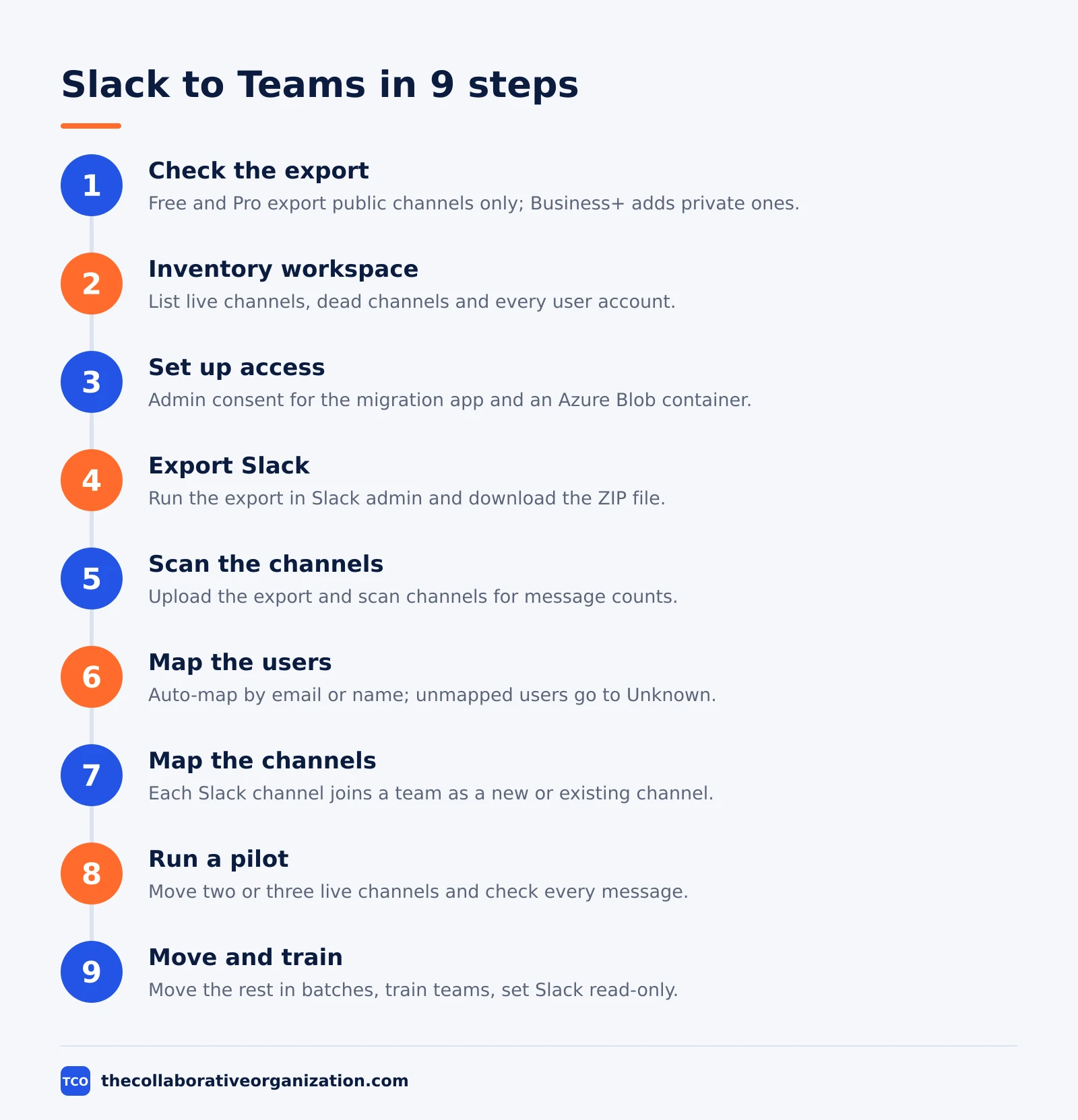
The migration runs in nine steps: check the export, inventory the workspace, set up access, export, scan, map users, map channels, pilot, then move and train. Each step has a clear outcome, and the pilot in step 8 is the gate that stops a bad mapping from spreading.
Step 1: Check what your Slack plan can export
Confirm your plan in Slack’s admin settings and read the export table for that plan. Free and Pro workspaces export public channels only, while Business+ and Enterprise add private channels and direct messages, with an application step. If the plan cannot export what the team needs, decide now whether to upgrade or to accept a partial move.
Step 2: Inventory the channels and users
List every channel with its owner, its member count and its last message date. Archive the dead channels and keep only the live ones for migration. List every user, including deactivated accounts, because all of them must map to a Microsoft 365 user before the tool starts.
Step 3: Get consent and set up Azure Blob Storage
Ask a Global Administrator to grant one-time consent for the “M365 Teams Migration” app. Create an Azure Blob Storage account and container in your own tenant, and grant the migration app read access to it. The export file lives here while the tool scans it, so keep the container private.
Step 4: Export the Slack workspace
Run the export from Slack’s admin settings and download the ZIP file when Slack emails the link. Check that the export covers the date range the team needs. The export holds file links, not the files themselves, and the tool reads them through the package, so do not edit the files inside the ZIP.
Step 5: Upload the export and scan the channels
Upload the export file to the Azure Blob container and give the migration tool its URL in the Microsoft 365 admin center, under Setup, then Migration and imports, then Slack to Teams. Select the channels to scan and wait for the scan to finish. The scan shows the message count and last message date for each channel, which helps you plan the order.
Step 6: Map users to Microsoft 365 accounts
Map every Slack user to a Microsoft 365 user before the migration starts. The tool can auto-map by email address, by the username part of the email, or by display name, and any user with no match maps to the Unknown user. For large teams, export the mapping to a CSV file, fill in the gaps, and import it back.
Step 7: Map channels to Teams teams
Decide how each Slack channel maps to a team and channel in Teams. A Slack channel can become its own team, join an existing team, or merge with other channels into one team. Microsoft suggests shared channels as the destination type for the most flexibility. The tool can only migrate into Teams channels it creates itself.
Step 8: Run a pilot migration
Migrate two or three live channels first and check the result in Teams. Check that messages, threads, reactions, files and members all arrived, and that the dates and authors look right. Fix the mapping and rerun the pilot until it passes, because the same mapping applies to every channel that follows.
Step 9: Migrate the rest, train, and switch off Slack
Migrate the remaining channels in groups, starting with the most active ones. The tool runs up to 20 channels in parallel, so a large workspace moves in batches. Train each team in its own channels, set Slack to read-only, and cancel it before the next renewal. Our guide on how to roll out new software to employees covers the training and cutover week in detail.
Slack to Teams mapping: what becomes what
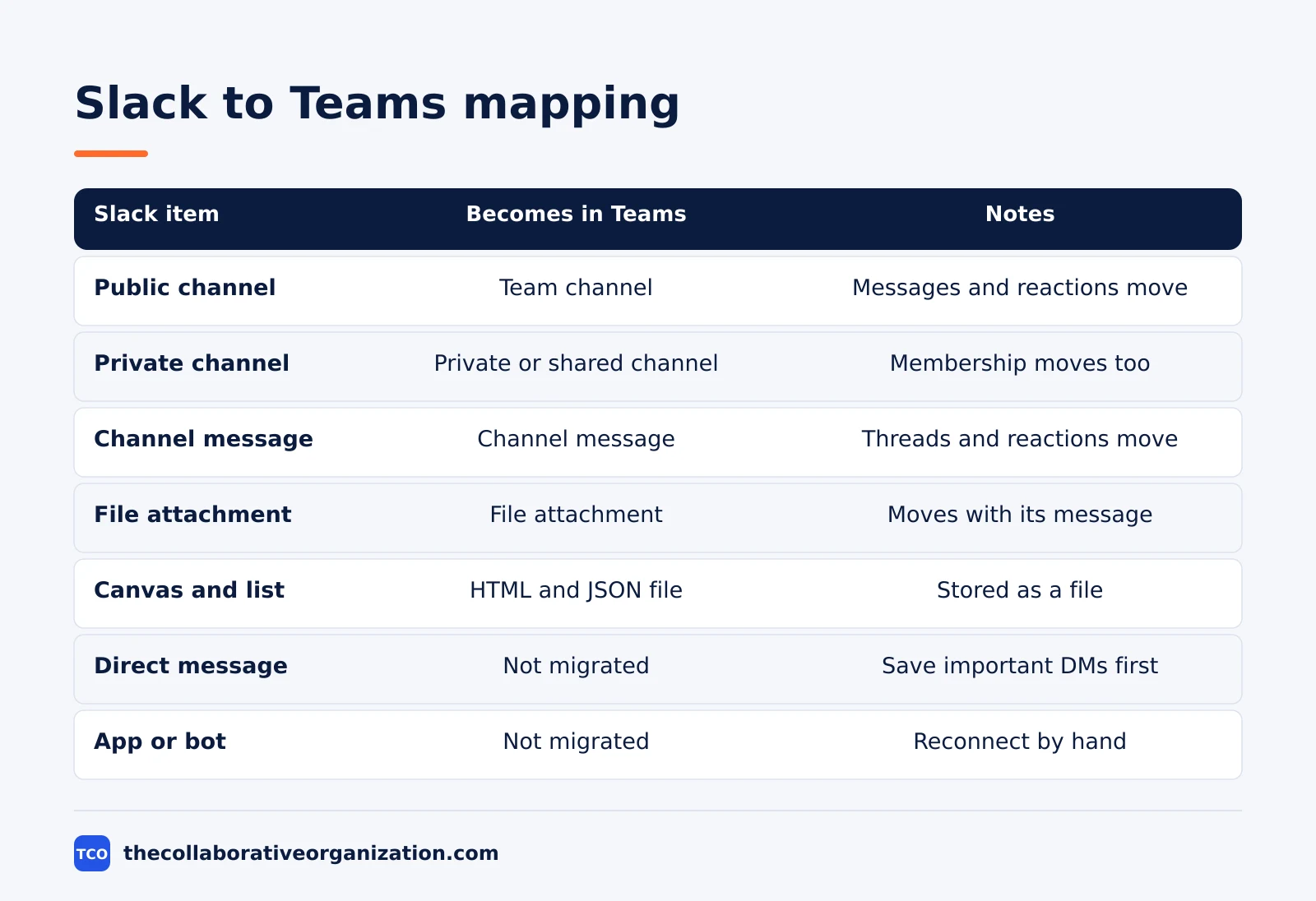
Slack channels become Teams channels inside a team, direct messages become chats, and files land with the messages they were attached to. The table below shows each item and where it lands.
| Slack item | Becomes in Teams | Notes |
|---|---|---|
| Public channel | Team channel | Messages, threads and reactions move |
| Private channel | Private or shared channel | Membership moves with the channel |
| Channel message | Channel message | Threads and standard reactions move |
| File attachment | File attachment | Arrives with the message it was shared in |
| Canvas and list | HTML and JSON attachment | Stored as a file in the channel |
| Direct message | Not migrated | Save important DMs before cutover |
| App or bot | Not migrated | Reconnect the app in Teams by hand |
Two limits shape the plan. The tool handles up to 20 channels at a time, so a workspace with 40 channels moves in at least two batches. It also supports incremental migration in several passes, so new messages posted after the first pass can move in a later pass without creating duplicates.
Worked example: a 60-person company moves 40 channels
A 60-person company moved 40 Slack channels to Teams in three weeks, and the pilot caught the mapping mistake before it spread. The workspace held about 120,000 messages, and the team had used Slack Pro for two years.
Week one went to the inventory and the export check. The team found 40 live channels and 18 dead ones, archived the dead ones, and confirmed the Pro plan export covered public channels only. Three private channels held project history, so the team saved their key files by hand before the move.
Week two ran the pilot on three channels. The first pilot mapped two channels into the wrong team, so the team fixed the mapping and reran it.
At 2 to 3 messages per second per channel, with 20 channels in parallel, the full move took under an hour of tool time, and the rest of the week went to checking and training.
Week three moved the remaining channels in two batches and trained each team in its own channels. Slack went read-only on Friday, and the team cancelled it before the next renewal. Direct message history stayed behind, as planned, and nobody asked for it after the first week.
Slack vs Teams costs
The table below shows what each side charges, so the cost gap is visible before the move. Most companies already pay for Microsoft 365, so Teams often adds no new bill, and the migration becomes a project cost rather than a new purchase. Compare the options on our team communication software shortlist before you commit.
| Plan | Best for | Free option | Starting price (as of November 2026) | Notable limit |
|---|---|---|---|---|
| Slack Free | Trying chat with a small team | $0, 90 days of history | $0 | Message history ends after 90 days |
| Slack Pro | Teams that need full history | No free paid tier | $7.25 per user per month, billed annually | Billed monthly at $8.75 |
| Slack Business+ | Teams that need exports and SSO | No free paid tier | $15 per user per month, billed annually | Billed monthly at $18 |
| Microsoft Teams Essentials | Small teams that need meetings | Free Teams plan | $4.00 per user per month, paid yearly | 10 GB of cloud storage per user |
| Microsoft 365 Business Basic | Teams that already use Office apps | No free paid tier | $7.00 per user per month, paid yearly | Includes Teams, email and 1 TB storage |
The Slack price comes from Slack pricing: Pro is $7.25 per user per month billed annually, and Business+ is $15.
The Teams price comes from Microsoft Teams pricing: Teams Essentials is $4.00 per user per month paid yearly, and Microsoft 365 Business Basic is $7.00.
For a 60-person team, Slack Pro costs $5,220 a year at the annual rate, while Business Basic costs $5,040 a year. A team that already pays for Microsoft 365 pays nothing extra for Teams, which is why the move is usually about the apps and files, not the bill.
How to measure a successful migration
A migration succeeds when every live channel lands in Teams with its messages, files and members intact, and the team works there without going back to Slack. Count the channels moved, the messages that arrived, and the members who can find their work, then fix the gaps before Slack closes.
Measure three things in the first month. The share of live channels that moved with full history, the number of team members who posted in Teams in the first week, and the number of times anyone asked for a Slack channel. A clean move shows high numbers on the first two and a fast fall on the third.
Set a date to judge the move, usually 30 days after cutover. If the team still works in Slack after 30 days, the problem is training or a missing app, not the import. Our guide on change management for new software covers how to handle the resistance that shows up after a switch.
Common Slack to Teams migration mistakes to avoid
Most Slack to Teams moves fail in the same five ways, and the pilot migration catches four of them. Check the list before the first export.
- Assuming direct messages move. The native tool does not move DMs, so tell the team early and give them time to save what matters.
- Skipping the export check. A Free or Pro plan exports public channels only, so a team that needs private history must plan for it.
- Mapping channels before the inventory. Dead channels waste migration time, so archive them first and move only the live ones.
- Leaving users unmapped. Every Slack user, including deactivated ones, must map to a Microsoft 365 user before the tool starts.
- Cancelling Slack too soon. Keep it read-only for 30 to 90 days, because the team needs a reference while Teams settles.
Before you standardize on Teams, read our guide on before you standardize team chat, which covers the decision to pick one chat tool for the whole company.
Sources
- Microsoft Learn - Migrating from Slack to Microsoft Teams (2026)
- Slack - Export Your Workspace Data (2026)
- Slack - Pricing (2026)
- Microsoft - Microsoft Teams Pricing for Business (2026)
- O365CloudExperts - Slack to Microsoft Teams Migration: The Complete 2026 Guide (2026)
- SwitchToHQ - How to Move from Slack to Microsoft Teams (2026)
Frequently asked questions
Does Microsoft have a free Slack to Teams migration tool?
Yes. The Slack to Teams Migration Tool runs in the Microsoft 365 admin center and moves public and private channels, channel messages, file attachments and membership at no extra license cost. You need a Slack export package, an Azure Blob Storage container in your own tenant to stage it, and admin consent for the migration app. The tool does not move direct messages, group chats or app integrations.
What does the Slack to Teams migration tool not move?
It does not move direct messages, group chats, huddle or call history, or third-party app and bot integrations. Its published list covers channels, channel messages with threads and reactions, file attachments, canvas and list content, and channel membership. Tell the team in advance that direct message history stays behind so they can save anything important.
How long does a Slack to Teams migration take?
It depends on message volume. The tool migrates up to 20 channels in parallel at typically 2 to 3 messages per second for each channel, so a small workspace with a few thousand messages finishes in hours. Planning, mapping users and channels, and training take longer than the data move itself, so a 60-person company should plan two to four weeks end to end.
Can you export private Slack channels and direct messages?
It depends on your Slack plan. On Free and Pro plans, workspace owners and admins can export messages and file links from public channels in JSON format only. Private channels and direct messages need Business+ or Enterprise, and workspace owners must apply to use those export types. Check your plan before you promise the team a full history move.
Do you lose Slack data during the migration?
No. Microsoft states that no data is deleted from Slack during the migration, so the workspace stays intact while you check the result. Keep Slack read-only after cutover for 30 to 90 days, then cancel it before the next renewal. Export a final backup first if your plan allows it, because the data is gone once the account closes.
Related articles
guides
Free Project Management Templates: 7 to Copy (2026)
Seven free project management templates from monday, Wrike, Teamwork, Smartsheet, ClickUp, Asana and Trello, with what each one is for and what free really costs.
November 20, 2026 · 7 min read

guides
Project Proposal Template: Copy and Win Work (2026)
A project proposal template pitches the work before it is approved: problem, solution, scope, budget, timeline and terms. Copy the template and filled example.
November 20, 2026 · 10 min read

guides
Action Plan Template: Goal to Done in One Page (2026)
An action plan template turns one goal into owned steps with dates, dependencies and a success measure. Copy the table and see it filled for a support team.
November 20, 2026 · 11 min read