How to Collaborate on a Document in Real Time (2026) | The Collaborative Organization
By The Collaborative Organization Team · November 19, 2026 · Last verified November 19, 2026 · 10 min read
To collaborate on a document in real time, save one live copy in the cloud, share it with the right roles, and agree ground rules before anyone types. Everyone then opens the same file, edits appear on every screen within moments, and version history records each change. The whole job takes seven steps and about ten minutes to set up.
Key takeaways
- One live copy in the cloud replaces emailed versions: no merging, no guessing which file is current.
- Google Docs lets up to 100 people work on one file at the same time.
- Word co-authoring needs the file in OneDrive or SharePoint, in .docx format, with AutoSave on.
- Give each person a role: Viewer reads, Commenter suggests, Editor changes.
- Split the document into sections first, so two people never edit the same paragraph.
- Reviewers should use Suggesting mode or Track Changes, not direct edits.
What you need before you start
You need four things: one tool, one cloud location, the right people, and a short list of ground rules. Gather them before anyone opens the file, or the live session will waste its first half hour on setup.
First, pick one tool. Google Docs is the simplest for live writing, Word fits formal .docx files, Notion fits docs that live beside a wiki, and Confluence fits team knowledge pages. The tool matters less than the rule that follows: one tool, one file, one link.
Second, pick the cloud location. Google Docs saves to Drive by default. Word needs OneDrive or SharePoint, since co-authoring does not work on a local-only copy or an email attachment. A file stored only on a laptop is a fork, and its edits will never reach the live document.
Third, list the people and their roles. Writers get Editor access, reviewers get Commenter access, and stakeholders who only read get Viewer access. Our guide on how to run a team kickoff shows how to set roles before a shared piece of work starts.
Fourth, write the ground rules down in the document itself: who owns each section, which mode reviewers use, and when the file locks for final review. The rules take five minutes to write and save hours of rework.
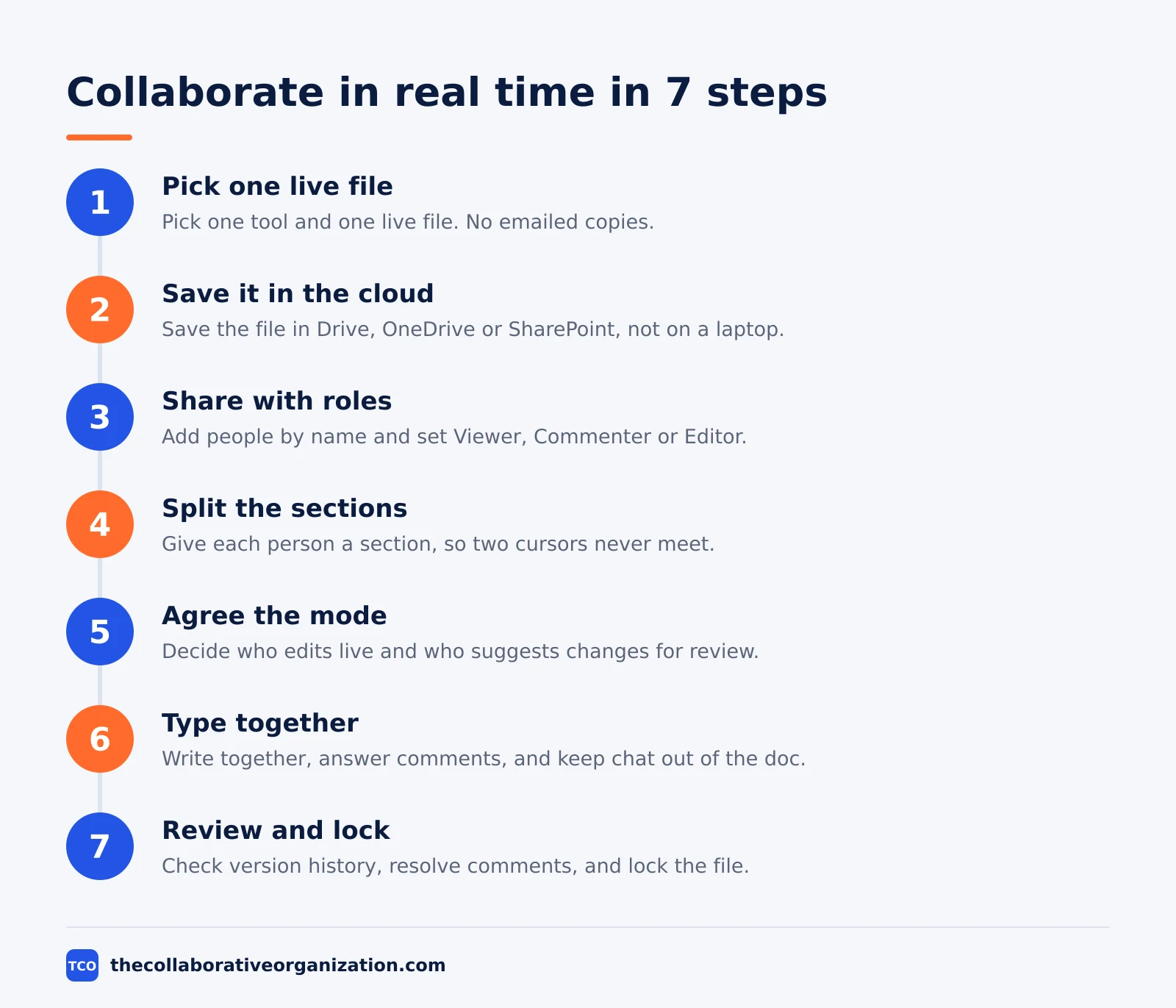
How to collaborate on a document in real time in 7 steps
Seven steps take a document from a blank page to a finished draft with several people typing at once. The steps work the same in Google Docs and in Word, with small differences noted where they matter.
Step 1: Pick one live file
Create one document and name it clearly, with the date in the title if the file will be revised. One file means one version of the truth. If a copy already exists in email, delete it or mark it clearly as old, so nobody opens the wrong file.
Step 2: Save it in the cloud
Save the file where co-authoring works: Google Drive for Docs, or OneDrive or SharePoint for Word. Check that the file is in a shared folder the whole team can reach. A file in a private folder will block half the team at the first click.
Step 3: Share it with roles
Click Share and add each person by email, or copy a link with the right access level. In Google Docs, open the document and click Share at the top right, then set each person as Viewer, Commenter or Editor. In Word, click Share, invite people by email or link, and set edit, review or view permission before anyone opens the file.
Step 4: Split the document into sections
Give each person a section before anyone types. Put names beside headings, so two cursors never meet in the same paragraph. A writer who owns the introduction should not find a teammate rewriting it mid-sentence.
Step 5: Agree the mode for each person
Decide who edits live and who suggests changes. Writers use Editing mode, reviewers use Suggesting mode in Docs or Track Changes in Word, so their notes appear as proposals the owner accepts or rejects. Say it out loud: a reviewer who leaves Suggesting mode on by accident will see none of their changes accepted.
Step 6: Type together and talk beside the document
Open the file at the agreed time and write. Each person has a colour-coded cursor in Docs, and Word shows where each co-author is working. Keep discussion in comments or in chat, not in the document text, so the draft stays clean.
Step 7: Review, resolve and lock the file
When the draft is done, the owner reads it top to bottom, resolves every comment, and accepts or rejects each suggestion. Version history shows who changed what, and an earlier version can be restored if a bad edit slips through. Then lock the file: change editors to Viewers, or move it to a read-only folder, so the final version stays final.
The three sharing roles, and when to use each
Viewer reads, Commenter suggests, and Editor changes, and giving the wrong role is the most common cause of live-session chaos. The table below is the whole permission model in three rows.
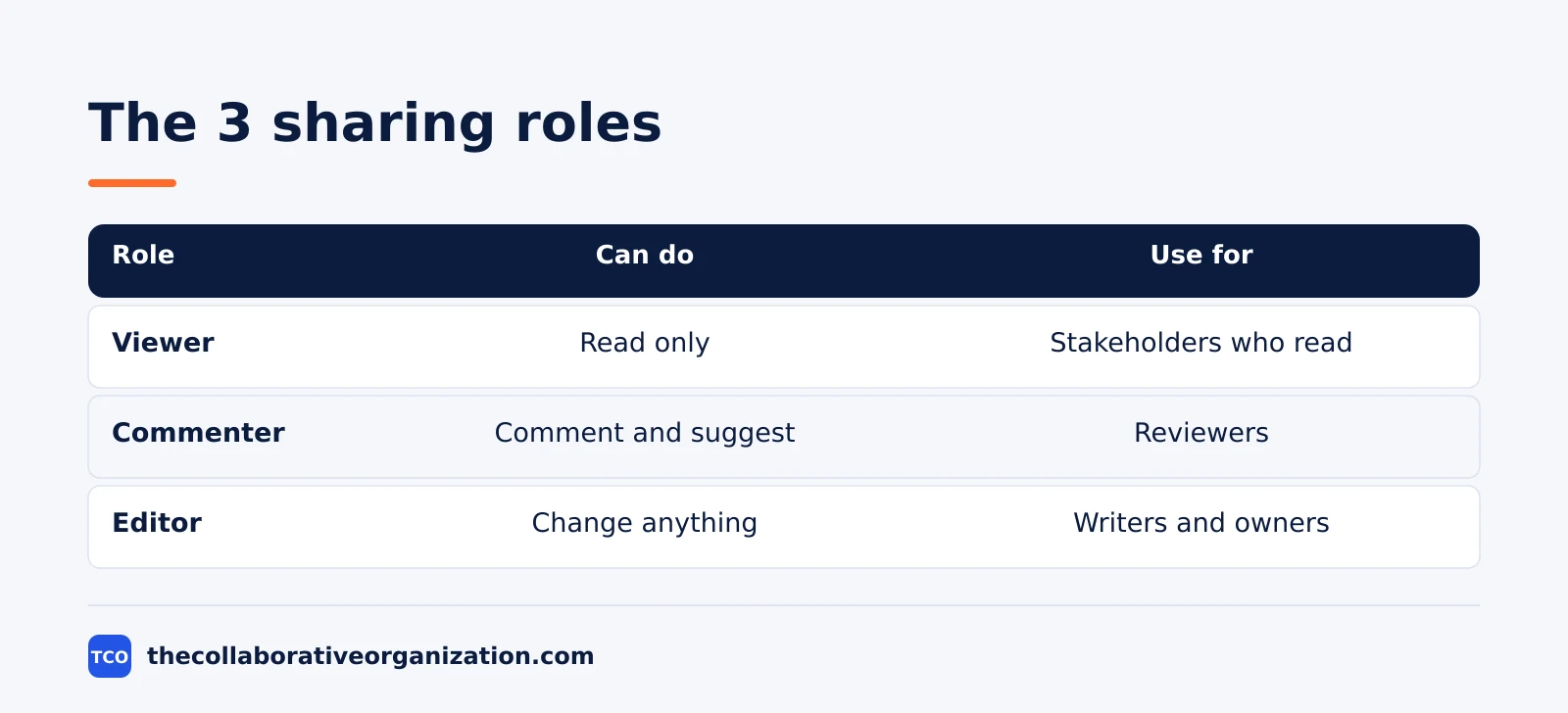
| Role | Can do | Use for |
|---|---|---|
| Viewer | Read only, no changes | Stakeholders who only need to read |
| Commenter | Add comments and suggestions | Reviewers who should not change text |
| Editor | Change anything, and share the file | Writers and the document owner |
Google describes the same three roles in its sharing help: Viewer can only read, Commenter can add comments and suggestions, and Editor can make any changes. The owner can change any role at any time, so a reviewer can be promoted to Editor for one section and moved back after.
Two details catch teams out. First, an Editor can share the file further by default in Google Docs, so check the sharing list before the file goes out. Second, permissions can be inherited from the folder, so a restrictive file in a wide-open folder may be more open than it looks. Check the folder, not just the file.
Worked example: a team proposal in one afternoon
A four-person team writing a client proposal in one afternoon shows how the seven steps run in practice. This is an illustration, not a case study, but the steps and limits are real.
At 1 pm the project lead creates a Google Doc titled “Client Proposal - Northwind - 19 Nov 2026” and shares it with three teammates as Editors. She splits the document into four sections and puts a name beside each heading: herself on the summary, the designer on the visuals, the engineer on the approach, and the writer on pricing.
From 1 to 3 pm the team types together. Four colour-coded cursors move through the document, and the lead watches the summary take shape while the engineer writes the approach. The writer leaves a comment on the pricing table asking whether the discount is approved, and the lead answers it in the margin within a minute.
At 3 pm the client contact is added as a Commenter. She reads the draft, leaves two suggestions on the timeline, and flags one number that needs a source.
The lead accepts one suggestion, rejects the other with a short reply, and adds the source. At 4 pm the document is locked: editors become Viewers, and the proposal goes to the client as a link, not an attachment.
The whole job took one file, one link and three hours, with no emailed versions at all. Our guide on how to improve team collaboration covers the same habits for teams that write together often.
Ground rules for a live session
A live session works when the rules are written down before anyone types, and the four rules below cover most of the trouble. They fit on one page at the top of the document.
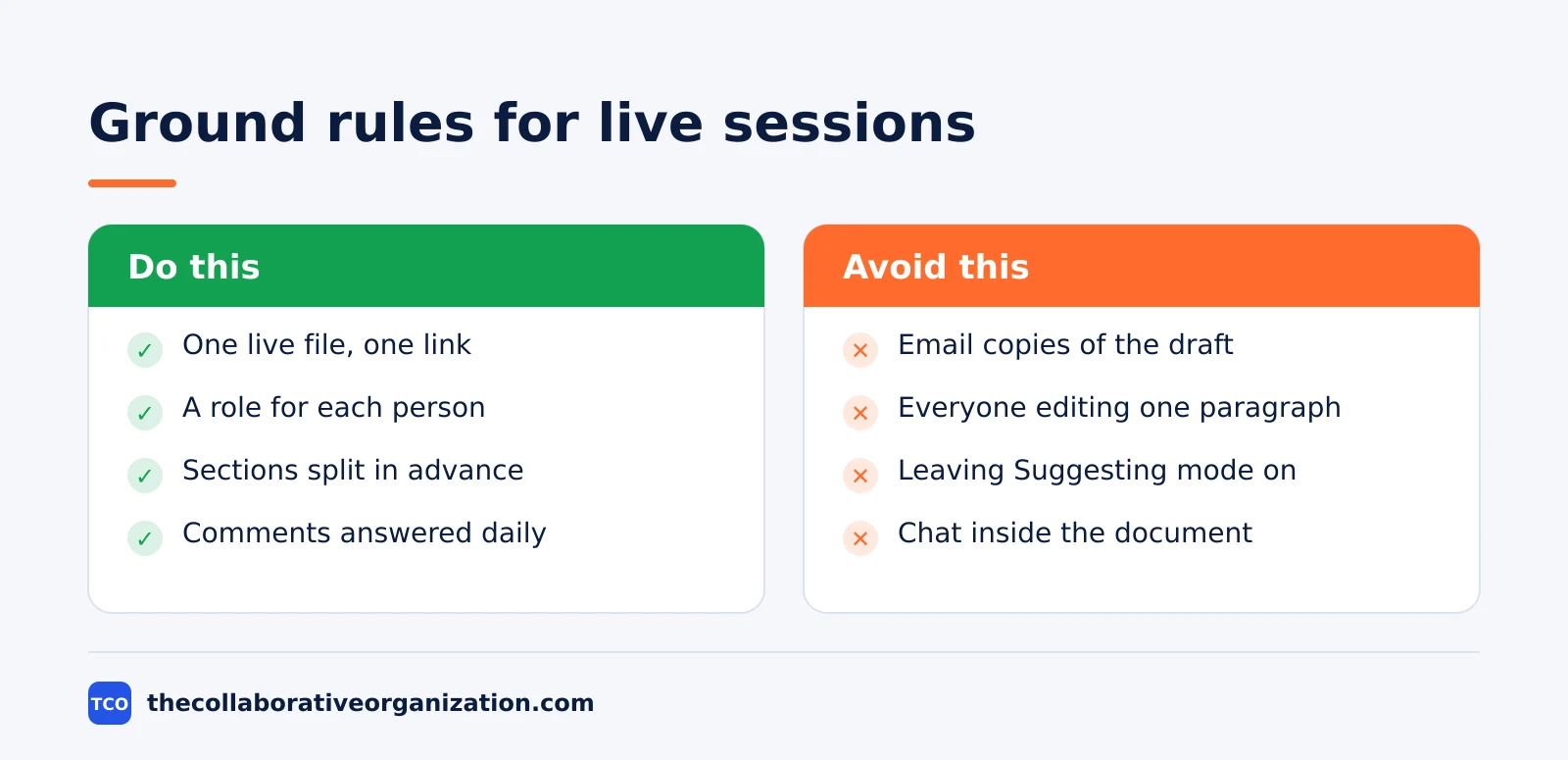
Do use one live file and one link, give each person a role, split sections in advance, and answer comments daily so nothing waits a week. Do agree a lock time, after which only the owner edits, so the draft can actually finish.
Avoid emailing copies of the draft, letting two people edit the same paragraph, leaving Suggesting mode on by accident, and holding the discussion inside the document text. Chat belongs in comments or in a call, not in the middle of a paragraph. The what team collaboration is guide explains why shared rules matter more than shared tools.
How to measure whether it worked
A live session worked if the draft finished faster, with fewer versions and no lost edits. Three numbers tell the story, and all three are easy to check.
First, count the versions. One live file means one version, and version history shows the edits inside it. If the team still has three files named “final”, “final v2” and “final FINAL”, the live session did not replace the old habit.
Second, check the clock. A proposal that took three days of email rounds should take one afternoon live. If it still takes three days, the bottleneck is not the tool: it is unclear ownership or missing ground rules.
Third, count the lost edits. Version history shows every change and who made it, so a paragraph that vanishes can be restored in seconds. If the team cannot say who removed a section, the file was shared too widely or the roles were wrong. Fix the roles before the next session.
Tools for real-time document collaboration
Google Docs, Word, Notion and Confluence all support live collaboration, and the right pick depends on the document, not the feature list. Each one handles the seven steps, but each leans a different way.
Google Docs is the simplest: free with a Google account, real-time by default, and built for simultaneous browser editing. Google Workspace Business Starter costs $7 per user per month with an annual commitment for teams that also need business email and Drive storage.
Word is the choice for formal .docx files. Word for the web is free, desktop Word comes with Microsoft 365 Business Standard at $14 per user per month on an annual commitment, and co-authoring needs OneDrive or SharePoint. Microsoft Support confirms that co-authoring is available for documents stored in OneDrive or SharePoint, in modern formats such as .docx.
Notion fits docs that live beside a wiki and a database, with real-time editing and comments on every page. Plus costs $10 per member per month billed annually, or $12 billed monthly.
Confluence fits team knowledge pages beside Jira. Standard costs $7.15 per user per month billed monthly for 1 to 100 users, raised on 13 October 2026 from $6.70, while the page headline of $5.78 is the blended rate for a larger team.
Compare the options on our document collaboration software shortlist before you commit.
| Tool | Best for | Free plan | Starting price (as of November 2026) | Notable limit |
|---|---|---|---|---|
| Google Docs | Simple live writing in a browser | Yes, free with a Google account | $0, or $7 per user per month for Workspace Starter | 100 people editing at once |
| Word | Formal .docx files and layout | Word for the web is free | $14 per user per month (Business Standard), billed annually | Co-authoring needs OneDrive or SharePoint |
| Notion | Docs, wikis and databases together | Yes, free plan | $10 per member per month (Plus), billed annually | Guests are free, members pay |
| Confluence | Team knowledge beside Jira | Yes, free plan | $7.15 per user per month (Standard), billed monthly | Price is the 1 to 100 user rate |
Common real-time collaboration mistakes to avoid
Most live sessions fail in the same five ways, and all five are easy to prevent. Run through the list below before the next session.
- Starting without sections. Two people in one paragraph will overwrite each other, and the text will jump around.
- Giving everyone Editor access. Reviewers who only need to comment should be Commenters, so notes do not become edits by accident.
- Working on a downloaded copy. A file saved to a laptop is a fork, and its edits will never reach the live document.
- Leaving Suggesting mode on. A reviewer in Suggesting mode will see none of their changes accepted, and the owner will see a pile of proposals.
- Never locking the file. A draft that stays open forever is never final, and someone will edit it after it goes to the client.
Sources
- Google - Share and Collaborate on a File (2026)
- Microsoft - Document Collaboration and Co-authoring (2026)
- Microsoft - Coauthor Documents Anywhere (2026)
- Microsoft - Collaborate in Word (2026)
- OpenStax - Advanced Collaboration in Google Docs (2026)
- Agency Shed - Google Workspace vs Notion (2026)
Frequently asked questions
How do I collaborate on a document in real time in Google Docs?
Open docs.google.com, create a document, and click Share in the top right. Add each person by email and set their role to Viewer, Commenter or Editor, or share a link with anyone who needs it. Everyone with Editor access can type at once, and each person has a colour-coded cursor so the team can see who is working where.
How do I collaborate on a Word document in real time?
Save the document to OneDrive or SharePoint first, since co-authoring does not work on a local-only copy. Click Share, invite people by email or link, and set edit permission. Turn on AutoSave on desktop so changes sync continuously. The paragraph a person is working in locks, so nobody overwrites it.
How many people can edit the same document at once?
Google says up to 100 people with view, edit or comment permission can work on a Docs, Sheets or Slides file at the same time, and a file can be shared with up to 600 email addresses. In practice, most documents work best with 2 to 5 people editing at once, since too many cursors in one paragraph make the text jump around.
What is the difference between Suggesting mode and Editing mode?
In Editing mode, changes go straight into the document. In Suggesting mode, changes appear as proposals that the owner accepts or rejects, and comments sit in the margin. Use Editing mode for writers building the draft, and Suggesting mode for reviewers who should not change the text directly. Word calls the same feature Track Changes.
Can people collaborate on a document without an account?
In Word for the web, yes: recipients can co-author, comment or work in a shared document without a Microsoft account or a Microsoft 365 subscription. In Google Docs, anyone with the link can open a file shared as Anyone with the link, but they need a Google account to be named as an Editor on a restricted file.
Related articles
document collaboration
Airtable vs Google Sheets: Which to Use in 2026
Airtable is a database with views and automations; Google Sheets is a free spreadsheet. Learn the limits, the 2026 prices, and which one fits your team's data.
November 19, 2026 · 7 min read
document collaboration
Confluence vs SharePoint: Which to Use in 2026
Confluence is a wiki built around pages; SharePoint is a document platform built around files. Learn the differences, the 2026 prices, and which one fits your team.
November 19, 2026 · 7 min read
document collaboration
How to Document Processes: A Step-by-Step Guide (2026)
To document a process, pick one task, watch it done for real, map the steps and decisions, then test the draft on someone new. Follow the 7 steps in this guide.
November 19, 2026 · 10 min read