How to Run a Virtual Meeting: A Guide (2026) | The Collaborative Organization
By The Collaborative Organization Team · November 19, 2026 · Last verified November 19, 2026 · 13 min read
To run a virtual meeting, send a written agenda and a link that works, start on time, keep it under 45 minutes, and end with a decision and an owner. The tech has to work and the people on screen have to stay in the room, so this guide covers setup, facilitation, fatigue, and hybrid calls.
Key takeaways
- A virtual meeting needs a written agenda, a tested link, and a timebox of 30 to 45 minutes.
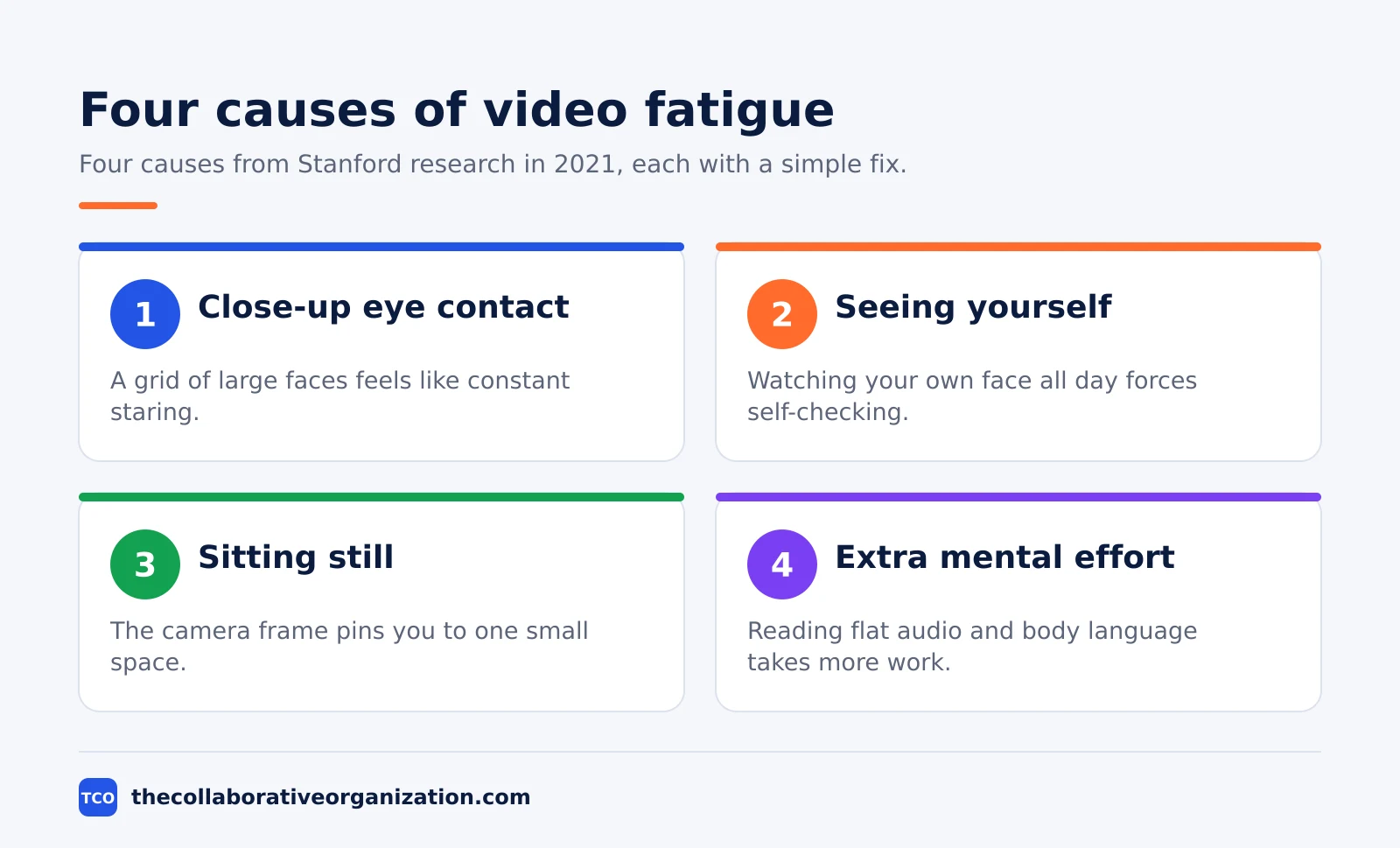
- Stanford research from 2021 names four causes of video fatigue: close-up eye contact, self-view, stillness, and extra mental effort.
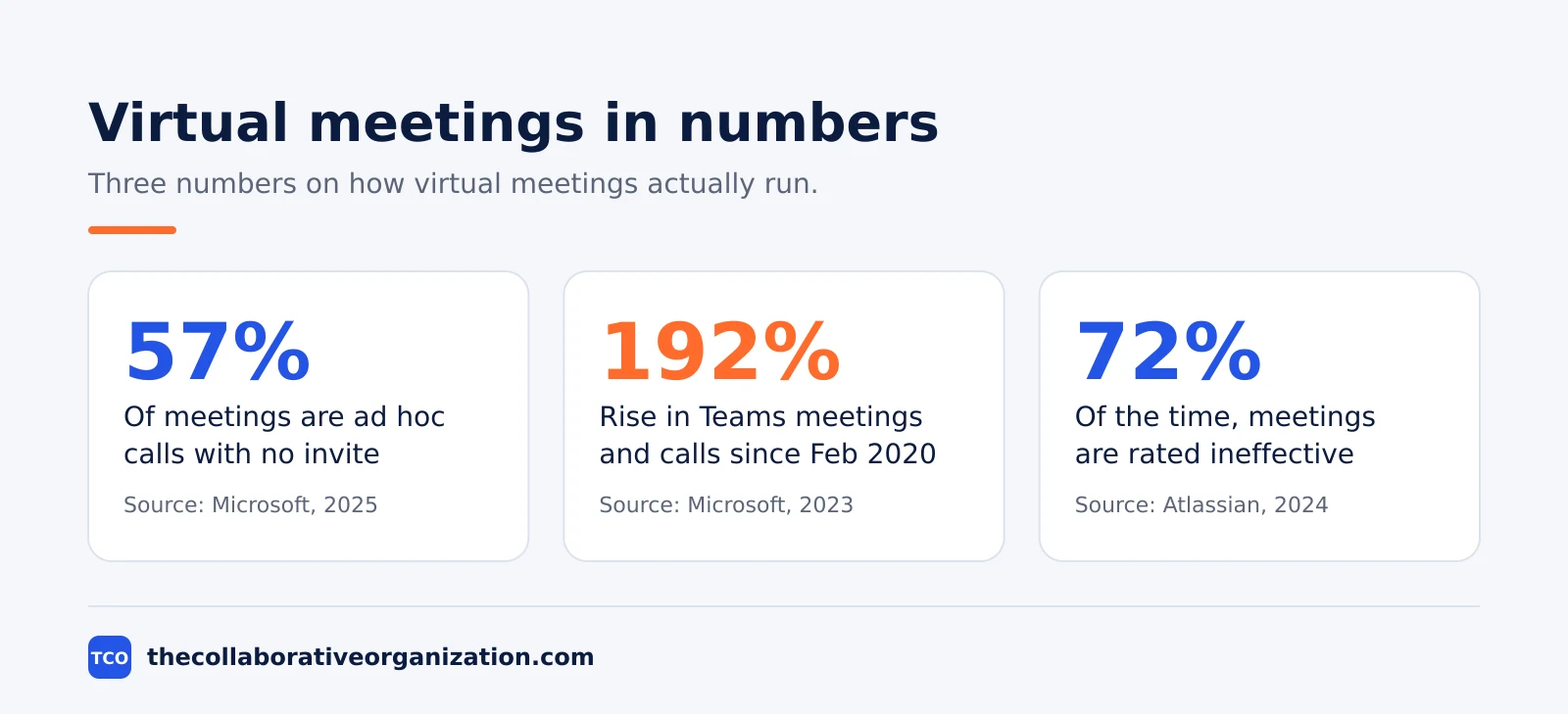
- In Microsoft’s 2025 telemetry, 57% of meetings are ad hoc calls with no calendar invite.
- Hybrid meetings need one person watching the chat for remote hands, or the room runs the meeting alone.
- Every virtual meeting should end with a decision, an owner, and notes shared the same day.
When a virtual meeting is the right call
A virtual meeting is the right call when the team needs to decide, debate, or react together in real time. It is the wrong call when the job is to share facts, which a written note does faster, or to work alone, which a meeting only interrupts. The test is simple: if nobody needs to answer back live, do not book the meeting.
Video beats a phone call when faces matter: a kickoff, a hard conversation, or a first meeting with a new colleague. A phone call beats video when the job is quick and the faces add nothing, such as a two-minute check on a number.
Our video call vs phone call guide compares the two in detail, so a team can pick the right one each time.
Video also beats a written note when the topic is unclear and the group needs to argue it out. A written note is better when the facts are settled and people only need to read them.
The meeting load data backs this up: inefficient meetings rank as the number one productivity disruptor in Microsoft’s 2023 Work Trend Index, and most of those meetings should never have been booked.
What you need before you start
You need five things before a virtual meeting: a working link, a tested mic and camera, a written agenda, a note-taker, and a backup plan. Check them the day before for a big meeting, and five minutes before for a small one.
Send the link with the invite, not in a separate message. Test it from the device you will use, and join two minutes early to check the mic, the camera, and the screen share. A meeting that starts with five minutes of “can you hear me?” has already lost its first decision.
Write the agenda as a short list of questions, not topics. “Decide the launch date” is an agenda item; “launch” is not. Put the goal in the first line of the invite, because 62% of workers often attend meetings with no goal stated, Atlassian found in 2024.
Name the note-taker in the invite too, so the job does not fall to whoever speaks last.
Have a backup ready: a phone dial-in number on the invite, and a second way to reach people if the video tool fails. If the tool drops, move to the dial-in and keep going. A meeting that dies with the tool was never really planned.
How to run a virtual meeting in 6 steps
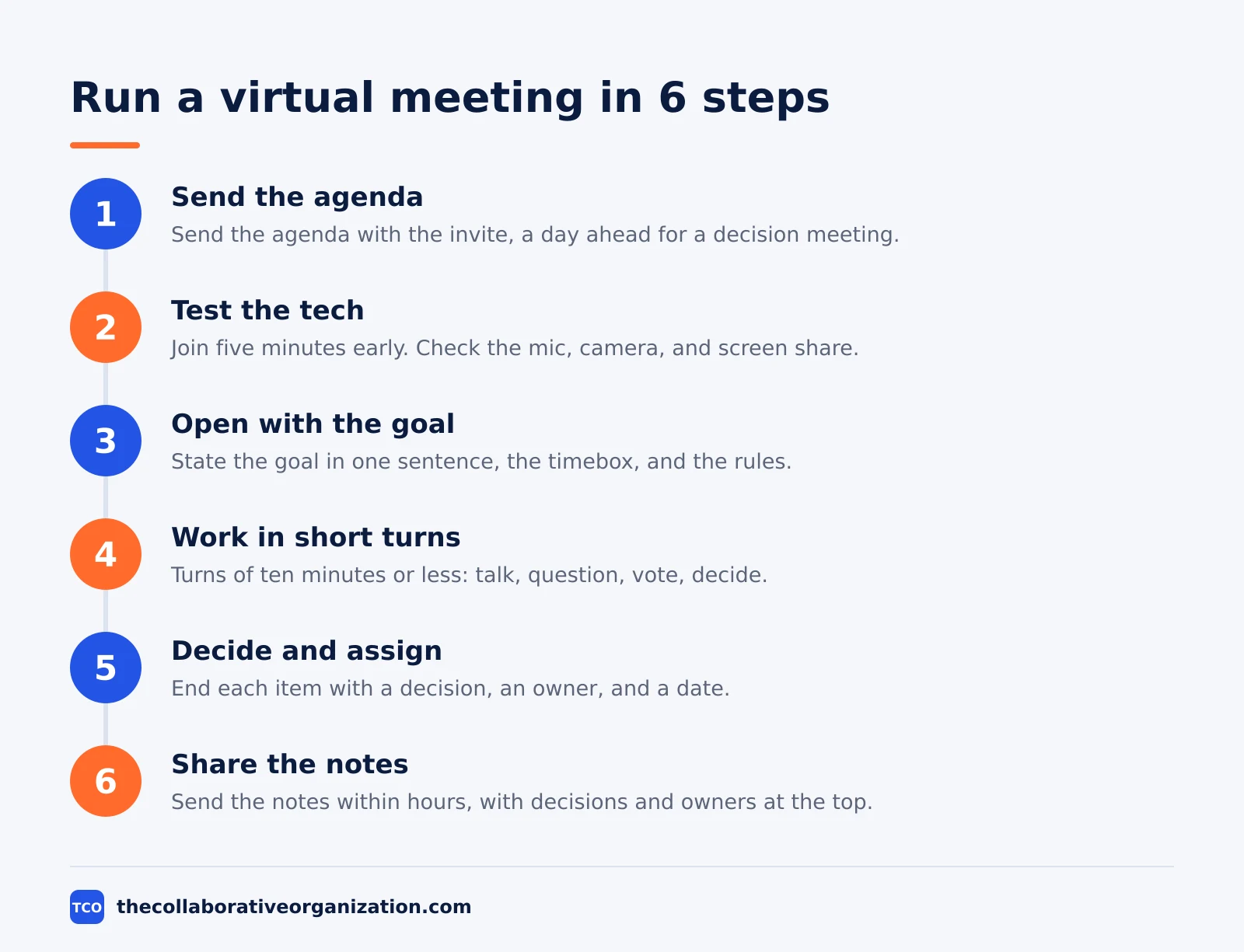
Running a virtual meeting takes six steps, and the first two happen before anyone joins. The steps below fit a 30 to 45 minute call with five to ten people.
Step 1: Send the agenda and the pre-read
Send the agenda with the invite, at least a day ahead for a decision meeting. Attach the pre-read: the numbers, the options, and your recommendation, short enough to read in five minutes. Outcome: people arrive having read the facts, so the meeting can decide instead of present.
Step 2: Test the tech and open the room early
Join five minutes early, check the mic and camera, and open the shared notes document. Start on time even if two people are missing, because starting late teaches the team that the start time is a suggestion. Outcome: the meeting starts clean, and late joiners catch up from the notes.
Step 3: Open with the goal and the rules
State the goal in one sentence, the timebox, and the rules: cameras on or off, hands up for questions, and chat for quick answers. Name the note-taker and the timekeeper out loud. Outcome: everyone knows what the meeting must decide and how it will run.
Step 4: Work in short turns, not one long talk
Break the meeting into turns of ten minutes or less: a short presentation, then questions, then a vote or a decision. Ask a question every ten minutes that needs an answer in chat or a poll. Outcome: people stay in the meeting, because they have something to do every ten minutes.
Step 5: Decide, assign, and read it back
End each agenda item with a decision, an owner, and a date. Read the decisions back before anyone leaves, and ask the owner to confirm. Outcome: nobody leaves unsure of what was decided or who owns it.
Step 6: Share the notes the same day
Send the notes within hours, not days, with the decisions, owners, and dates at the top. A short note is enough: what was decided, who owns what, and what happens next. Outcome: people who missed the meeting can catch up, and the decisions survive the week. Our meeting notes vs minutes guide shows what to record and what to leave out.
How to keep people engaged on video
People stay engaged on video when they have a job to do every ten minutes. Listening alone does not hold attention on a screen, and the research shows why: meetings are ineffective 72% of the time, Atlassian found in 2024, and most of that failure is a design problem, not a people problem.
Give three people jobs before the meeting starts: one takes notes, one watches the chat and speaks for it, and one keeps time. Rotate the jobs so the same people do not carry them every week. A person with a job watches the meeting; a person without one watches their inbox.
Use the chat as a second channel, not a distraction. Ask for quick answers there: a yes or no, a number from 1 to 5, or one word for the sprint.
A poll every ten minutes turns a passive audience into a room that answers. Breakout rooms work for groups over eight people: split into pairs for five minutes, then bring one idea back from each pair.
Watch for the signs of drift. Cameras going off one by one, silence after a question, and the same two people talking are all signs the meeting has lost the room.
When you see them, stop presenting and ask a question that needs an answer from everyone, in chat, in 60 seconds. A daily check-in, like the standup in our daily standup meeting format guide, works because it is short, fixed, and gives everyone a turn.
How to fight video fatigue
Video fatigue has four causes, and each one has a simple fix. The causes come from Stanford researcher Jeremy Bailenson, who set them out in 2021 in the first peer-reviewed paper to take the feeling apart. The paper is “Nonverbal Overload: A Theoretical Argument for the Causes of Zoom Fatigue”, published in Technology, Mind, and Behavior.
| Cause | Why it tires you | Fix |
|---|---|---|
| Close-up eye contact | A grid of large faces feels like constant staring | Shrink the window and use speaker view |
| Seeing yourself | Watching your own face all day forces self-checking | Hide self-view in the meeting settings |
| Sitting still | The camera frame pins you to one small space | Stand, move, and use an external keyboard |
| Extra mental effort | Reading flat audio and body language takes more work | Take audio-only breaks and keep meetings short |
The fixes are small and they work the same day. Take the video window out of full screen and shrink it, so faces sit at a normal size instead of filling the screen.
Hide self-view, which Bailenson calls the all-day mirror, so you stop checking your own face. Turn video off for stretches of a long call, and take the break as audio only.
Build breaks into the day, not only into the meeting. A 60-minute call needs a five-minute break in the middle, and back-to-back calls need ten minutes between them.
Microsoft’s 2025 telemetry shows why the breaks matter: heavy users are interrupted every 2 minutes on average during core work hours, its report shows, and the working day has no quiet gaps left unless you make them.
How to run a hybrid meeting
A hybrid meeting has people in a room and people on video, and the remote people lose unless someone protects them. The room has the sound, the whiteboard, and the side talk, while the remote people have a small window and a mute button. The facilitator’s job is to close that gap.
Put one camera on the room and one on the speaker, and put the remote faces on a screen the room can see. Ask the room to join the call from their laptops as well, so remote voices come through the same speakers and chat works for everyone.
Use a shared document for notes and votes, so a remote person votes the same way a person in the room does.
Name one person to watch the chat and speak for remote hands. Without that role, remote hands go unseen and the room decides alone.
That person should sit in the room, not on video, so they can interrupt the room when a remote hand goes up. Check in with remote people by name, twice per agenda item, instead of asking “anyone remote?” once at the end.
Keep the meeting short and the room quiet. A hybrid meeting with more than ten people needs a co-facilitator, one for the room and one for the video.
Owl Labs found in 2024 that 63% of workers block time in their calendars to protect it from meetings, which is a sign the load is already too high to add long hybrid calls to it.
A worked example: the weekly team call
A worked example shows how the six steps run on a real call. Picture a team of eight people, spread across three time zones, holding a 30-minute weekly call on Tuesdays. The example below is an illustration, not a record of any real team.
| Minute | What happens | Who |
|---|---|---|
| Before | Agenda and pre-read sent on Monday; link tested | Facilitator |
| 0-2 | Goal stated: decide the two release dates; rules read out | Facilitator |
| 2-12 | Each person gives a 60-second update in turn | Everyone |
| 12-20 | Debate on the two dates, with a poll in chat | Everyone |
| 20-25 | Decisions read back; owners and dates confirmed | Facilitator |
| 25-30 | Next steps, one word each on the call, close on time | Everyone |
| After | Notes sent within two hours with decisions at the top | Note-taker |
The call works because the update round is timed and the debate has a poll. The poll matters: two dates, eight votes, one decision in three minutes, with no voice raised.
The notes go out the same day, so the two people in the latest time zone can read the decisions without staying up for the call. Our workplace collaboration statistics guide shows the wider numbers behind this pattern: 30% of meetings span multiple time zones, and half fall in peak hours.
Common virtual meeting mistakes to avoid
Most virtual meetings fail in the same five ways, and all five are decided before the call starts. The list below is the one to check before you send the invite.
- No agenda in the invite. A meeting with no written goal drifts from the first minute. Write the goal as a decision, not a topic.
- Starting late for stragglers. Waiting five minutes for two people punishes the six who arrived on time. Start on time and let late joiners catch up from the notes.
- One person presenting for 30 minutes. A long talk on video loses the room in ten minutes. Break the meeting into turns of ten minutes or less.
- Forgetting the remote people. In a hybrid meeting, the room talks and the video watches. Name one person to watch the chat and speak for remote hands.
- No notes after the call. A meeting with no notes has to be held again, because nobody remembers what was decided. Send the notes the same day, with decisions and owners at the top.
Tools that run virtual meetings
The tool matters less than the agenda, but the price and the limits decide which tool fits a team. The tools below run video meetings, and their prices are current as of November 2026. Compare them on our video conferencing software shortlist before you pick one.
| Tool | Best for | Free plan | Starting price (as of November 2026) | Notable limit |
|---|---|---|---|---|
| Zoom | Teams that want long meetings with polls and breakout rooms | Basic plan, 40-minute limit | $14.16 per user per month (Pro), billed annually | Basic meetings cap at 40 minutes |
| Google Meet | Teams already on Google Workspace | Meet with a Google account | $7 per user per month (Business Starter), billed annually | Business plans cap at 300 users |
| Webex | Teams that need enterprise security and large meetings | Basic plan | $13.50 per user per month (Meet plan) | Enterprise features need a sales quote |
| Microsoft Teams | Teams already on Microsoft 365 | Teams free with limits | $7 per user per month (Business Basic), billed annually | Desktop Office apps need a higher plan |
The Zoom price comes from Zoom pricing: Pro is $16.99 per user per month billed monthly and $14.16 billed annually. The Google Meet price comes from Google Workspace pricing: Business Starter is $7 per user per month on the annual plan and $8.40 on the flexible plan.
The Webex price is the Meet plan at $13.50 per user per month, as listed by the vendor on G2, from G2 Webex pricing.
The Microsoft Teams price is Business Basic at $7 per user per month billed annually, from Microsoft 365 pricing. Microsoft’s own pricing page returns a bot-blocked shell to our fetcher, so the figure rests on the standing brief value and independent reads.
A free plan is enough for a small team that meets for under an hour. Zoom Basic caps meetings at 40 minutes, which is a useful limit in itself: it forces the meeting to end. Pay for a plan only when the team needs longer meetings, more participants, or recordings.
Sources
- Stanford News - Four Causes for Zoom Fatigue and Their Simple Fixes (2021)
- Microsoft - Will AI Fix Work? Work Trend Index (2023)
- Microsoft - Breaking Down the Infinite Workday (2025)
- Atlassian - Workplace Woes: Meetings Edition (2024)
- Owl Labs - State of Hybrid Work 2024 (2024)
- Zoom - Pricing (2026)
- Google - Google Workspace Pricing (2026)
- G2 - Webex Suite Pricing (2026)
- Microsoft - Microsoft 365 Business Pricing (2026)
Frequently asked questions
How long should a virtual meeting last?
Thirty minutes is the right default for most virtual meetings, and 45 minutes is the ceiling for a working session. Video calls tire people faster than in-person meetings, so a 60-minute call needs a break in the middle. If the agenda needs more than 45 minutes, split it into two shorter meetings or move part of it to a shared document.
Should cameras be on in a virtual meeting?
Cameras on help for small meetings where people need to read each other, such as a kickoff or a hard decision. For large status meetings, cameras off are fine, because watching a grid of faces all day is one of the four causes of video fatigue that Stanford research identified in 2021. Make the rule fit the meeting, and say it in the invite so nobody has to guess.
How do you run a hybrid meeting with people in a room and remote?
Give the remote people the same standing as the room. Put one camera on the room and one on the speaker, use a shared document for notes and votes, and ask the room to join the call from their laptops so remote voices come through the same speakers. Name one person to watch the chat and speak up for remote hands, or the room will run the meeting by itself.
What causes Zoom fatigue?
Stanford researcher Jeremy Bailenson identified four causes in 2021: too much close-up eye contact, seeing yourself on screen all day, sitting still in a small camera frame, and the extra effort of sending and reading signals on video. The fixes are simple: shrink the window, hide self-view, take audio-only breaks, and stand and move during calls.
How do you keep people engaged in a virtual meeting?
Give everyone a job: one person takes notes, one watches the chat, and one keeps time. Ask a question every ten minutes that needs an answer in chat or a poll, and end each part with a decision and an owner. People drift when they only listen, so build the meeting around short turns of talking, writing, and voting instead of one long presentation.
Related articles
video conferencing
Loom vs Zoom Clips: Which Async Video Tool Wins? (2026)
Loom is the dedicated async video tool, while Zoom Clips is built into Zoom Workplace. Compare recording, editing, analytics and price to pick the right one.
November 19, 2026 · 9 min read
video conferencing
How to Reduce Meetings at Work: A 5-Week Plan (2026)
Cut meetings by a third without losing decisions: audit the calendar, cancel the weak ones, replace updates with writing, and protect focus days.
November 19, 2026 · 10 min read
video conferencing
How to Run an Effective Meeting in 7 Steps (2026)
An effective meeting starts with a clear purpose, a short agenda and named owners for every action. Follow 7 steps to run meetings people value.
November 19, 2026 · 12 min read