How to Organize Shared Drive Folders (2026) | The Collaborative Organization
By The Collaborative Organization Team · November 19, 2026 · Last verified November 19, 2026 · 11 min read
To organize shared drive folders, put team files in Shared drives, use 5 to 7 top-level folders with numbered names, keep paths to 3 levels or fewer, and use shortcuts instead of copies. Google Drive itself says there is no single correct way to organize files, but the structure below holds up as a team grows.
Key takeaways
- Team files belong in Shared drives, where the organization owns them, not in personal My Drive.
- Use 5 to 7 top-level folders, keep paths to 3 levels or fewer, and name files with dates in YYYY-MM-DD form.
- A shared drive can hold a maximum of 500,000 items, including files, folders, shortcuts and items in trash.
- Use shortcuts instead of copies: a shortcut points to the original, so everyone sees the latest version.
- Set access by role or group, review it each quarter, and archive on a schedule.
Why shared drives beat personal drives for team files
Files in a Shared drive belong to the organization, while files in My Drive belong to one person. That one difference decides where team files should live. Google puts it plainly: shared drive files are owned by the organization rather than an individual, and they persist even if the person who created the file leaves the organization.
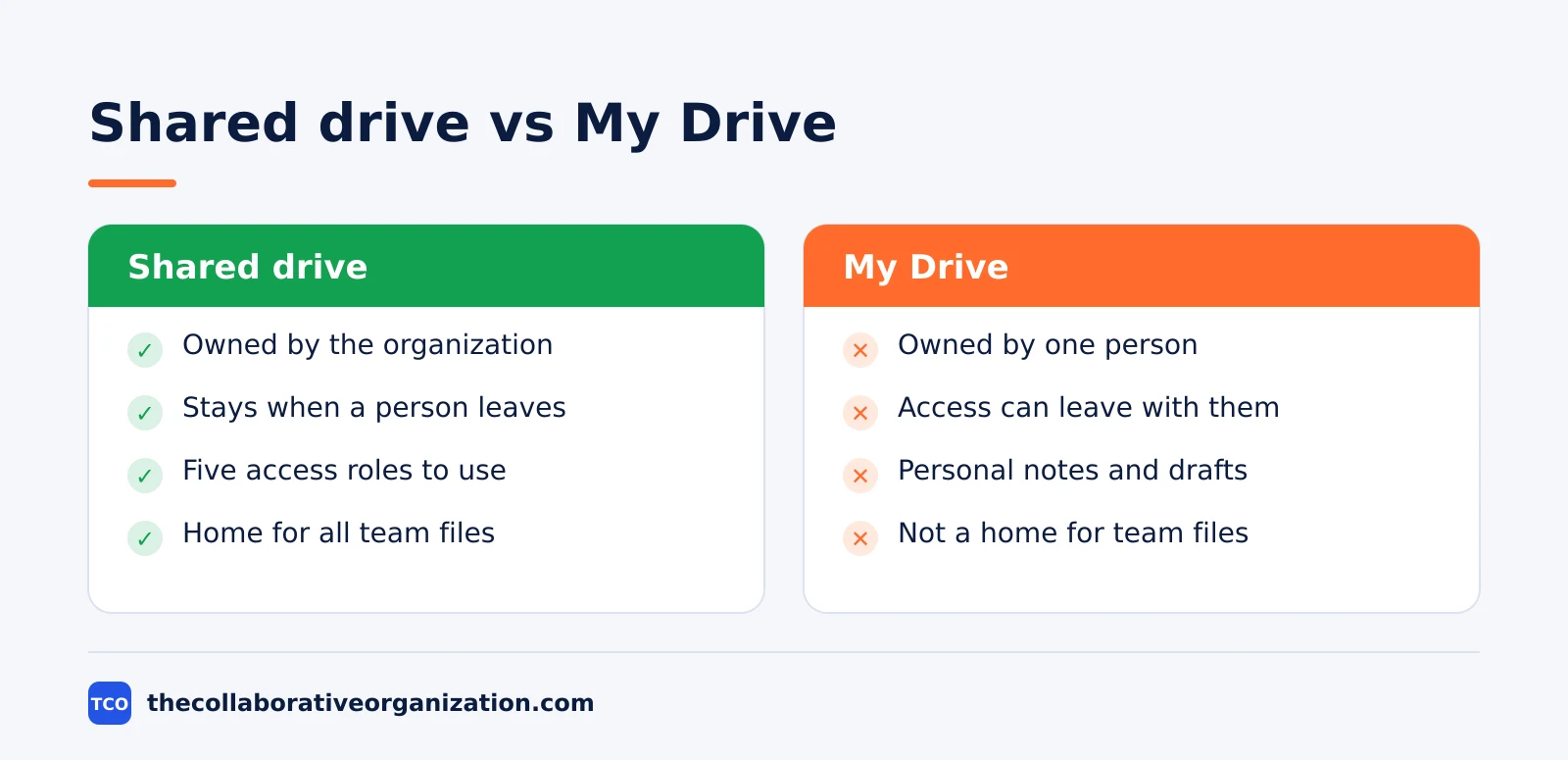
When a file lives in one person’s My Drive, the team borrows access from that person. If they leave, change roles or clean out their drive, the team can lose the file or its edit history. In a Shared drive, the file stays, the access stays, and a new manager can take over without a rescue mission.
Shared drives also give the team five access roles to work with: Manager, Content manager, Contributor, Commenter and Viewer. Managers run membership, Content managers can move and delete files, and Contributors can edit and upload but cannot move or delete files. Those roles are the tool for keeping a shared folder tidy.
How to organize shared drive folders in 7 steps
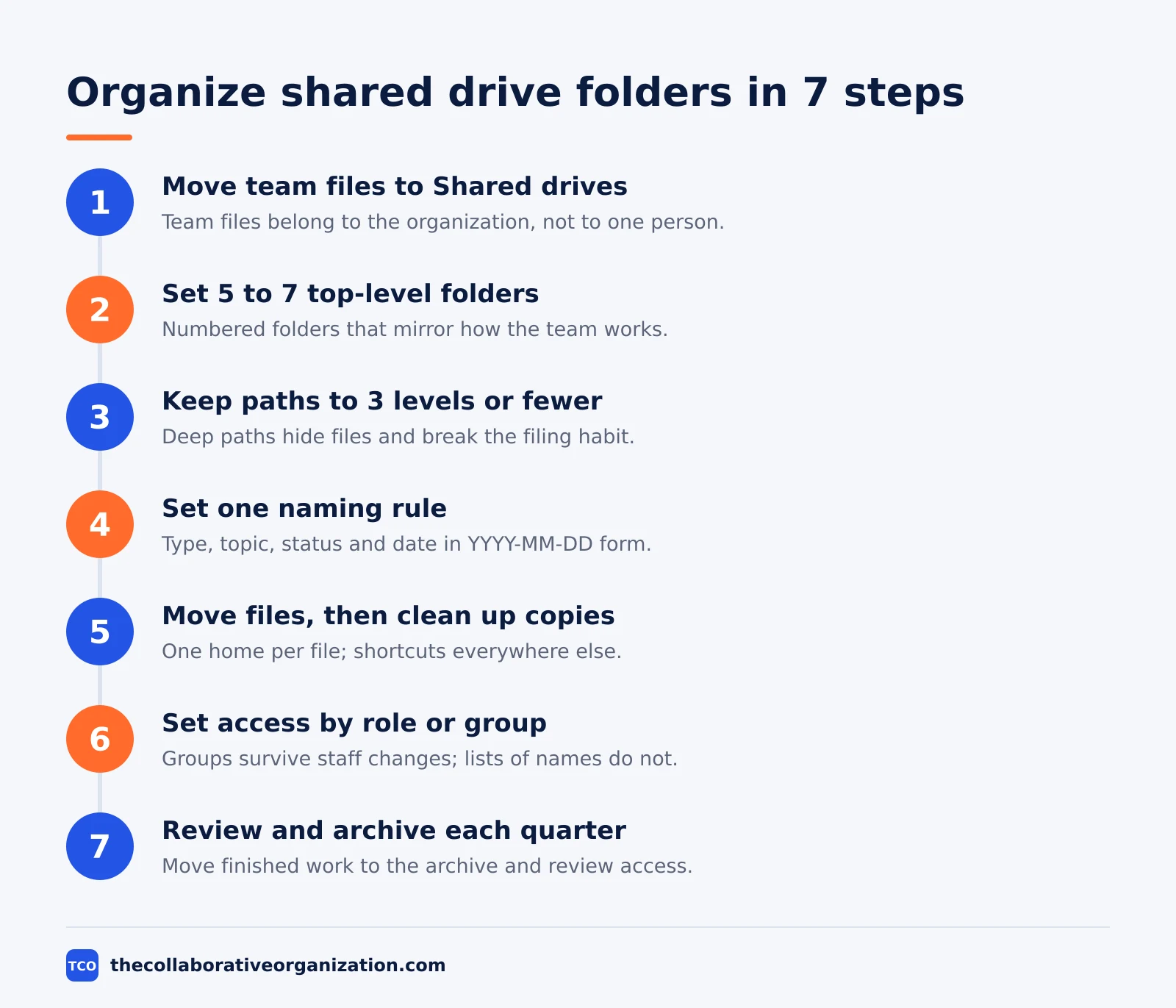
Organizing a shared drive takes seven steps, and the first one is a decision about ownership, not about folder names. Work through the steps in order, and do not skip the naming rule or the access review, since those two are what keep the structure from drifting back into chaos.
Step 1: Move team files into Shared drives
Create one Shared drive per team, function or client area, and move team-owned files out of personal My Drive into it. Keep personal notes and drafts in My Drive, and move anything the team depends on into the shared home. Five or six Shared drives is a good ceiling for a small team.
Step 2: Set 5 to 7 top-level folders
Give each drive 5 to 7 top-level folders that mirror how the team works, such as Admin, Projects, Clients, Finance, People and Archive. Number them, such as 00 Admin and 10 Projects, so they stay in the same order for everyone. More than 7 top-level folders is a sign the drive covers too much ground.
Step 3: Keep paths to 3 levels or fewer
Add subfolders only where the team needs them, and stop at 3 levels. Google Drive allows up to 100 levels of nesting in a shared drive, but deep paths hide files and break the habit of filing. If a file needs a fourth level, split the folder or use a shortcut from a second home.
Step 4: Set one naming rule and use it everywhere
Use the same pattern for every file: type, topic or project, status, and date in YYYY-MM-DD form. Dates in that form sort in order on their own, so the newest file sits at the top. Agree the pattern once, write it on one page, and point new starters at it.
Step 5: Move files, then clean up the copies
Move each file to its one home folder, and delete the duplicates. Where a file belongs in two places, keep the copy in its home and put a shortcut in the second place. A shortcut is a link that references the original file, so everyone always sees the latest version.
Step 6: Set access by role or group
Give access through groups, not through individual names, and keep edit access small. A group named “Finance team” survives a staff change, while a list of names does not. Limit access on sensitive folders so only the people given permission can open them. For work shared outside the team, our guide on how to collaborate with clients covers the handoff.
Step 7: Review and archive every quarter
Once a quarter, check the top level for stray folders, move finished work to the archive, and review who has access. An archive folder with the year in its name, such as 90 Archive 2025, keeps old work findable without crowding the live folders. A drive that is never reviewed grows back into a pile.
A folder structure you can copy
The structure below fits most small teams, and it scales by adding drives rather than by adding levels. It uses numbered top-level folders, a 3-level depth, and one archive folder per drive. Copy it as a starting point, then rename the folders to match your own teams and clients.
| Folder | What lives here | Who can edit |
|---|---|---|
| 00 Admin | Vendor contacts, budgets, service accounts | Managers |
| 10 Projects | One folder per active project, with the same subfolders each time | Project team |
| 20 Clients | One folder per client, with contracts and delivery work | Account team |
| 30 Finance | Invoices, expenses and reports, filed by year | Finance team |
| 40 People | Hiring, onboarding and team notes | Managers and HR |
| 90 Archive | Finished projects and old years, filed by year | Managers |
AdminRemix recommends the same shape for IT teams: one folder model with numbered prefixes, 5 to 7 top-level folders, paths of 3 levels or fewer, and a single archive pattern used everywhere.
Under each project folder, use the same subfolders every time, such as Brief, Delivery and Reports, so anyone can find their way around a project they have never opened.
For client work, GoLeadingIT adds a useful rule: keep a separate client-sharing folder that holds only what the client needs to see, instead of giving clients access to your internal project folders.
That split keeps internal notes out of client hands by design, not by luck. The risks of getting external sharing wrong are covered in our guide on external collaboration security risks.
Naming files so search works
A clear name is the cheapest search tool a team owns. Google Drive search reads file names, descriptions and content, but a good name still beats a search when a folder holds 50 similar files. Pics.io suggests a pattern of type, topic or project, status and date, and the same pattern works for folders too.
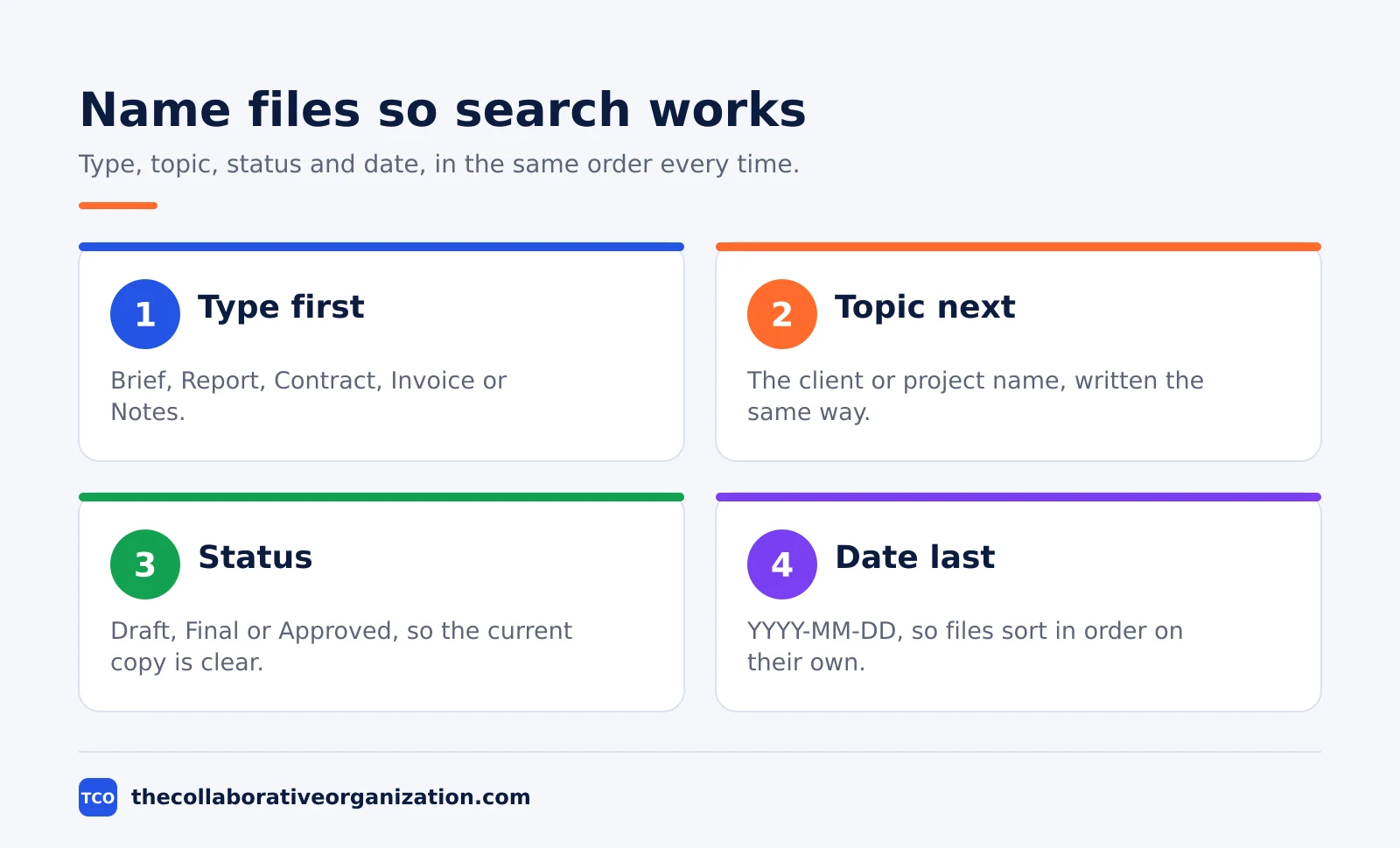
- Start with the type. Brief, Report, Contract, Invoice, Notes. The type tells the reader what the file is before they open it.
- Add the topic or project. The client or project name, written the same way every time.
- Add the status. Draft, Final, Approved. Keep drafts in a Working subfolder and only the current approved version in the main folder.
- End with the date. Use YYYY-MM-DD, so files sort in order and the newest version is easy to spot.
- Skip vague words. Final, New, Updated and Misc tell nobody anything. A name should work without opening the file.
Add a short description in the file details panel for files with similar names, since descriptions are searchable too. Color-code the top-level folders as well: one color per team or status, used the same way in every drive, so the eye can find the right folder at a glance.
Shortcuts, versions and the limits to know
Shortcuts fix the duplicate-file problem, and the limits below set the size of a healthy drive. Google Drive Help says a shortcut is a link that references another file or folder, and that shortcuts point back to the original so you always have the latest info. You can create up to 500 shortcuts per file or folder yourself, and each item can have up to 5,000 total shortcuts created by anyone.
The size limits are worth knowing before a drive grows. A shared drive can contain a maximum of 500,000 items, including files, folders, shortcuts and items in trash, and Google recommends keeping drives well below that limit.
Each user can upload and copy 750 GB to Drive within 24 hours, and a single file can be up to 5 TB. Files in trash still count against the item limit until they are permanently deleted or purged after 30 days.
Version history is the other safety net. Google Docs, Sheets and Slides keep past versions, so a bad edit can be undone without a copy named “Final v2”. For files uploaded from elsewhere, keep one canonical copy and let the shortcut do the sharing, so there is never a question about which copy is current.
Worked example: a 12-person team cleans up its drive
A small marketing team shows how the seven steps turn a messy drive into a tidy one. Imagine a team of 12 people with files spread across personal drives, a shared folder called “Stuff”, and three copies of the same brand guide. The illustration below is a made-up example, not a real company file.
The team creates three Shared drives: Marketing, Clients and Admin. In the Marketing drive they set six top-level folders, numbered 00 to 90, with Projects holding one folder per campaign.
They move 400 files in an afternoon, delete 60 duplicates, and replace the rest with shortcuts. The brand guide gets one home in 00 Admin, with shortcuts in each campaign folder.
They set access by group, so the whole team can view the Clients drive but only the account team can edit it. They write the naming rule on one page in the Admin drive and walk new starters through it.
Three months later, the quarterly review moves two finished campaigns to the archive, and nobody has asked “where is the file?” since the move.
Tools that help teams share documents
Google Docs and Drive are the home for the files themselves, while a wiki holds the rules about where they live. Put the one-page naming rule and the folder map in the wiki, so new starters find the system before they file their first document. Our document collaboration software shortlist compares the options.
| Tool | Best for | Free plan | Starting price (as of November 2026) | Notable limit |
|---|---|---|---|---|
| Google Docs | Real-time editing in the same Drive where files live | Free with a Google account | $0 with a Google account (free plan) | Needs a Google account for full sharing |
| Confluence | The folder map and naming rules, with page history | Free for up to 10 users | $7.15 per user per month (Standard), billed monthly for 1 to 100 users | Page headline of $5.78 is a blended rate for a 300-user team |
The Confluence price comes from Atlassian pricing: the page headline shows $5.78 per user per month for Standard and $11.16 for Premium, which are blended rates for a 300-user team. A team of 1 to 100 users pays $7.15 on Standard and $14.10 on Premium, billed monthly, after Atlassian raised both rates on 13 October 2026.
Google Docs has no paid plan of its own: it is free with a Google account, and paid Google Workspace plans add storage and admin controls. Do not invent a Docs price; the value here is that Docs lives in the same Drive as the folders it describes, so the file and its home never drift apart.
Common shared drive folder mistakes to avoid
Most shared drives fail in the same few ways, and all of them are easy to spot in a quarterly review. Run through the list below each time you tidy a drive.
- Team files in personal My Drive. When the owner leaves, the team loses the file. Move team files to a Shared drive.
- More than 3 levels deep. If it takes more than 3 clicks to reach a file, it is buried too deep. Split the folder or use a shortcut.
- Copies instead of shortcuts. Two copies of one file will disagree within a week. Keep one copy and link the rest.
- Vague names. Final, New and Misc tell nobody anything. Name the type, topic, status and date.
- Access by person, not by group. A list of names breaks when staff change. Use groups, and review them each quarter.
- No archive. A drive with no archive fills up with finished work and hides the live files. Archive on a schedule.
- Cleaning up “Shared with me”. Do not reorganize that view; organize the important shared files into your own folders instead, so access does not break.
Sources
- Google Drive Help - Organize your files in Google Drive (2026)
- Google Drive Help - Find files and folders with Google Drive shortcuts (2026)
- Google Workspace Admin Help - Shared drive limits in Google Drive (2026)
- AdminRemix - Google Drive Folder Structure for IT: Guide (2026)
- Pics.io - Google Drive Organization Guide: 14 Practical Tips (2025)
- GoLeadingIT - The Smartest Way to Organize Shared Folders (2026)
- Patronum - What Is a Google Shared Drive? (2026)
- Atlassian - Confluence Pricing (2026)
Frequently asked questions
Should team files live in My Drive or a Shared drive?
Team files belong in a Shared drive, not in personal My Drive. Files in a Shared drive are owned by the organization and stay put when the person who created them leaves. Files in My Drive belong to one person, and the team can lose access when that person leaves.
How many levels deep should shared drive folders go?
Keep folder paths to 3 levels or fewer. Google Drive allows up to 100 levels of nesting in a shared drive, but deep paths are hard to browse and easy to get lost in. If a path needs a fourth level, split the drive or use a shortcut instead.
How many items can a shared drive hold?
A shared drive can hold a maximum of 500,000 items, including files, folders, shortcuts and items in trash. Google recommends keeping shared drives well below that strict limit, since drives with too many files are hard to organize and search.
Should I copy a file into two folders?
No. Keep one canonical copy in its home folder and place a shortcut in each other place people look for it. A shortcut is a link to the original file, so everyone always sees the latest version, and an edit in one place shows up everywhere.
How do I stop people from seeing sensitive folders?
Set access by role or group, not by person, and limit access on the sensitive folder itself. In a Google shared drive, managers can limit access to a folder so only the people given permission can open it. Keep the number of people with edit access small.
Related articles
document collaboration
Airtable vs Google Sheets: Which to Use in 2026
Airtable is a database with views and automations; Google Sheets is a free spreadsheet. Learn the limits, the 2026 prices, and which one fits your team's data.
November 19, 2026 · 7 min read
document collaboration
Confluence vs SharePoint: Which to Use in 2026
Confluence is a wiki built around pages; SharePoint is a document platform built around files. Learn the differences, the 2026 prices, and which one fits your team.
November 19, 2026 · 7 min read
document collaboration
How to Document Processes: A Step-by-Step Guide (2026)
To document a process, pick one task, watch it done for real, map the steps and decisions, then test the draft on someone new. Follow the 7 steps in this guide.
November 19, 2026 · 10 min read