How to Use Asana: A Step-by-Step Guide (2026) | The Collaborative Organization
By The Collaborative Organization Team · November 19, 2026 · Last verified November 19, 2026 · 11 min read

You can learn the basics of Asana in 15 to 20 minutes: create one project, add tasks with owners and due dates, and check My tasks each day. Asana turns scattered to-dos into projects where every task has one owner and one due date. The quick-start guide sets the same 15 to 20 minute goal.
Key takeaways
- Asana organizes work into projects, tasks and subtasks, and every task has one assignee and one due date.
- The quick-start guide takes 15 to 20 minutes, with five practice actions of 2 to 3 minutes each.
- My tasks holds every task assigned to you, and Inbox holds updates on work you follow.
- Personal is free for 2 users, Starter costs $10.99 per user per month billed annually, and Advanced costs $24.99.
- About 60% of knowledge-worker time goes to “work about work” in Asana’s Anatomy of Work survey of more than 10,000 workers.
What you need before you start in Asana
You need an Asana account, one real project to track, and a short list of the tasks inside it. Start with work you already do, not a made-up example, so the setup pays off on day one. A free Personal account covers 1 to 2 people, which is enough to learn the basics alone or with one teammate.
Pick a project with a clear end point, such as a website update, a product launch, or a hiring round. If you are new to project management for beginners, a small project with 10 to 20 tasks is the right size. A project with 200 tasks on day one will hide the basics behind clutter.
List the people who will do the work before you invite anyone. Each task gets one owner, so know who owns each piece. You can add collaborators later, and guests from outside your company can join paid plans for free.
Gather the dates that matter: the final deadline first, then the dates for each big step. Asana lets you add start dates as well as due dates, so a task can show a range instead of a single day. If you have no dates yet, set the final deadline and add the rest as you go.
How to create your first project in Asana
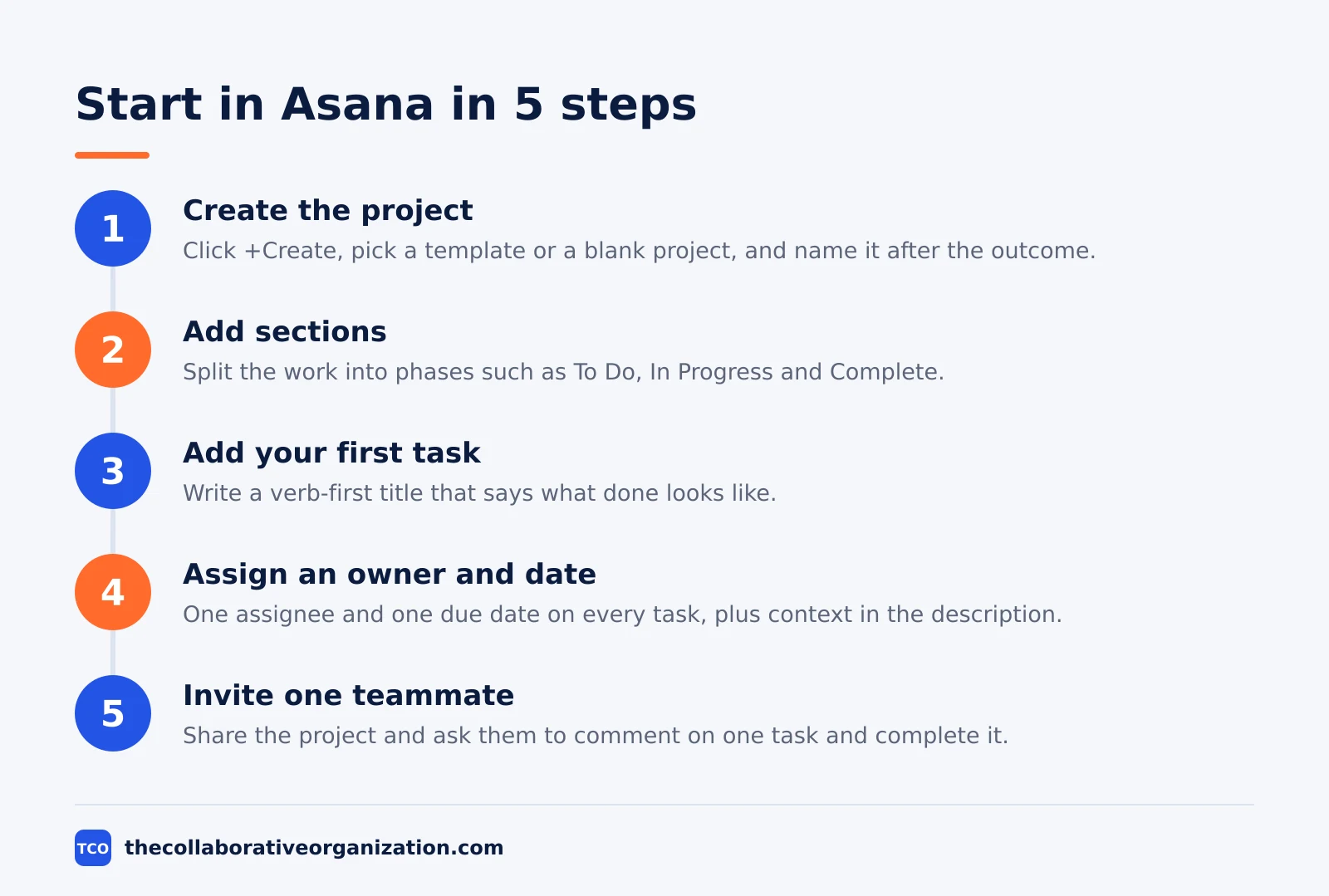
Create your first project from the +Create button, pick a template or a blank project, and name it after the outcome you want. Asana’s quick-start guide walks through the same five actions, and each one takes 2 to 3 minutes. You do not need to set up teams, fields, or rules first.
Step 1: Create the project
Click +Create in the top bar and select Project. Choose a template from the workflow gallery when one fits your work, or pick a blank project to build your own shape. Name the project after the result, such as “Website Updates” or “Q1 Planning”, then click Create project.
Step 2: Add sections to split the work
Sections break a project into phases, such as “To Do”, “In Progress” and “Complete”. Add three sections to start, and rename them to match how your work flows. You can add, edit, or move sections at any time, so do not spend long on the perfect set.
Step 3: Add your first task
Click + Add task in the project, or click + next to a section. Give the task a name that starts with an action verb, such as “Review homepage design” instead of “Homepage design”. A clear title tells the owner what to do without opening the task.
Step 4: Assign an owner and a due date
Assign the task to yourself or a teammate, and set a due date. Asana gives each task one assignee, so ownership stays clear. Add a short description with the context the owner needs, and attach any file or link they will need.
Step 5: Invite one teammate
Click Share at the top of the project and invite one teammate by email. Ask them to open one task, add a comment, and mark it complete when done. One real exchange teaches more about Asana than a week of reading help pages.
How to add tasks, owners and due dates
A good Asana task has a verb-first title, one owner, one due date, and enough context to start without asking questions. Asana’s task guide puts it plainly: tasks are the building blocks of work, and they break a project into steps that one person can finish. Keep each task small enough to finish in hours, not weeks.
Write titles that say what done looks like. “Prepare agenda for quarterly planning meeting” beats “Meeting” because the owner knows the output. Start with a verb: draft, review, schedule, send, test, approve. If a title needs more than 10 words, the task is probably two tasks.
Use the description for details that do not fit in the title: the goal, the links, the files, and the definition of done. Asana AI can tidy the wording or adjust the tone, but the facts must come from you. Add collaborators when people need to know about the task, not do it.
Set a due date on every task you assign, including tasks you assign to yourself. Add a start date when the work spans several days. If a due date has to move, comment on the task and @mention the person who assigned it, so the change is visible instead of silent.
Break big tasks into subtasks when several people must contribute. A task named “Publish blog post” can hold subtasks for “Deliver draft”, “Approve draft” and “Publish”, each with its own owner and date. Use milestones to mark the checkpoints that matter to the whole project, such as a launch date or a client sign-off.
How to organize work with sections and views
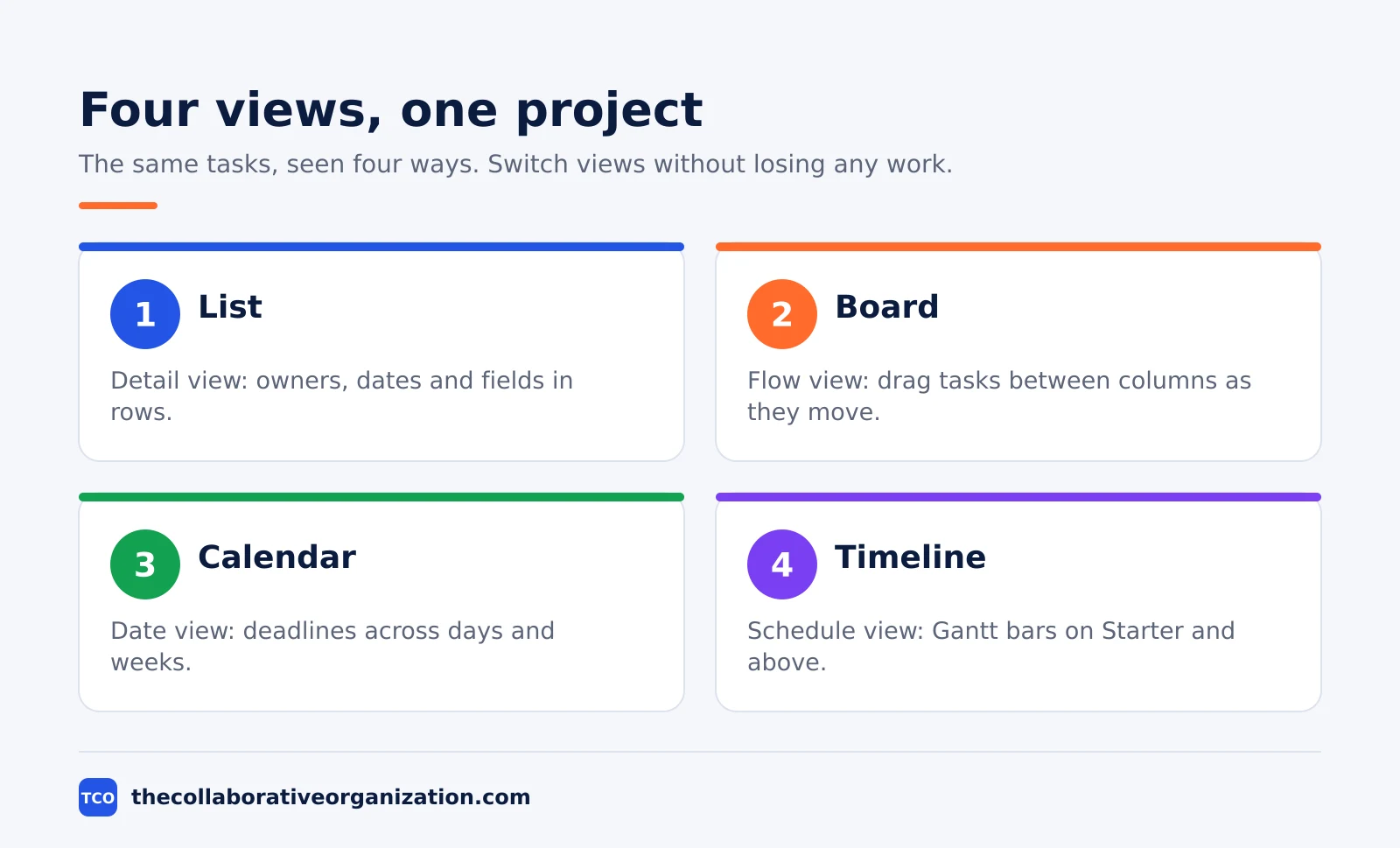
Sections split a project into phases, and views let you see the same work as a list, a board, a calendar, or a timeline. The Personal plan includes list, board and calendar views, while timeline and Gantt views start on Starter. Switch views without losing any work, since the tasks stay the same underneath.
Start with sections that match your workflow. A content project might use “Ideas”, “Drafting”, “Review” and “Published”. A hiring project might use “Screening”, “Interview” and “Offer”. Move tasks between sections as they progress, and the board view will show the same flow as columns.
Use the list view when you need detail: owners, dates, and custom fields in rows. Use the board view when you need flow: drag a task from one column to the next as it moves. Use the calendar view when dates matter most, such as a launch week with many deadlines on the same days.
Add custom fields on Starter to track what matters to your team, such as priority, status, or channel. Fields let you sort and filter a project by one value, and rules can read them later. Our guide on how to set up a kanban board shows the same section logic in more depth.
How to run your day from My tasks and Inbox
Start each day in My tasks, finish the work due today, and clear Inbox so nothing needs a reply twice. My tasks holds every task assigned to you across all projects, so it is your one to-do list. Inbox holds updates, comments, and status changes on work you follow, so it is your one notification list.
Sort My tasks by due date into “Today”, “Upcoming” and “Later”, or by priority into “Must Do Today”, “This Week” and “Later”. Work through Today first, and move anything you cannot finish to a new due date instead of leaving it overdue. Check the list once more before you stop for the day, and look at what is due tomorrow.
In Inbox, act on each item once: like a notification to show you saw it, reply to a question inside the task, archive anything that is only for your information, or create a follow-up task when an update needs real work. Asana AI can give you a short summary of the updates, which helps on days with many notifications.
Post a project status update once a week from the project Overview tab. Pick On track, At risk, or Off track, then write two or three lines on progress, blockers, and next steps. The update lands in every member’s Inbox, and a written update replaces many check-in meetings.
Measure success with simple counts, not feelings. Each Friday, count tasks completed, tasks overdue, and tasks with no due date. If overdue tasks grow week after week, the plan is too full or the dates are wrong, and that is a planning problem, not a tool problem.
Worked example: a one-week website update in Asana
A five-person team can run a one-week website update in one Asana project with 12 tasks and no meetings about status. This is an illustration, not a real project. The team is a marketing lead, a writer, a designer, a developer, and a reviewer, and the deadline is Friday.
On Monday the lead creates a project named “Homepage Refresh” with sections “To Do”, “In Progress”, “Review” and “Done”. The writer owns “Draft new homepage copy” due Tuesday, the designer owns “Design hero section” due Wednesday, and the developer owns “Build and test pages” due Thursday.
On Tuesday the writer finishes the draft and moves it to Review. The reviewer leaves two comments in the task and reassigns it to the writer for fixes. No email is needed, because the comments and the new due date sit on the task itself.
On Wednesday the designer attaches the new files to the design task, and the developer starts the build task early because the design is ready. On Thursday the developer marks the build complete, and the lead posts a status update: On track, with launch on Friday.
On Friday the reviewer approves the pages, the lead marks the launch task complete, and the project closes with 12 tasks done and zero overdue. The whole week ran on task comments and one status update, which is the point: the work lived where the team could see it.
How much Asana costs, and how it compares
Asana Personal is free for 2 users, Starter costs $10.99 per user per month billed annually, and Advanced costs $24.99, as of November 2026. Asana pricing lists the monthly-billed prices too: $13.49 for Starter and $30.49 for Advanced. Enterprise is priced by sales, and it adds SAML sign-on and user provisioning.
| Tool | Best for | Free plan | Starting price (as of November 2026) | Notable limit |
|---|---|---|---|---|
| Asana | Teams that want every task to have a named owner | Free for 2 people | $10.99 per user per month (Starter), billed annually | Free plan covers 2 people |
| ClickUp | Teams that want tasks, docs and goals in one place | Free Forever plan | $9 per user per month (Core), billed annually | 1,000 automation actions a month on Core |
| Trello | Teams that want a simple board with cards | Free plan | $5 per user per month (Standard), billed annually | No timeline view on the free plan |
ClickUp Core is $9 per user per month billed annually, or $12 billed monthly, and Business is $17 billed annually, with 10,000 automation actions a month. Its AI credits are bundled into each plan rather than sold as a separate add-on, according to the ClickUp FAQ page.
Trello Standard is $5 per user per month billed annually, or $6 monthly, and Premium is $10, or $12.50 monthly, per the Trello pricing page.
Pick the tool by the size of the team, not the feature list. A two-person team can stay on Asana Personal for free. A team of 10 that needs timelines and custom fields pays about $110 a month on Starter.
Our guide on how to choose project management software walks through seat counts and free-plan caps.
Compare the options side by side on the project management software shortlist.
Common Asana mistakes to avoid
Most Asana setups fail in the same five ways, and all five are easy to fix in one review. Run through this list after your first week, then again each month.
- Tasks with no owner. A task with no assignee waits for someone else to claim it, and nobody does. Give every task one owner on the day you create it.
- Tasks with no due date. A task without a date is a wish, not a plan. It never shows up in Today, so it never gets done.
- Vague titles. “Website” tells the owner nothing. “Draft homepage copy for the spring launch” tells them the output, the page, and the reason.
- Too many projects. Ten half-empty projects split attention and hide the real work. Merge small efforts into one project with sections until the team grows.
- Status hidden in chat. When updates live in chat, nobody can find them a week later. Put decisions in task comments and progress in status updates, so the record stays with the work.
The 60% figure above is a useful check: if your team still spends most of its day chasing updates, the tool is not the problem yet. Our Asana statistics guide collects the numbers behind that figure.
The basics the tool sits on are covered in what is project management.
Sources
- Asana - Pricing (2026)
- Asana Help Center - Quick-Start Guide to Asana (2026)
- Asana Help Center - Create and Manage Tasks in Asana (2026)
- Asana - How Work About Work Gets in the Way of Real Work (2026)
- Asana Academy - Asana Foundations Skill Badge (2026)
- ClickUp - FAQs (2026)
- Trello - Pricing (2026)
Frequently asked questions
How long does it take to learn Asana?
The basics take 15 to 20 minutes. Asana's own quick-start guide sets that time goal, and its five practice actions each take 2 to 3 minutes: create a project, add sections, add a task, invite a teammate, and check My tasks and Inbox. Deeper skills such as rules and portfolios take a few more sessions.
Is Asana free to use?
Yes, the Personal plan is free forever for 1 to 2 people, with unlimited tasks and projects and list, board and calendar views. Teams that need timelines, custom fields, forms and automations move to Starter at $10.99 per user per month billed annually, as of November 2026.
What is the difference between a project and a task in Asana?
A project holds a large coordinated effort with several people working toward one goal over weeks or months. A task is one action item inside a project, with one assignee and one due date. A subtask breaks a task into smaller steps when several people need to contribute.
How many people can be assigned to one Asana task?
One. Asana assigns each task to a single person so ownership is never shared or unclear. You can add as many collaborators as you like, and they receive updates and can comment, but only the assignee is responsible for finishing the work.
Where do I see everything assigned to me in Asana?
Open My tasks in the sidebar. It holds every task assigned to you across all projects, so it works as your personal to-do list. Sort it by due date into Today, Upcoming and Later, or by priority or status, and check it first each morning.
Related articles

project management
How to Choose Project Management Software (2026)
Pick project management software in seven steps: define the work, count seats, price the real cost, and run a two-week pilot before you pay.
November 19, 2026 · 10 min read

project management
What Is a RACI Matrix? Definition, Roles and Examples (2026)
A RACI matrix maps who is Responsible, Accountable, Consulted and Informed for each task. Learn the four roles, how to build one, and see a worked example.
November 19, 2026 · 9 min read
project management
Daily Standup Meeting Format That Works (2026)
A daily standup is a 15-minute meeting where Developers inspect progress toward the Sprint Goal and plan the next day. Use this format to run one that ends on time.
November 19, 2026 · 10 min read