Asana Portfolios Explained: Track Projects (2026) | The Collaborative Organization
By The Collaborative Organization Team · November 19, 2026 · Last verified November 19, 2026 · 12 min read
An Asana portfolio is a group of related projects shown in one view, with each project’s status, progress, due dates and owner visible at a glance. Asana built portfolios for people who run several projects at once and need to see which ones need help. You manage work inside a project, and you watch work across projects inside a portfolio.
Key takeaways
- A portfolio groups related projects in one view, with status, progress, due dates and owners for each one.
- Portfolios are on Advanced, Enterprise and Enterprise+ plans, and Advanced costs $24.99 per user per month billed annually.
- You can add projects, other portfolios, custom fields, dashboards and workload views to a portfolio.
- Portfolio status options are on track, at risk, off track, on hold, complete and dropped.
- A portfolio is for watching and reporting, while a project is for doing the work.
What is an Asana portfolio?
An Asana portfolio is a single view that groups related projects so you can watch their health without opening each one. Asana’s portfolio overview describes it as a way to organize your most important projects, monitor their health in real time, and drill down for more detail, while keeping your team updated on progress. Portfolios also work on Android and iOS.
Think of a portfolio as a folder with a dashboard on the front. A project folder holds tasks; a portfolio holds projects. The dashboard shows each project’s status, its percent complete, its due date, and its owner, so a manager can scan 10 projects in one minute and open only the two that need attention.
Portfolios fit work that crosses teams. A product launch might hold a marketing project, an engineering project, and a support project, each owned by a different team. A portfolio puts all three in one place, so the launch lead sees the whole picture instead of asking three people for updates.
Portfolios are not free. They are available on Advanced, Enterprise and Enterprise+ plans, plus the legacy Business plan, and Advanced costs $24.99 per user per month billed annually, as of November 2026. Starter and Personal do not include them, so a small team must weigh the price against the number of projects it runs.
How Asana portfolios work
A portfolio works as a list of projects with live status, progress, and workload, plus dashboards and status updates on top. The portfolio guide puts it plainly: portfolios let you organize and monitor related projects in one place, and you can see each project’s status, progress, due dates, and owner without leaving the view.
Each project in the list shows a status color: on track, at risk, off track, on hold, complete, or dropped. Progress shows as a percent of tasks or milestones completed. You can sort the list by status, owner, or a custom field, and save that layout as the default view, so the portfolio opens the same way every time.
Custom fields make a portfolio more than a list. Add a global field such as estimated cost to the portfolio, and it shows a sum across all the projects inside it. That roll-up turns a portfolio into a budget view, a risk view, or a priority view, depending on the field you add.
The dashboard tab turns portfolio data into charts, and the workload tab shows team capacity across all the projects at once. When someone is overloaded, you can spot it in the workload view and reassign tasks in the same place. Status updates go out from the Progress tab, and members receive them in their Asana inbox.
| Tool | Best for | Free plan | Starting price (as of November 2026) | Notable limit |
|---|---|---|---|---|
| Asana | Teams that run many projects and need one view of all of them | Free for 2 people | $24.99 per user per month (Advanced), billed annually | Portfolios need Advanced |
| ClickUp | Teams that want tasks, docs and goals in one place | Free Forever plan | $9 per user per month (Core), billed annually | 1,000 automation actions a month on Core |
| Trello | Teams that want a simple board with cards | Free plan | $5 per user per month (Standard), billed annually | No timeline view on the free plan |
The Advanced price comes from Asana pricing: $24.99 per user per month billed annually, or $30.49 billed monthly. ClickUp Core is $9 per user per month billed annually, per the ClickUp FAQ page. Trello Standard is $5 per user per month billed annually, per the Trello pricing page.
What you can see in a portfolio
A portfolio shows status, progress, dates, owners, custom fields, dashboards, and workload, all in one place. The table below lists each part and what it tells you. If a part is empty, the portfolio still works, but it tells you less, so fill in the parts that matter to your team first.
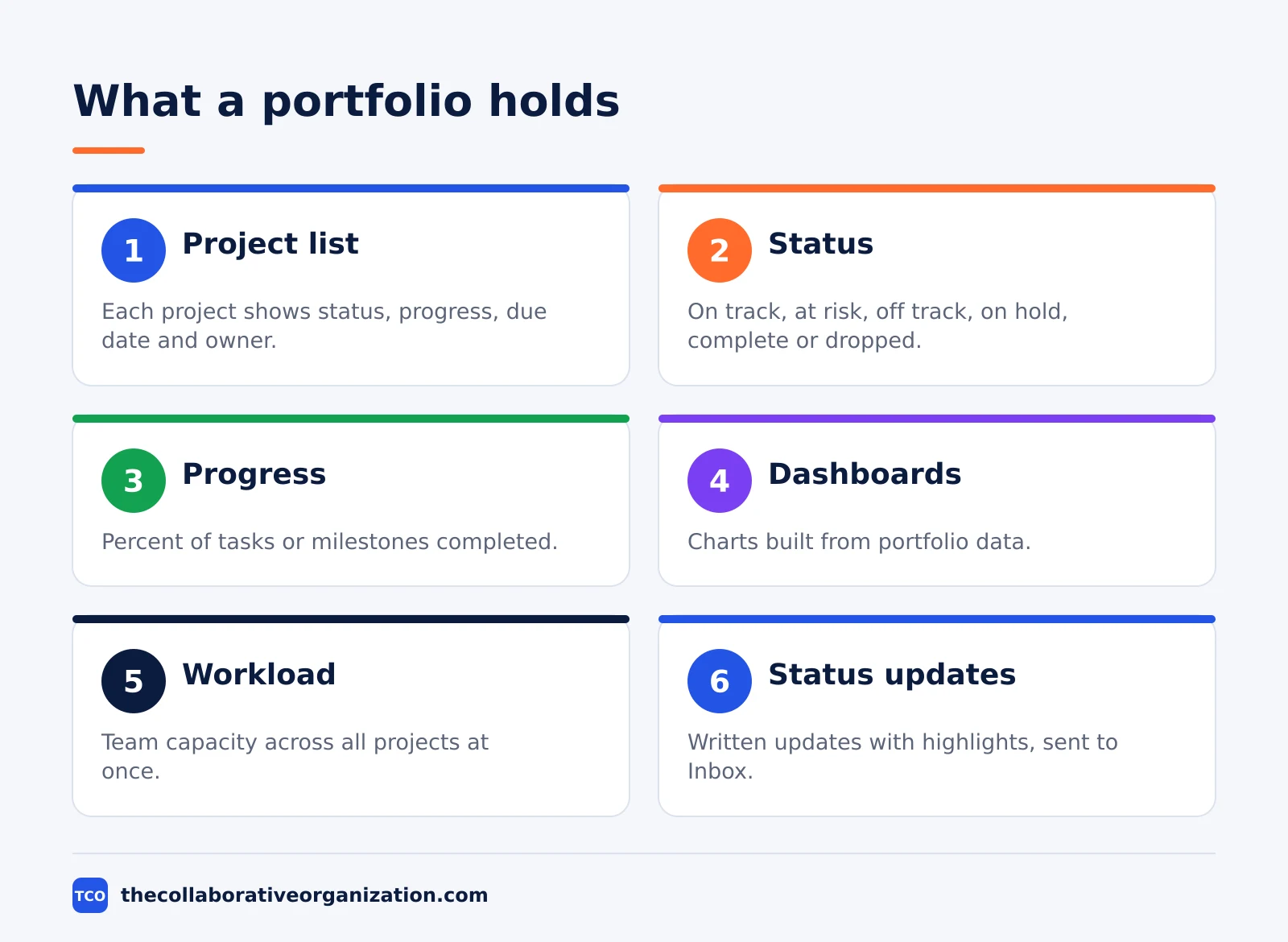
| Part | What it shows | Where to find it |
|---|---|---|
| Project list | Every project, with owner and due date | Main portfolio view |
| Status | On track, at risk, off track, on hold, complete, or dropped | Status column and Progress tab |
| Progress | Percent of tasks or milestones completed | Progress column |
| Custom fields | Sums and values across projects, such as cost | Add a field to the portfolio |
| Dashboards | Charts built from portfolio data | Dashboard tab |
| Workload | Team capacity across all projects | Workload tab |
| Status updates | Written updates with highlights | Progress tab |
Status is the part to fill in first. Each project needs a status and a short update, or the portfolio shows names with no health signal. The status update guide lists the five options: On track means the project is progressing as planned, At risk means it faces possible delays, and Off track means it is behind schedule.
Dashboards and workload matter most when the portfolio holds 5 or more projects. With 2 projects, a list is enough. With 10, charts show the pattern faster than rows do, and workload shows who is carrying too much across all of them at once.
How to create an Asana portfolio
Create a portfolio from the sidebar, add projects to it with Add work, and set its owner, description, and due date. Asana’s portfolio overview lists three ways to start, and they all lead to the same screen. The whole setup takes about 10 minutes.
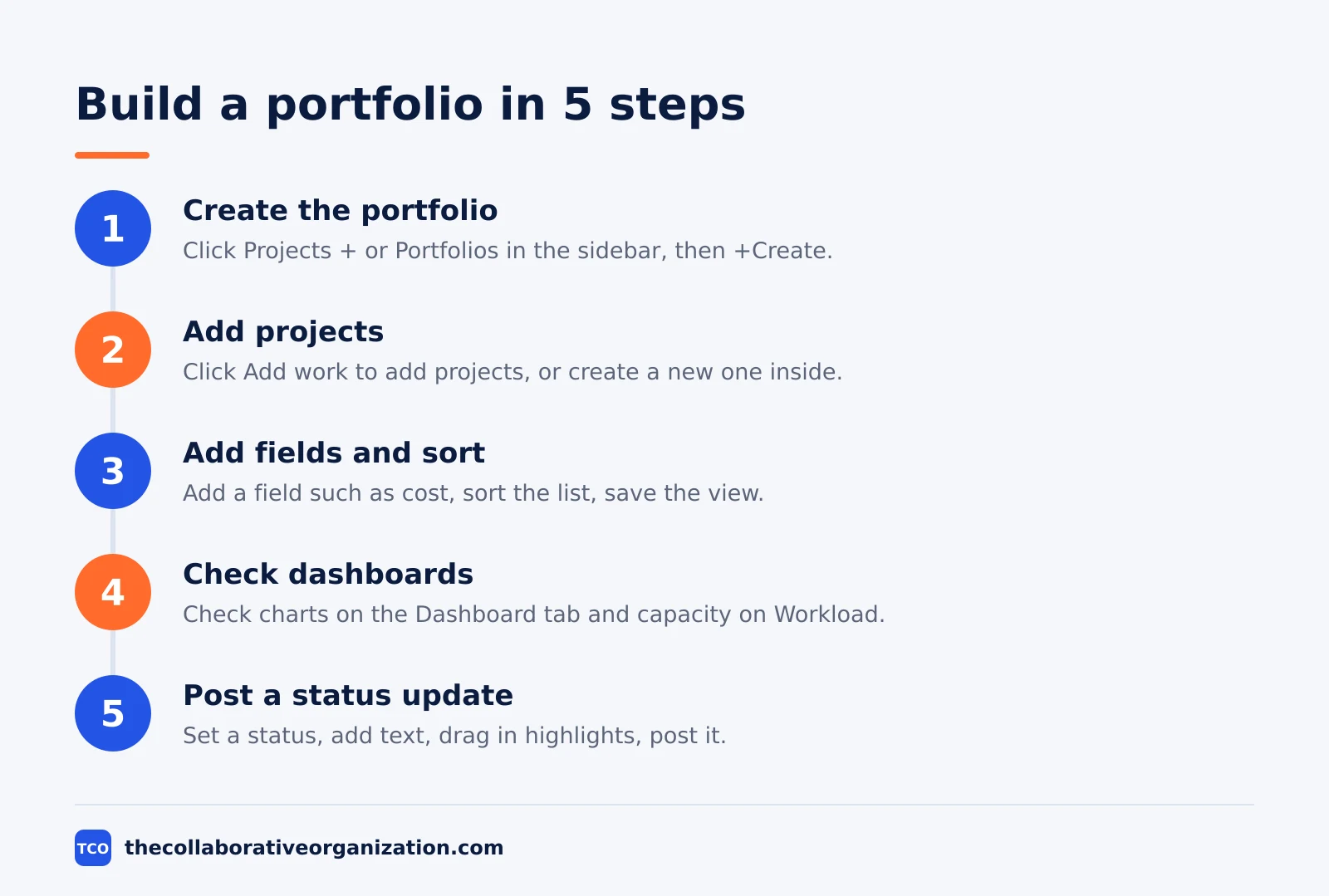
Step 1: Create the portfolio
Click the Projects + button in the sidebar and choose New portfolio, click the Insights + button and choose New portfolio, or go to Portfolios in the sidebar and click +Create. Give the portfolio a name, such as “Q1 Product Launches”, and add a description and an owner.
Step 2: Add projects
Click Add work to search for an existing project and add it, or use the drop-down beside + Add work and choose Create new project. Add the projects that belong together, and leave out the ones that do not, since a portfolio with unrelated projects is hard to read.
Step 3: Add custom fields and sort the list
Add a custom field, such as priority or estimated cost, to group or total the work. Sort the list by status, owner, or a field, and save the layout as the default view, so the team sees the same order every time they open it.
Step 4: Check the dashboard and workload tabs
Open the Dashboard tab and check the charts, which fill in automatically from your data. Open the Workload tab and look for anyone carrying far more than the rest. If one person is overloaded, reassign a task before the week starts.
Step 5: Post the first status update
Go to the Progress tab and click Update status. Pick on track, at risk, off track, or on hold, add at least one block of text, and drag in highlights such as projects that are on track or at risk. Members receive the update in their Inbox.
Worked example: a marketing portfolio with 6 projects
A marketing lead can watch 6 projects in one portfolio and find the 2 that need help in under a minute. This is an illustration, not a real team. The lead, Mara, runs a portfolio named “Spring Campaigns” with 6 projects: website refresh, email series, social launch, webinar, partner content, and paid ads.
On Monday Mara opens the portfolio and scans the status column: 4 projects are on track, 1 is at risk, and 1 is off track. The at-risk project is the webinar, where the speaker has not confirmed a date. The off-track project is paid ads, where the budget approval is two weeks late.
Mara opens the webinar project, reads the latest status update, and sees the owner has already chased the speaker twice. She adds a comment offering to call the speaker herself. She opens the paid ads project, sees the approval task is with finance, and asks the owner to set a new due date.
The workload tab shows one designer carrying tasks in 4 of the 6 projects, while another designer has room. Mara moves two design tasks to the second designer, and the workload bars even out. The dashboard tab shows 62% of all tasks complete across the portfolio, with 18 tasks due this week.
On Friday Mara posts a portfolio status update from the Progress tab: at risk, with the webinar and paid ads named, the design work rebalanced, and the launch still on for next week. Six project owners read one update instead of six separate messages.
When to use portfolios, and when not to
Use a portfolio when you run 3 or more related projects and need one view of their health; skip it when you run one project or a handful of unrelated ones. The number matters more than the size of the team. A team of 5 running 6 projects needs a portfolio, and a team of 50 running 1 project does not.
Portfolios fit four cases.
- A manager who oversees several projects and reports upward each week.
- A launch that crosses teams, where each team owns one project.
- An executive who wants a weekly view of the top initiatives.
- A team that tracks goals, since a portfolio can link to a company or team goal and show how the work lines up with it.
Skip a portfolio when the projects share nothing. A list of unrelated work is harder to read than the projects themselves, and the status colors mean little when the projects have no common goal. Skip it too when the team is small and the projects are short, since the setup and the weekly updates cost more time than they save.
Portfolios also fit reporting, not doing. If the team needs help finishing tasks, the fix is inside the projects: clearer owners, better dates, and fewer tasks per person. A portfolio shows the problem, and the project is where you fix it.
Our guide on what is project management covers the basics a portfolio sits on.
For small teams, project management for small teams shows when a lighter setup is enough.
When the tool itself is the question, how to choose project management software helps you decide.
Portfolios vs projects vs goals
A project holds tasks, a portfolio holds projects, and a goal holds the outcome those projects serve. The three mix-ups below are the ones new users make most, and each one has a simple test.
A portfolio is not a project. If the work has tasks with owners and due dates, it belongs in a project. If the work is a group of projects with status and progress, it belongs in a portfolio. Putting tasks directly into a portfolio is not possible, and that limit is the point: portfolios watch, projects do.
A portfolio is not a folder. A folder only stores things, while a portfolio shows live status, progress, dashboards, and workload. If you only need to store projects in one place, a team page does that for free. Use a portfolio when you need to see health and capacity, not just names.
A portfolio is not a goal. A goal is an outcome, such as growing sign-ups by 20%, and it can link to projects and portfolios that serve it. The portfolio shows the work, and the goal shows whether the work is paying off.
Nested portfolios add one more layer. A portfolio can hold another portfolio, which helps when a program holds several groups of projects. The cost is the timeline tab: a portfolio that contains other portfolios has its timeline disabled, so check the timeline before you nest.
Common portfolio mistakes to avoid in Asana
Portfolios fail in the same five ways, and four of them come from leaving the portfolio empty or out of date. Check this list each month, and fix the gaps before the next status meeting.
- Projects with no status. A portfolio where half the projects have no status is a list of names. Set a status on every project, and update it weekly.
- Too many unrelated projects. A portfolio with 20 unrelated projects is unreadable. Keep 3 to 10 related projects, and split the rest into a second portfolio.
- No owner for the portfolio. When nobody owns the portfolio, nobody posts the update. Name one owner, and make the weekly update part of their job.
- Nesting without a reason. Nested portfolios help a program with several groups, but each level adds clicks. Nest only when a flat list is truly too long to scan.
- Reading the portfolio instead of fixing the project. A red status is a signal, not a solution. Open the project, find the blocker, and fix it there.
The numbers show why the view matters. Asana’s Anatomy of Work survey of more than 10,000 knowledge workers found about 60% of time goes to “work about work”, and 88% said time-sensitive projects have slipped because of task volume.
Our Asana statistics guide has the full figures.
The project management software shortlist compares the tools that offer portfolio views.
Sources
- Asana Help Center - Portfolios Overview (2026)
- Asana Help Center - How to Use Portfolios in Asana (2026)
- Asana Help Center - Portfolio Progress and Reporting (2026)
- Asana Help Center - How to Share Project Updates (2026)
- Asana - Pricing (2026)
- Asana - How Work About Work Gets in the Way of Real Work (2026)
- Asana Academy - Asana Foundations Skill Badge (2026)
- ClickUp - FAQs (2026)
- Trello - Pricing (2026)
Frequently asked questions
What is an Asana portfolio?
An Asana portfolio is a group of related projects shown in one view, with each project's status, progress, due dates and owner visible at a glance. It lets a manager watch several projects at once, spot the ones at risk, and open any project for detail without leaving the portfolio.
Which Asana plan includes portfolios?
Portfolios are on Advanced, Enterprise and Enterprise+ plans, plus the legacy Business plan. Advanced costs $24.99 per user per month billed annually, as of November 2026. Starter and Personal do not include portfolios, so a team that needs them must move to Advanced.
How do you create a portfolio in Asana?
Click the Projects + button in the sidebar and choose New portfolio, or go to Portfolios in the sidebar and click +Create. Then click Add work to add existing projects, or create a new project from inside the portfolio. Add an owner, a description and a due date, and the portfolio is ready.
Can you put a portfolio inside another portfolio in Asana?
Yes. Click +Add work and select or type the name of another portfolio, or create a new one from the drop-down. Nested portfolios group work across teams, but a portfolio that contains other portfolios has its timeline tab disabled until you remove the nested portfolio.
What is the difference between a portfolio and a project in Asana?
A project holds the tasks for one piece of work, with owners and due dates. A portfolio holds several projects, with status, progress and workload across all of them. You manage work in a project, and you watch and report on work in a portfolio.
Related articles
project management
How to Choose Project Management Software (2026)
Pick project management software in seven steps: define the work, count seats, price the real cost, and run a two-week pilot before you pay.
November 19, 2026 · 10 min read
project management
What Is a RACI Matrix? Definition, Roles and Examples (2026)
A RACI matrix maps who is Responsible, Accountable, Consulted and Informed for each task. Learn the four roles, how to build one, and see a worked example.
November 19, 2026 · 9 min read
project management
Daily Standup Meeting Format That Works (2026)
A daily standup is a 15-minute meeting where Developers inspect progress toward the Sprint Goal and plan the next day. Use this format to run one that ends on time.
November 19, 2026 · 10 min read