How to Set Up a Kanban Board in 6 Steps (2026) | The Collaborative Organization
By The Collaborative Organization Team · November 19, 2026 · Last verified November 19, 2026 · 11 min read
You can set up a kanban board in about 30 minutes: map your workflow, build the board, put all current work on cards, set WIP limits, agree the rules, and run your first review. The board does not need to be perfect on day one, because the team improves it each week based on what it shows.
Key takeaways
- A first kanban board takes about 30 minutes to set up for a small team.
- Start with 3 columns, To Do, In Progress, and Done, and add a column only when work waits in a distinct stage.
- Put every current job on a card, including the small ones, so no work stays invisible.
- Set the first WIP limit to 1 or 2 cards per person in progress, and half that in Review.
- Agree a written “definition of done” for each column before the team starts using the board.
- Review the board for 10 minutes a day, and change one thing at a time each week.
What you need before you start
You need four things before you build the board: the team, a list of current work, a place for the board, and 30 minutes together. Nothing else is required, and no paid tool is needed to start.
First, get the team in one room or on one call. Kanban is a team process, so the people who will use the board should build it. A board built by one person for everyone else rarely survives the first week.
Second, list everything the team is carrying right now, including small items. Ask everyone to empty their heads onto the list: live work, promised work, and work waiting on someone else. Work that is not on the board is invisible work, and invisible work is the work that surprises the team later.
Third, pick the place for the board. A whiteboard works for a co-located team, and a free digital board works for a remote team. Decide now, because switching tools in week one wastes the momentum the setup creates.
Fourth, agree the purpose in one sentence, such as “We want to see all our work and finish more of it.” Write it at the top of the board, so the team can judge every later change against it.
How to set up a kanban board in 6 steps
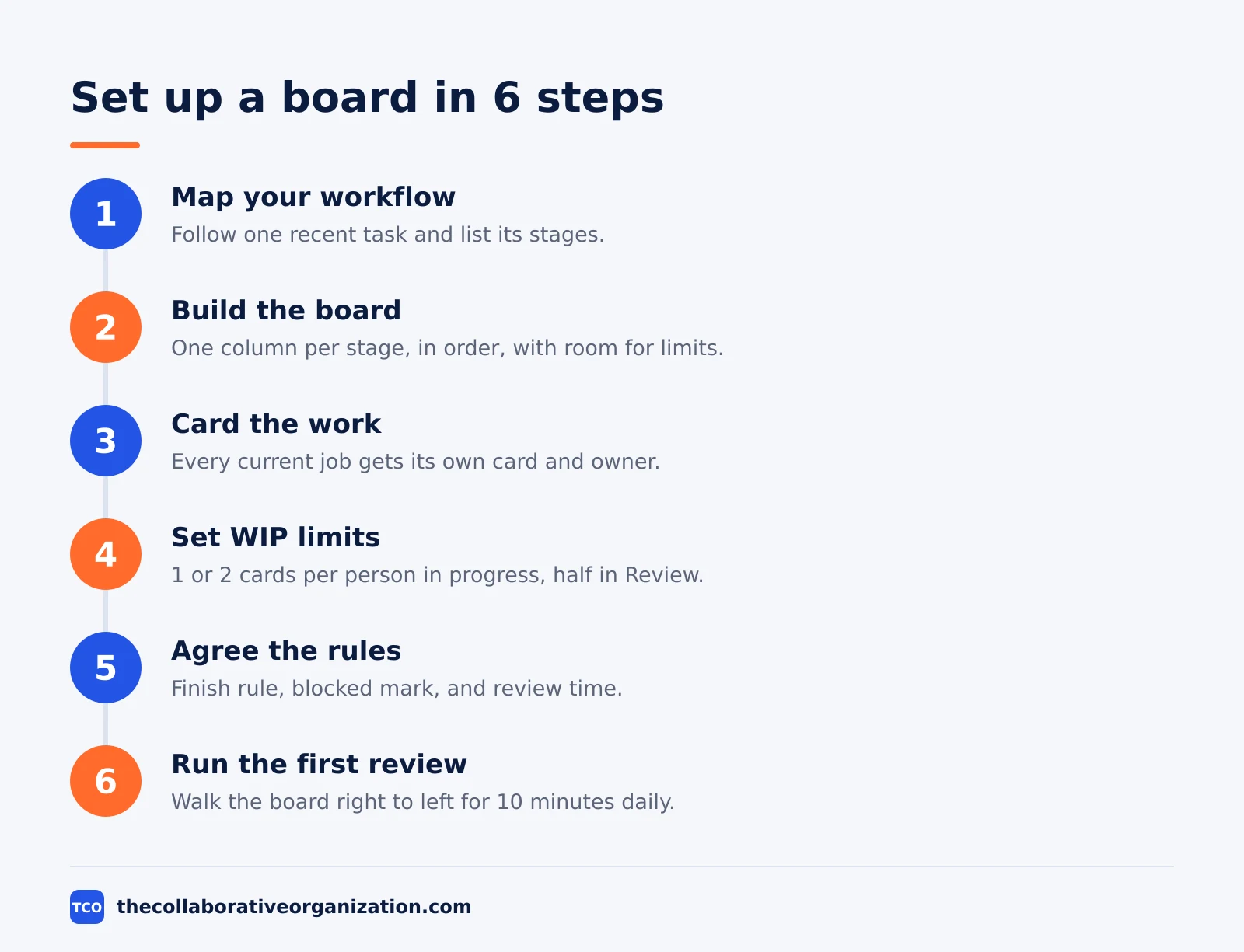
Setting up a kanban board takes six steps, and each step has a clear outcome you can check before moving on. Follow them in order, and do not skip the WIP limit or the rules, because those two steps turn a task list into Kanban.
Step 1: Map your workflow
Follow one recent task from request to done, and list the steps it went through. Those steps are your columns, and the list should match how work really moves, not how the process document says it moves.
Outcome: a list of 3 to 5 stages, written in the order work passes through them. Start with To Do, In Progress, and Done, and add Review or Waiting only if the recent task actually waited there.
Step 2: Build the board
Create the board in your chosen place, with one column for each stage from step 1. Give each column a plain name the whole team understands, and leave space at the top of each active column for its WIP limit.
Outcome: an empty board with named columns in order, ready for cards. On a digital board, create one list per column, and on a whiteboard, draw the columns with tape or marker.
Step 3: Put all current work on cards
Write every item from your list onto its own card, one card per task. Put each card in the column that matches its true state right now, and be honest: a task nobody touched this week is not In Progress, it is To Do or Waiting.
Outcome: a board that shows all current work, with no hidden jobs. Each card needs a clear title and one owner, and a due date only where a real deadline exists.
Step 4: Set WIP limits
Count the cards in In Progress, then set the limit below that count if the column is crowded. A good first limit is 1 or 2 cards per person doing the work, and the Review limit should be about half the In Progress limit.
Outcome: a number written above each active column, and a clear rule: when a column is full, nobody starts new work there. Atlassian gives the classic case: a column with a limit of 3 cannot hold more than 3 cards, and the team swarms on those cards before pulling new ones in.
Step 5: Agree the rules
Write down three rules and put them where the team can see them. First, the “definition of done” for each column, in one line per column. Second, how to mark a blocked card, such as a red dot or a Blocked label. Third, when the team meets at the board.
Outcome: three written rules that everyone can quote. A rule that lives only in one person’s head is not a rule, and the team will argue about it within days.
Step 6: Run your first review
Stand at the board together for 10 minutes and walk it from right to left, starting with the cards closest to Done. For each card, ask what it needs to move one step forward, and note the blocks that come up.
Outcome: a board the team has used together once, plus a short list of blocks to clear. Repeat the review daily, and change one thing at a time each week: a column, a limit, or a rule.
How long does setup take?
Setup takes about 30 minutes for a small team, and the plan below splits those minutes across the six steps. The times are a guide, not a deadline: a team of 10 may need an hour, while a team of 2 may finish in 20 minutes.
| Minutes | What to do | Outcome |
|---|---|---|
| 0 to 5 | Agree the purpose in one sentence | One sentence at the top of the board |
| 5 to 15 | Put every current job on a card | All work visible, including small items |
| 15 to 20 | Place the cards in columns | Cards in their true columns |
| 20 to 25 | Set the first WIP limit | A number above each active column |
| 25 to 30 | Agree the three rules | Written finish rule, blocked mark, review time |
The five moves above match the setup steps in Torvany’s kanban board guide: write down your steps, put all current work on cards, add owners and dates, set limits on the busy columns, and look at the board together briefly.
Do not spend the first session debating column names or tool features. A board that is 80 percent right and running today beats a board that is perfect next month, because the team learns from a running board and only argues about a planned one.
Kanban board setup example: a team of four
A team of four content writers shows how the 30-minute setup works in practice. Imagine a team that writes help articles for a software product. Requests arrive from support and product all week, and the team has no shared view of what is in flight.
Minutes 0 to 5: the team agrees its purpose in one sentence, “We want to see all our articles and finish more of them.” Minutes 5 to 15: each person writes every article they are carrying onto a card, including two half-finished drafts that only one person knew about. The count comes to 14 cards.
Minutes 15 to 20: the team places the cards on a board with four columns: Backlog, Writing, Review, and Done. They find 9 cards in Writing, which is far too many for 4 people.
Minutes 20 to 25: they set the Writing limit to 6, about 1.5 cards per person, and the Review limit to 3. Three cards move back to Backlog.
Minutes 25 to 30: they agree the rules. The “definition of done” for Writing is “draft complete and self-checked,” and for Review it is “checked by a second writer and approved.” Blocked cards get a red dot, and the team meets at the board for 10 minutes each morning.
After two weeks, the team checks the board. The Writing column stays near its limit instead of overflowing, and the average time from Writing to Done fell from 9 days to 6 days. This example is an illustration, not a real team, but the numbers follow the pattern Kanban teams report when WIP limits first bite.
How to measure success
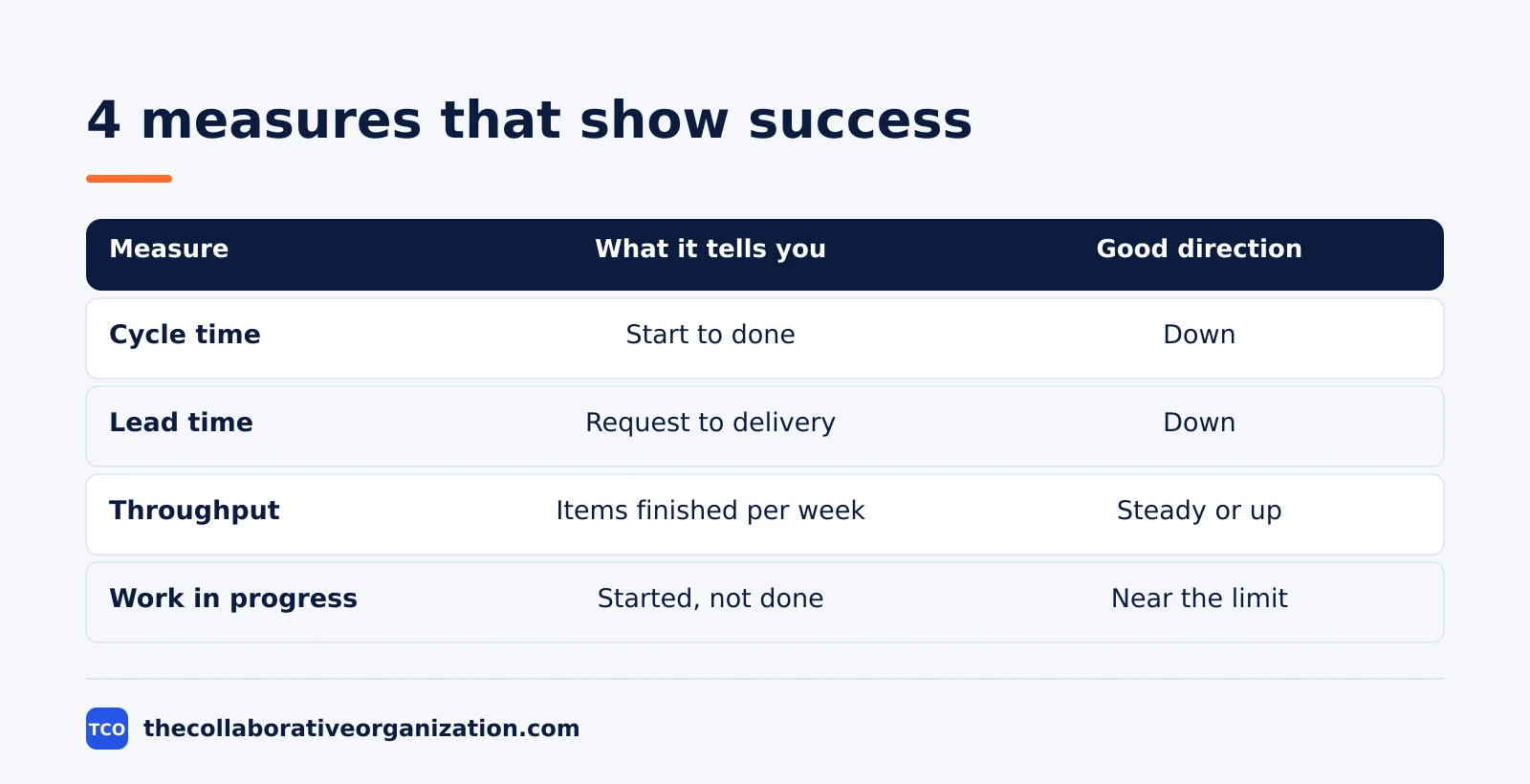
Measure success with flow numbers, not with how busy the board looks. A board full of cards is not a success, it is a warning. The table below lists the four numbers worth watching, and the one number to ignore.
| Measure | What it tells you | Good direction |
|---|---|---|
| Cycle time | Days from work start to work done | Down over time |
| Lead time | Days from request to delivery | Down over time |
| Throughput | Items finished per week | Steady or up |
| Work in progress | Items started but not finished | Near the WIP limit, not above it |
Cycle time is the measure Atlassian highlights most: it is the time work takes to move through the workflow, from the moment work starts to the moment it ships. Improving cycle time helps teams forecast future delivery with more confidence.
Check the numbers once a week, not once a day, because daily numbers jump around too much to read. If cycle time falls while throughput holds steady, the board is working. If cycle time rises while the board fills up, the WIP limit is too high or the team is starting work it cannot finish.
Ignore one number: how many cards sit in Backlog. A long backlog is normal, and it is not a problem until the team pulls from it faster than it can finish. Judge the board by flow, not by the size of the pile.
Tools to set up your kanban board
A whiteboard works for a co-located team, but a digital tool is the better pick once the team is remote or needs WIP limits the board can enforce. Our guide on how to choose project management software covers seat counts and free-plan caps before you compare prices.
Compare the options on our project management software shortlist if you have not picked a tool yet. The table below lists starting prices as of November 2026.
| Tool | Best for | Free plan | Starting price (as of November 2026) | Notable limit |
|---|---|---|---|---|
| Trello | Simple boards with lists and cards | Free for up to 10 collaborators | $5 per user per month (Standard), billed annually | WIP limits need a Power-Up |
| Jira | Teams that want WIP limits and flow reports | Free for up to 10 users | $9.70 per user per month (Standard), billed monthly for 1-100 users | Free plan covers 10 users |
| Asana | Teams that want boards next to timelines | Free for 2 people | $10.99 per user per month (Starter), billed annually | Free plan covers 2 people |
| ClickUp | Teams that want boards plus sprint views | Free Forever plan | $9 per user per month (Core), billed annually | Yearly billing needed for that price |
The Trello price comes from Trello pricing, where Standard is $5 per user per month billed annually and Premium is $10.
The Jira price comes from TaskRhino, which checked Atlassian’s Jira pricing page on 10 November 2026: Standard is $9.70 per user per month for 1 to 100 users.
The Asana price comes from Asana pricing, where Starter is $10.99 per user per month billed annually.
The ClickUp pricing page lists Core at $9 per user per month billed yearly.
Trello is the fastest start for a first board: create lists for Backlog, Up Next, In Progress, and Done, then move cards across them as work progresses.
Jira suits teams that need WIP limits, swimlanes, and flow reports from day one, because its kanban template includes them out of the box.
Common kanban board setup mistakes to avoid
Most first boards fail in the same five ways, and all five are easy to fix in the first week. Check the list below after your first review.
- Starting with too many columns. A board with 10 columns hides the real wait, so start with 3 and add a column only when work piles up in a place that has no name.
- Skipping the WIP limit. A board without a limit is a task list, and the team will keep starting work it cannot finish.
- Hiding work off the board. A card that lives in email or chat is invisible work, and it will surprise the team at the worst moment.
- No written finish rule. Without a “definition of done” for each column, cards move forward on opinion instead of on evidence.
- Changing everything at once. Change one thing at a time each week, a column, a limit, or a rule, so the team can tell which change helped.
Sources
- Atlassian - What Is a Kanban Board? (2026)
- Atlassian - Working with WIP Limits for Kanban (2026)
- Atlassian - What Is Kanban in Project Management? (2026)
- Torvany - What Is a Kanban Board? Meaning, Columns and Examples (2026)
- Trello - Pricing (2026)
- TaskRhino - Jira Review 2026: Pricing, Pros and Cons (2026)
- Asana - Pricing (2026)
- ClickUp - Pricing (2026)
Frequently asked questions
How long does it take to set up a kanban board?
A first board takes about 30 minutes for a small team: 5 minutes to agree the purpose, 10 minutes to put current work on cards, 5 minutes to place the cards, 5 minutes to set the first WIP limit, and 5 minutes to agree the rules. A digital board takes a few minutes more to create, but the steps are the same.
What columns should a new kanban board start with?
Start with three columns: To Do, In Progress, and Done. Add a column only when work regularly waits in a distinct stage, such as Review or Waiting. Most teams end up with 4 to 6 columns. More than 7 columns usually hides the real wait instead of showing it.
What WIP limit should I set first?
Set the In Progress limit to 1 or 2 cards per person doing the work, and set the Review limit to about half of that. Watch the board for two weeks before changing a limit. If a column stays full, help clear it instead of raising the limit, because the limit is showing a bottleneck.
Should I use a physical board or a digital board?
Use a physical board if the team shares one room and meets at the board each day, because it is always visible and needs no login. Use a digital board if the team is remote, works across time zones, or needs history and reports. The setup steps, columns, and WIP limits are the same on both.
What is a definition of done for a kanban board?
A definition of done is a short written rule that says what must be true before a card can move to the next column, or to Done. For a blog post, it might be: draft written, reviewed by a second person, and published. Write one rule per column, keep it to one line, and put it where the team can see it.
How often should a team review its kanban board?
Review the board briefly every day, for about 10 minutes, walking it from right to left and asking what each stuck card needs to move. Hold a longer review once a week, for about 15 minutes, to clear finished cards, drop dead work, and adjust one thing: a column, a limit, or a rule.
Related articles

project management
What Is a RACI Matrix? Definition, Roles and Examples (2026)
A RACI matrix maps who is Responsible, Accountable, Consulted and Informed for each task. Learn the four roles, how to build one, and see a worked example.
November 19, 2026 · 9 min read
project management
Daily Standup Meeting Format That Works (2026)
A daily standup is a 15-minute meeting where Developers inspect progress toward the Sprint Goal and plan the next day. Use this format to run one that ends on time.
November 19, 2026 · 10 min read

project management
How to Run a Sprint Planning Meeting (2026)
Sprint planning opens every sprint with a goal, a set of backlog items and a plan. Follow these 6 steps to run the meeting in 90 minutes for a two-week sprint.
November 19, 2026 · 9 min read